Browse Policies & Filtering
- Dashboard overview
- Insights overview
- Sites Overview - Network Deployments
- Policies Overview - Create and Edit
- Custom Lists overview
- Clients Overview - Device Agents and Profiles
- Users Overview - Directory Users and Personas
- Organizations Overview - MSP Tenant Management
- Lookup Tool Overview
- Query Log Overview
- Settings Overview - Account Administration
- Help & Support Overview
- Signing In - Login, 2FA, and Password Reset
- Two-factor authentication (2FA)
- Add system users (role-based access)
- Check domain classification with the Lookup Tool
- Configurable objects and their associations
- Configure notifications
- Working with organizations (multi-tenant)
- Working with policies
- Content categories
- Security categories
- Application categories (Zero Trust app management)
- Allow or block specific AI tools and other apps
- Working with allow and block lists
- Zero Trust TLD Filters
- Safe Search explained
- Safe Search supported search engines
- YouTube Restricted Mode explained
- Custom block pages
- Prevent DNS bypass
- Don't mix DNS providers
- Active Directory group policies
- Entra ID group policies
- Tracking individual users
Allow or block specific AI tools and other apps
Use the Insights Category tab to find the AI tools and other apps your users reach, then allow or block them by domain with a custom list.
A policy’s Applications tab blocks a whole category of apps at once, such as AI & ML. To treat one tool differently from the rest of its category, for example to allow the AI tool your organization has a contract for, you put that tool’s domains on an allow or block list. The Insights Category tab shows which apps in each category your users have reached, and you can add their domains to a list from there.
ScoutDNS has categorized over 99% of the visible web, so most apps your users reach already have a category. The policy Applications tab groups apps into these categories:
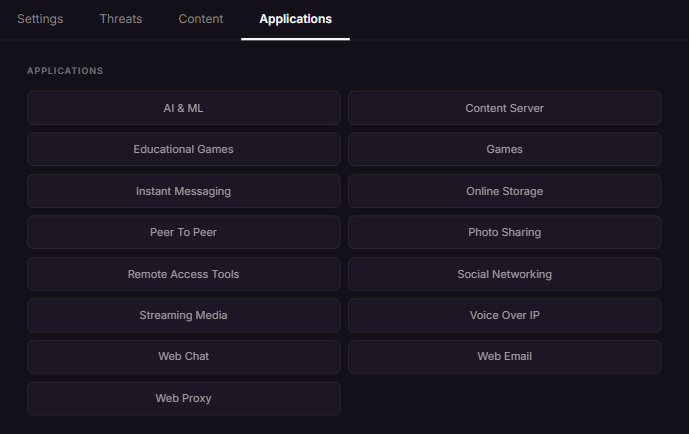
Application categories describes them and names example apps. The examples here use AI tools, but the same steps work for any of these categories.
Choose an approach
| You want | Set AI & ML in the policy to | Then build |
|---|---|---|
| Only approved AI tools | Blocked | An allow list with the approved tools |
| Most AI tools available, a few banned | Allowed | A block list with the banned tools |
If the answer to “which AI tools can people use?” is a short list, use the first approach. When ScoutDNS classifies a new AI tool into the AI & ML category, the category block covers it without anyone updating a list. A block list covers only the tools you’ve added to it, so the second approach needs a regular look at Insights to catch new ones.
Policies can differ, so a staff policy can allow one approved tool while a student or guest policy blocks all of AI & ML.
Find the apps your users reach
- Open Insights and select the Category tab.
- Set the time range to Last 30 Days. Insights opens on Last Hour, which can hide tools people use only occasionally, and 30 days is the longest range it offers.
- Open the filters panel, set Category Type to Applications, and press Apply. The table now lists only application categories, each with its Count.
- Click the AI & ML row and choose Show Domains.
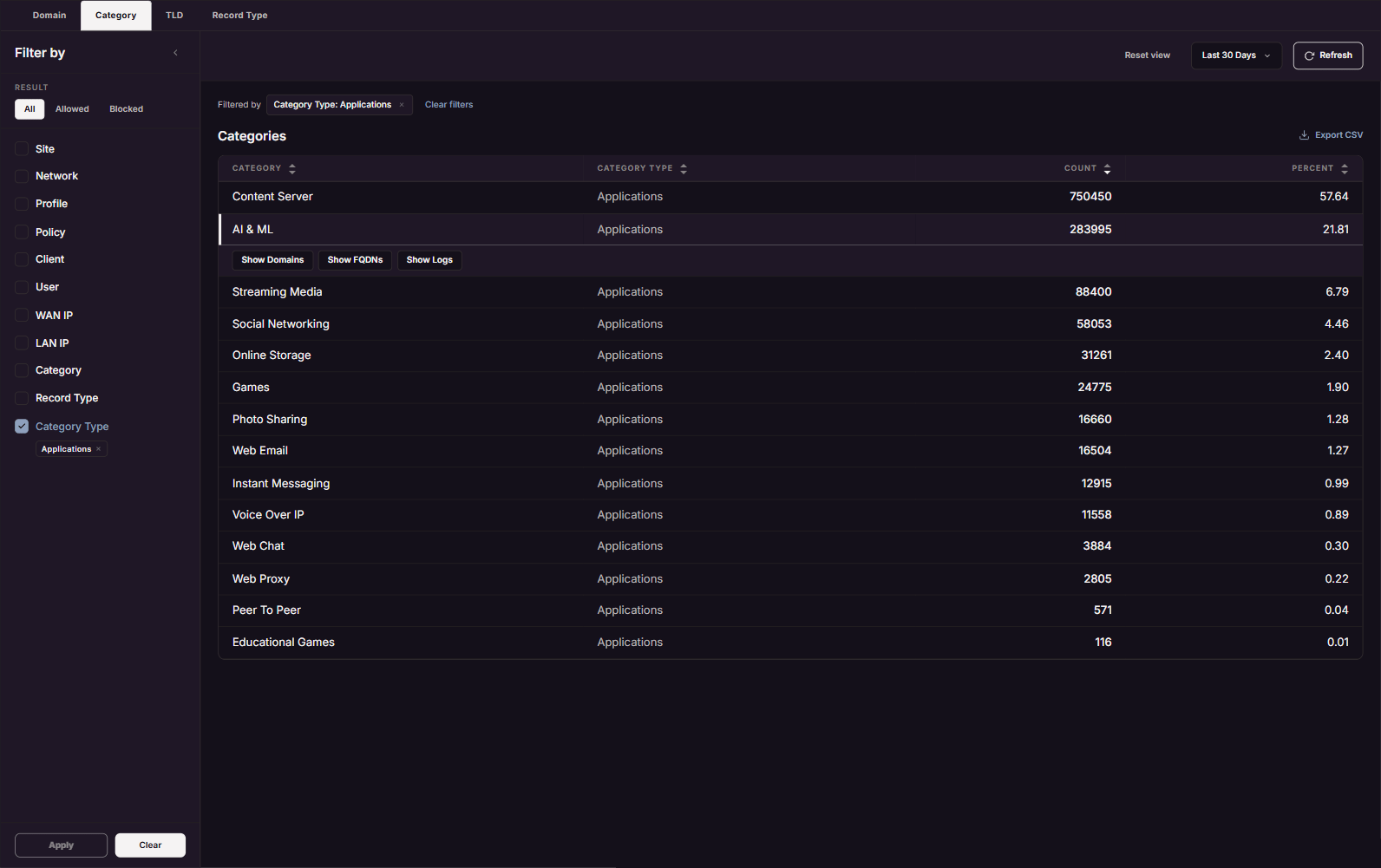
Each row in the domain list is a registered domain with at least one hostname in AI & ML during that period. A tool hosted under a large shared domain shows up under the shared domain, so Gemini, at gemini.google.com, makes google.com appear in the list. To see the exact hostnames, click the row and choose Show FQDNs.
The category block applies to those hostnames, not to the domain in the row. Blocking AI & ML blocks gemini.google.com and any other Google hostnames in AI & ML. The rest of google.com stays reachable.
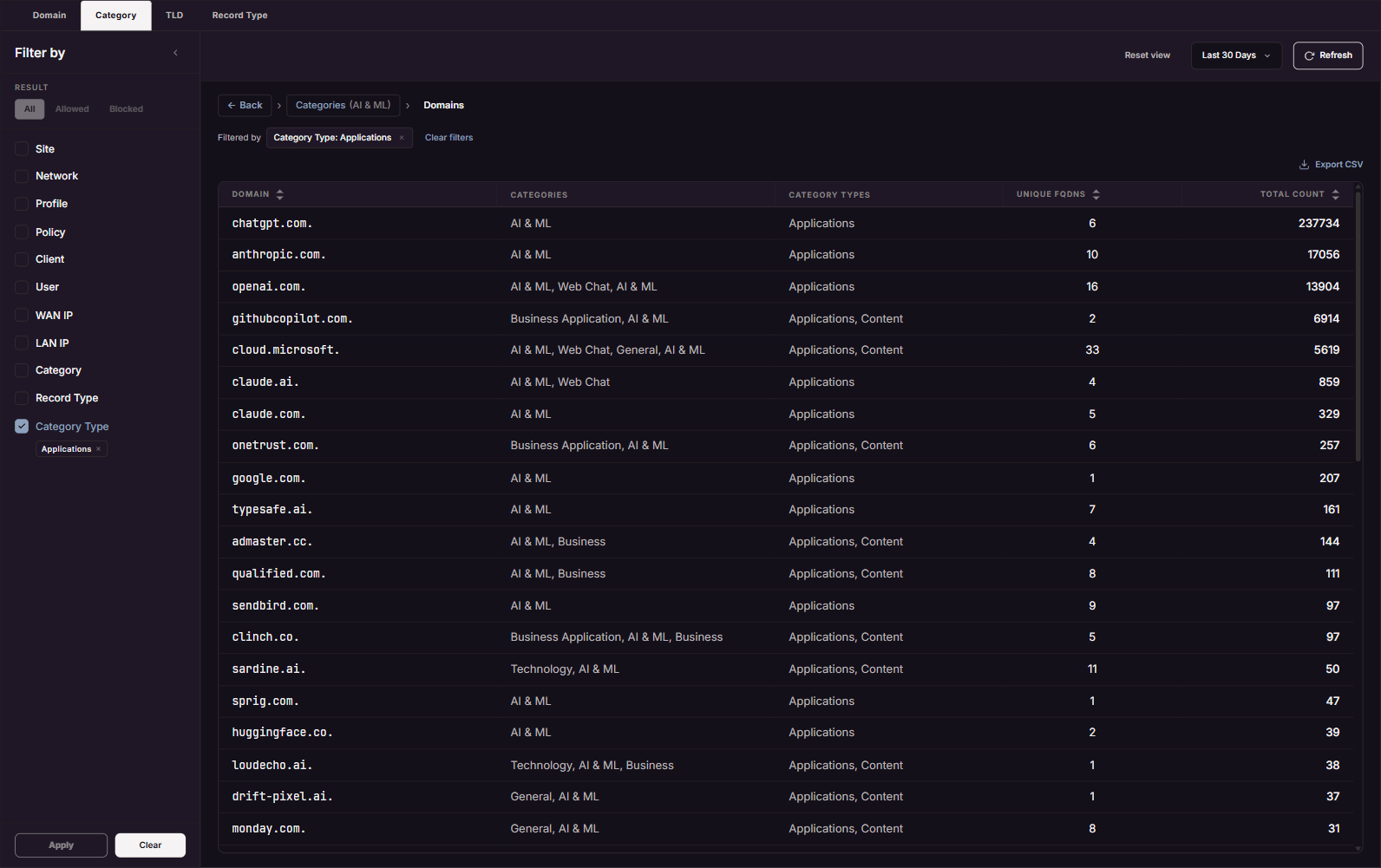
[!WARNING] Don’t add a large shared domain such as
google.comormicrosoft.comto a list from this view. A Subtree rule ongoogle.comcovers every Google service along with the AI tool. Choose Show FQDNs and add the specific hostname.
To see who is using a tool, add a Site, Client, or User filter, or choose Show Logs on a row to see the individual queries. Per-user results need the current ScoutDNS Windows client (see Insights overview: Filtering by user).
Add a domain to a list from Insights
The list has to exist before you can add to it. Open Lists in the sidebar, click New W/B list, name the list, and click Create list. Working with allow and block lists has the full steps.
Then, from any domain or FQDN row in Insights:
- Click the row and choose Add to List. A number on the button means the domain is already on that many lists.
- Under Choose list, pick the list.
- Choose Allow or Block.
- Choose Exact or Subtree. The drawer starts on Exact.
- Optionally add a note, such as the request behind the rule, and click Add entry.
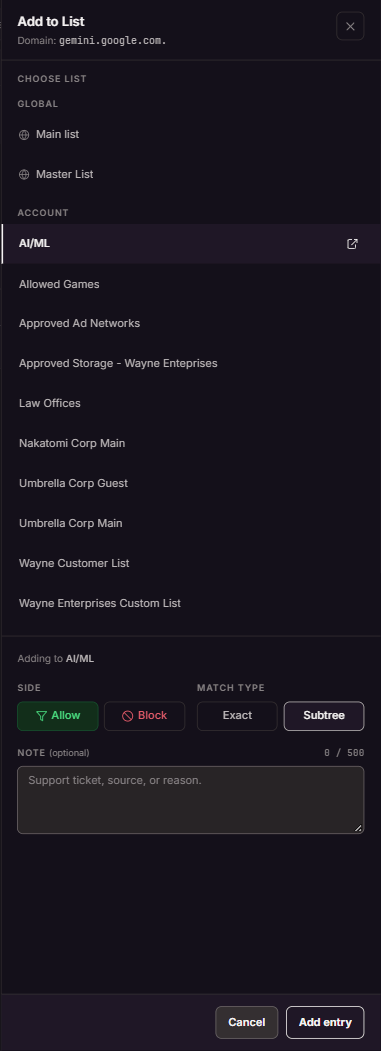
The drawer stays open after it saves. Close it with Cancel when you’re done.
Exact covers one hostname only (the list’s Rules tab calls it Match). Subtree covers the domain or hostname and everything under it. Use Subtree for a tool’s own domain, such as exampleai.com, so new subdomains are covered too. For a hostname under a shared domain, Subtree on that hostname covers it and anything beneath it without touching the rest of the shared domain.
Allow only approved AI tools
Build the allow list while AI & ML is still allowed, so the approved tool keeps working when the block starts.
- Create an allow list, for example “Approved AI”.
- If nobody has used the approved tool in the last 30 days, use it from a device that ScoutDNS filters so its traffic shows up in Insights.
- Follow Find the apps your users reach and add each of the tool’s domains or hostnames under AI & ML to the list as Allow. The category block affects only hostnames in AI & ML, so you don’t need to allow the tool’s other domains.
- Read through the rest of the AI & ML domain list before you block it. Business apps can have hostnames in AI & ML too, and the category block covers those hostnames, though not the rest of the app’s domain. For any business app your organization relies on, click its row, choose Show FQDNs, and add the hostnames it needs to the allow list.
- In Policies, open the policy and click Edit. On the Settings tab, tick the list under Allow / Block List (multi selection). On the Applications tab, click AI & ML so it turns red, which means blocked. Click Save.
- Over the next few days, check for anything the approved tool still needs. In Insights, on the Category tab, select Blocked under Result and press Apply. Result can’t be changed once you drill in, so set it first. Then click AI & ML and choose Show FQDNs. Any hostname from the approved tool in that list is being blocked, so add it to the allow list.
[!IMPORTANT] Attach the allow list to specific policies and leave Make global unticked. A global list applies to every policy, so a global “Approved AI” list would let the tool through on a student or guest policy too. Global lists also overrule lists attached to a policy, so a domain on a global block list stays blocked even if a policy’s allow list includes it.
[!NOTE] The built-in policies (Low, Moderate, High, No Policy) are read-only. Copy one into your own policy first, as described in Policies Overview - Create and Edit.
Block specific AI tools
- Create a block list, for example “Blocked AI”.
- Follow Find the apps your users reach and add each banned tool’s domains or hostnames to the list as Block.
- Attach the list to the policies it should apply to, the same way as step 5 in Allow only approved AI tools, and leave AI & ML unblocked on the Applications tab. If the list should apply to every policy, an Admin can tick Make global on the list instead.
Repeat the Insights check at least every four weeks, since Insights looks back 30 days at most. New AI tools show up under AI & ML as your users find them, and the block list doesn’t cover them until you add them.
Limits
- An AI feature built into an app you already allow can use that app’s own domains. If it does, blocking AI & ML won’t remove the feature, and blocking its domains would block the whole app.
- Devices that skip ScoutDNS, for example a browser using its own DNS over HTTPS resolver, aren’t filtered by categories or lists. See Prevent DNS bypass.
- A tool nobody used in the last 30 days won’t appear in Insights.
FAQ
We blocked AI & ML and the approved tool stopped working. Check whether any of its hostnames are still blocked. On the Insights Category tab, select Blocked under Result and press Apply, then click AI & ML and choose Show FQDNs. Add any of the tool’s hostnames you find there to the allow list. Then confirm the allow list is ticked in the policy the device uses.
I added google.com (or another shared domain) by mistake.
Open the list from Lists, remove the rule, and add the specific hostname from Show FQDNs instead.
An AI tool doesn’t appear under AI & ML. Nobody may have used it in the selected time range, or ScoutDNS may classify it differently. Look it up with the Lookup tool to see its categories, and report it from there if it’s misclassified.
How do I check which list covers a domain? On the Lists page, switch the search to By domain and type the hostname. It shows every list that covers it and which rule wins.
Who can make these changes? Service Desk can add and remove rules on existing lists but can’t create a list or edit a policy. Creating a list needs a Super Admin, Admin, or Organization Operator. Editing policies and making a list global need a Super Admin or Admin. Viewers can’t make changes.
Related
- Application categories, every application category and what it covers
- Working with allow and block lists, match types and how rules are evaluated
- Insights overview, filters, drilling, and exporting
- Policies Overview - Create and Edit, choosing what a policy blocks