Browse Integrations & API
- Dashboard overview
- Insights overview
- Sites Overview - Network Deployments
- Policies Overview - Create and Edit
- Custom Lists overview
- Clients Overview - Device Agents and Profiles
- Users Overview - Directory Users and Personas
- Organizations Overview - MSP Tenant Management
- Lookup Tool Overview
- Query Log Overview
- Settings Overview - Account Administration
- Help & Support Overview
- Signing In - Login, 2FA, and Password Reset
- Two-factor authentication (2FA)
- Add system users (role-based access)
- Check domain classification with the Lookup Tool
- Configurable objects and their associations
- Configure notifications
- Working with organizations (multi-tenant)
- Working with policies
- Content categories
- Security categories
- Application categories (Zero Trust app management)
- Working with allow and block lists
- Zero Trust TLD Filters
- Safe Search explained
- Safe Search supported search engines
- YouTube Restricted Mode explained
- Custom block pages
- Prevent DNS bypass
- Don't mix DNS providers
- Active Directory group policies
- Entra ID group policies
- Tracking individual users
Single sign-on (SSO) with Microsoft Entra ID
Enable SSO for the ScoutDNS Admin Console via Microsoft Entra ID, with Super Admin and Org Operator staying local for break-glass access.
ScoutDNS supports single sign-on through Microsoft Entra ID (formerly Azure AD), using OpenID Connect (OIDC) for secure communication. Once enabled, Admin, Service Desk, and Viewer accounts authenticate through Entra; only Super Admin and Organization Operator roles continue to use local logins.
[!IMPORTANT] Enabling SSO disables local password login for existing Admin, Service Desk, and Viewer accounts. They will only be able to sign in through Entra ID from that point on. Super Admin and Org Operator accounts are unaffected and serve as your break-glass access if Entra is misconfigured.
Setup uses the shared ScoutDNS multi-tenant app; there is no Enterprise Application registration to create on your side.
[!NOTE] If your account was set up on the older per-tenant App Registration path (a unique login URL with a custom-assigned Enterprise Application), contact ScoutDNS support before making changes; that path is no longer documented here.
SSO setup
Step 1: Set your Entra Tenant ID in ScoutDNS
- In the Entra admin portal, open the Home or Overview tab and copy your Tenant ID.
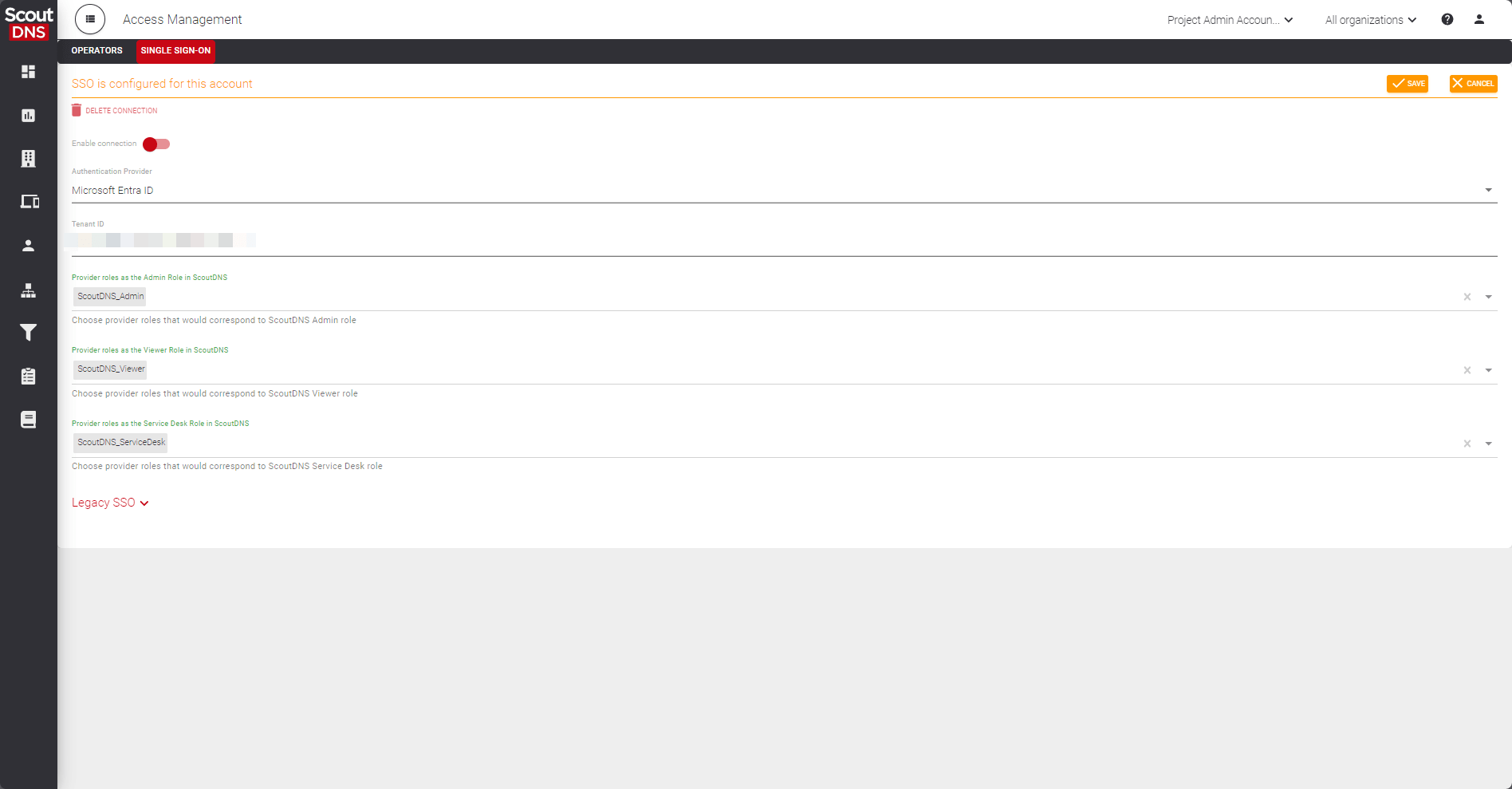
- In ScoutDNS, open Settings → Access Management and switch to the Single Sign-On tab. The tab is visible to the Super Admin only.
- Click New SSO Configuration.
- Paste your Tenant ID, leave Enabled on, and click Save. You can disable the connection at any time to revert to local logins.
Step 2: Authorize ScoutDNS in Entra
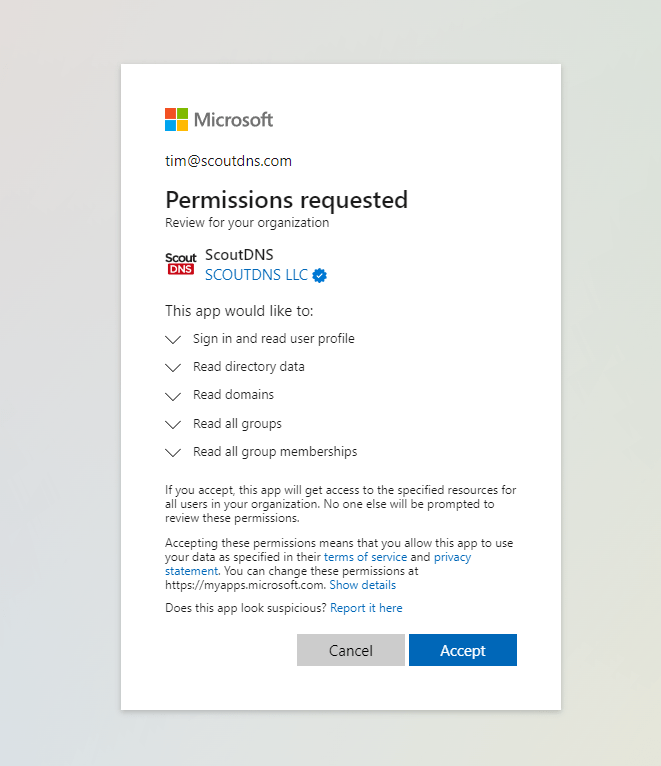
Sign in to the ScoutDNS admin-consent URL with an Entra account that has permission to grant tenant-wide consent (typically Global Admin or Privileged Role Admin).
You’re granting ScoutDNS read access to user profiles and groups so it can verify role assignments at login.
Step 3: Assign Entra users and groups to ScoutDNS roles
- In the Entra admin console, go to Enterprise Applications and open ScoutDNS.
- Under Manage → Users and Groups, add users or groups and assign them a ScoutDNS role. (Microsoft’s UI changes periodically; see Microsoft’s guide to assigning users and groups for current steps.)
Available roles:
| Role | Permissions |
|---|---|
ScoutDNS_Admin |
Full access to the ScoutDNS Admin Console |
ScoutDNS_Service_Desk |
Limited admin: support / activity-log access, no policy or billing changes |
ScoutDNS_Viewer |
Read-only access |
Step 4: Sign in with Microsoft
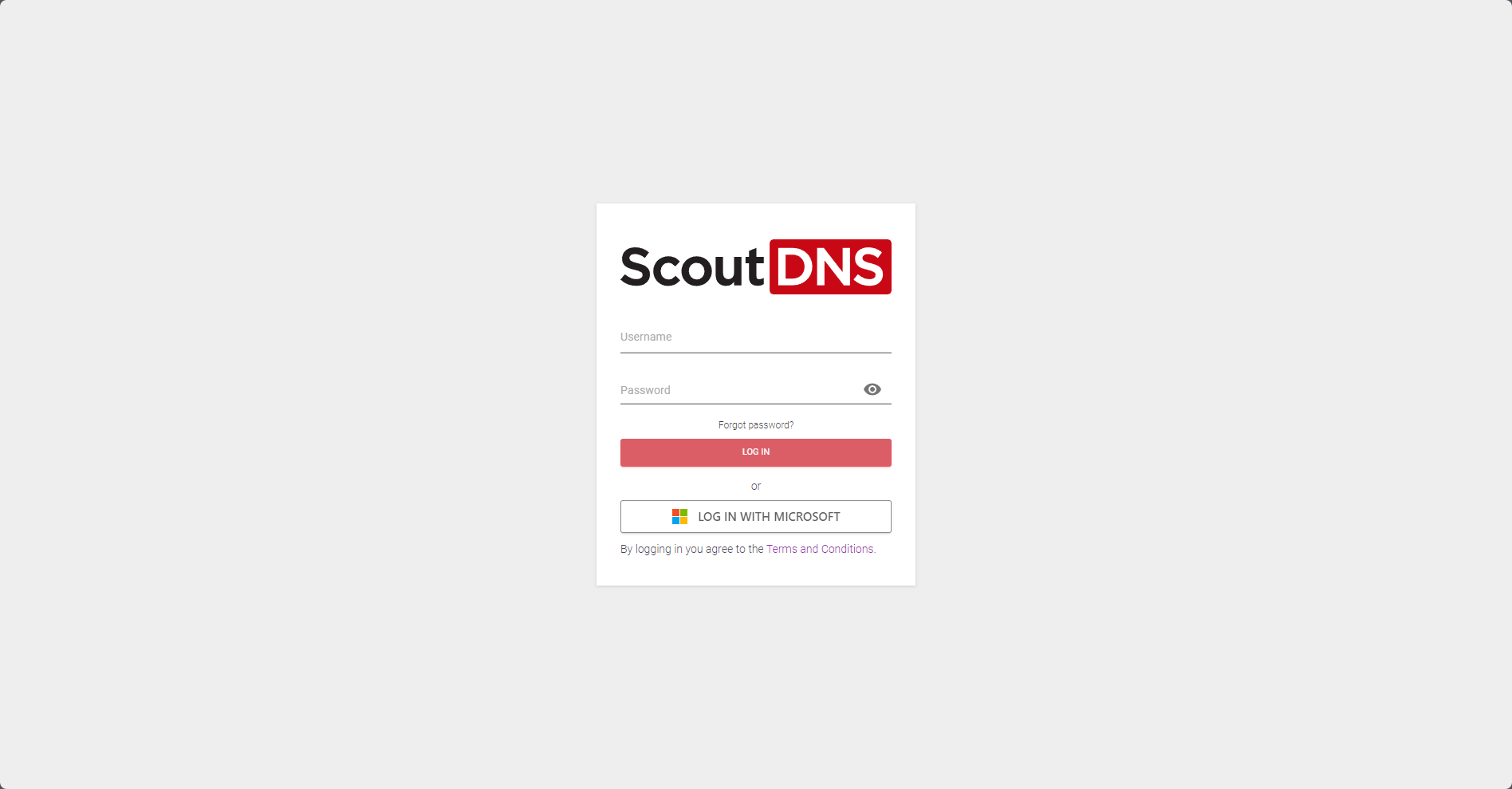
Direct users to app.scoutdns.com and have them click Log In with Microsoft.
Things to remember
[!IMPORTANT] Keep a backup path. The Super Admin account is your break-glass access, it can disable SSO if Entra ever fails or is misconfigured. Enable 2FA on the Super Admin account to protect it.
- Super Admin and Organization Operator are exempt from SSO. Org Operators are intended for external organizations, partners, or end customers and have limited permissions.
- You can keep both local and Entra-linked accounts configured in ScoutDNS at the same time. If SSO ever needs to be turned off, your previously created local accounts can still sign in via the standard flow.
- Group-based assignment scales better than per-user assignment. Create Entra security groups (e.g.
IT-Admins,ServiceDesk) and assign those groups to ScoutDNS roles rather than individual users.