Browse Policies & Filtering
- Dashboard overview
- Insights overview
- Sites Overview - Network Deployments
- Policies Overview - Create and Edit
- Custom Lists overview
- Clients Overview - Device Agents and Profiles
- Users Overview - Directory Users and Personas
- Organizations Overview - MSP Tenant Management
- Lookup Tool Overview
- Query Log Overview
- Settings Overview - Account Administration
- Help & Support Overview
- Signing In - Login, 2FA, and Password Reset
- Two-factor authentication (2FA)
- Add system users (role-based access)
- Check domain classification with the Lookup Tool
- Configurable objects and their associations
- Configure notifications
- Working with organizations (multi-tenant)
- Working with policies
- Content categories
- Security categories
- Application categories (Zero Trust app management)
- Working with allow and block lists
- Zero Trust TLD Filters
- Safe Search explained
- Safe Search supported search engines
- YouTube Restricted Mode explained
- Custom block pages
- Prevent DNS bypass
- Don't mix DNS providers
- Active Directory group policies
- Entra ID group policies
- Tracking individual users
Active Directory group policies
Apply ScoutDNS policy by Active Directory group so policy follows the user across devices; AD info is collected by the roaming agent.
ScoutDNS can enforce policy by Active Directory group membership so the policy follows the user, not the device. Useful when:
- The same shared device serves different users with different access needs.
- Roaming users move between devices and you want a single source of truth (the AD group) driving filtering.
- You want different policies for Sales, Engineering, Service Desk, etc. without touching each device.
[!NOTE] For Microsoft Entra ID (formerly Azure AD) group-based policy, see Entra ID group policies instead. This article covers on-prem Active Directory.
How AD sync works (no domain-controller access)
ScoutDNS does not connect directly to your domain controllers. There’s no sync VM, no service account, no LDAP bind.
Instead, the roaming agent collects the domain, user, and group information directly from each client device when a user logs in. That data is uploaded to ScoutDNS and used to build a Persona, the object that maps AD groups to policies.
This means three things matter:
- Devices must run the ScoutDNS roaming agent. If you haven’t deployed agents yet, start there.
- A user has to sign in at least once on an agent-equipped device for their groups to be discovered.
- Group visibility is bounded by what your users actually log into. Groups that no agent-equipped user belongs to won’t appear as observed groups (you can still type them in by hand, see below).
Step 1: Enable user policies on the device profile
AD group policy is layered on top of device profiles. The profile sets a default policy; AD groups override it for matching users.
- Open Clients, switch to the Configure tab, and click the relevant profile.
- Click Edit profile, then toggle Enable User Policies on.
- Save.
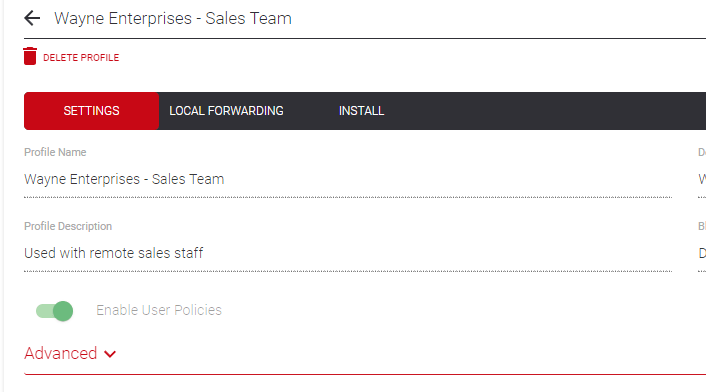
[!IMPORTANT] The profile’s default policy is the fallback for any user who is not in any AD group with an assigned policy. Pick a sensible default, that’s what unmapped users will get.
Step 2: Create a Persona
A Persona defines how AD groups map to policies for a given domain. You need Admin or Super Admin (an organization Manager can also do this with their organization selected).
- Open Users and switch to the Configure tab.
- Click New Persona. If your account uses Organizations, the persona is created in the organization currently selected in the header; with no organization selected you’ll be asked to pick one first (new personas are always scoped to a single organization, and choosing one also switches your console to that organization’s view).
- Name the Persona, set Service to Active Directory, and pick your domain from the AD Domain dropdown. Domains appear here once agent-equipped devices have reported them, and only domains not already bound to another Persona are listed.
- Click Create Persona.
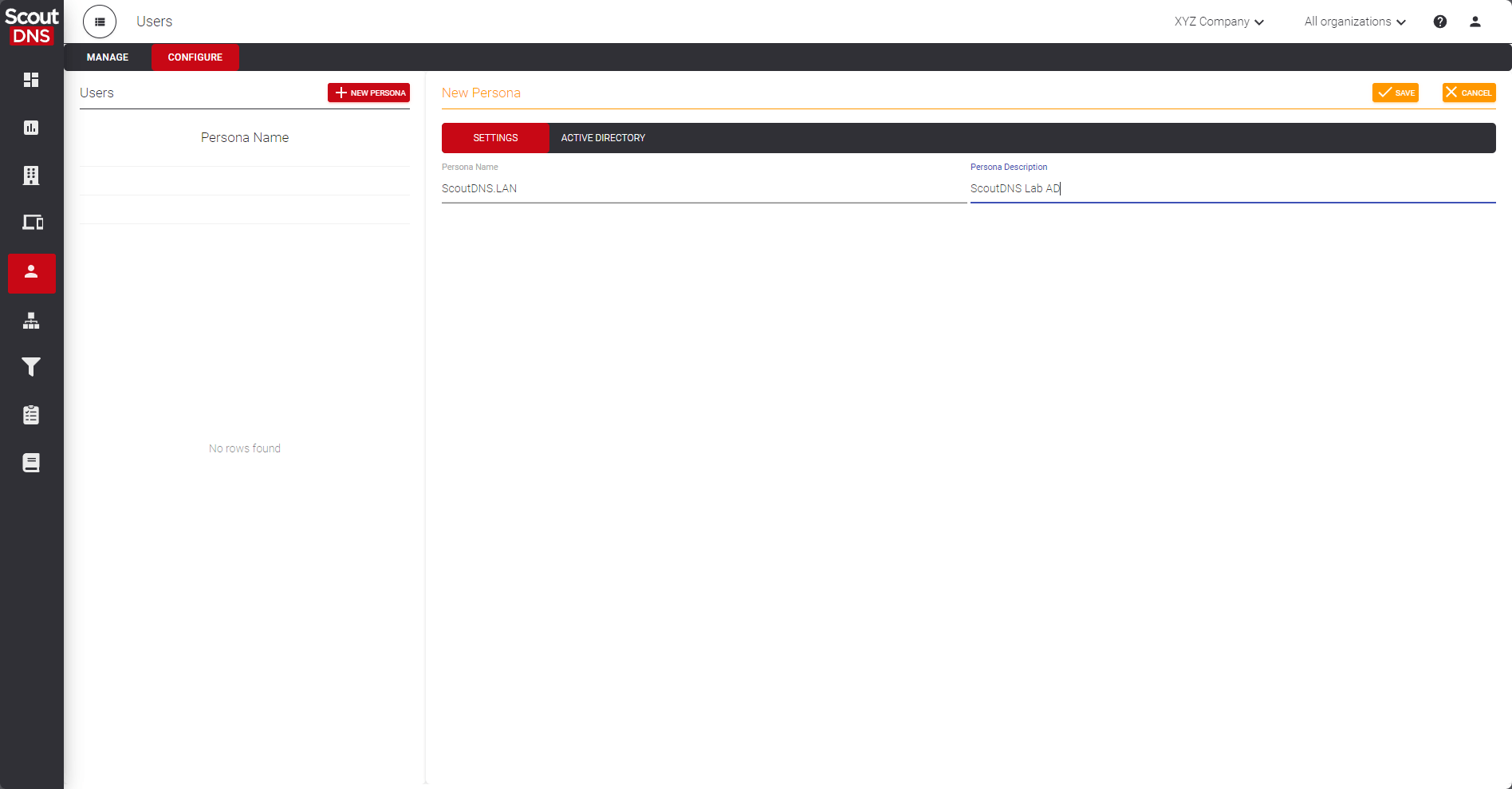
[!NOTE] A Persona has exactly one binding, either an AD domain or an Entra tenant, and a domain can be bound to only one Persona. The binding is permanent: to point a Persona at a different domain, delete it and create a new one. If you have multiple AD domains, create one Persona per domain.
Map groups to policies and set priority
Open the new Persona from the personas table and switch to its Active Directory tab. Groups discovered through your roaming agents appear under Observed Groups; the mappings you configure live under Configured Groups.
- Click Edit Groups.
- Add groups from Observed Groups, or use New to type a group name that hasn’t been observed yet.
- For each configured group, pick the Policy that applies. Every group needs a policy; the save is rejected otherwise.
- Order the rows with the up/down arrows. The Pri. column follows the order: row 1 is priority 1 (highest). Priority resolves conflicts when a user is in more than one mapped group, the highest-priority match wins.
- Save.
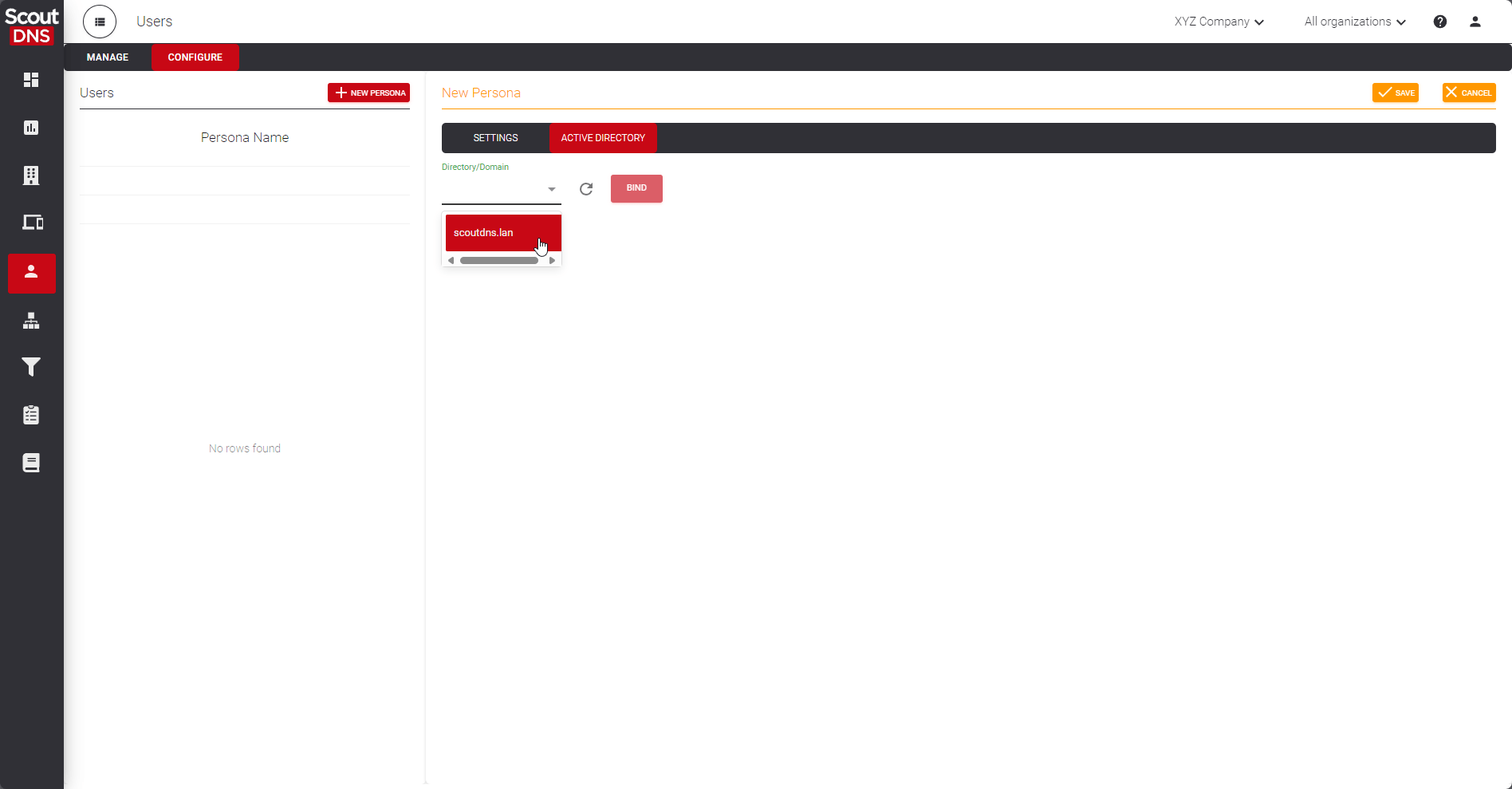
Any AD security group can be selected for policy assignment. ScoutDNS applies the new mapping for matching users on the next DNS query.
Organizations (MSP accounts)
On accounts with the Organizations tab, the persona is linked to the organization you chose at creation, so the Users tab and per-tenant reporting line up automatically. You can review or change links later from Organizations → (your org) → Personas, the same pattern as linked Sites and Profiles.
Related
- Roaming clients (device agents), agents are how AD group info reaches ScoutDNS
- Entra ID group policies, the Entra-ID counterpart
- Working with policies, defining the policies that AD groups get mapped to
- Organizations, multi-tenant configuration
- Tracking individual users, what visibility each deployment method offers