Browse Deployment & Clients
- Dashboard overview
- Insights overview
- Sites Overview - Network Deployments
- Policies Overview - Create and Edit
- Custom Lists overview
- Clients Overview - Device Agents and Profiles
- Users Overview - Directory Users and Personas
- Organizations Overview - MSP Tenant Management
- Lookup Tool Overview
- Query Log Overview
- Settings Overview - Account Administration
- Help & Support Overview
- Signing In - Login, 2FA, and Password Reset
- Two-factor authentication (2FA)
- Add system users (role-based access)
- Check domain classification with the Lookup Tool
- Configurable objects and their associations
- Configure notifications
- Working with organizations (multi-tenant)
- Working with policies
- Content categories
- Security categories
- Application categories (Zero Trust app management)
- Working with allow and block lists
- Zero Trust TLD Filters
- Safe Search explained
- Safe Search supported search engines
- YouTube Restricted Mode explained
- Custom block pages
- Prevent DNS bypass
- Don't mix DNS providers
- Active Directory group policies
- Entra ID group policies
- Tracking individual users
Relay setup and configuration
Install the ScoutDNS Relay for per-subnet policy, LAN-aware logging, encrypted upstream DNS, and local-domain forwarding.
The ScoutDNS Relay is a lightweight service that runs inside your network. It acts as a local forwarding resolver: internal queries (to your domain controllers, printers, internal apps) stay on the LAN, while public queries are forwarded over DoH to the ScoutDNS cloud for filtering and logging.
Running a Relay unlocks:
- Per-subnet policy (different rules for different LANs)
- LAN IP in query logs (instead of just your WAN IP)
- Encrypted upstream DNS (DoH on port 443 to ScoutDNS)
- Local network aliases for forwarding to internal DNS
- Local DNS forwarding to domain controllers
- Automatic updates of the Relay software
[!IMPORTANT] The Relay is not a full DNS server. It does not host zones or serve authoritative records. It forwards queries to your internal DNS for configured local domains, and to ScoutDNS for everything else.
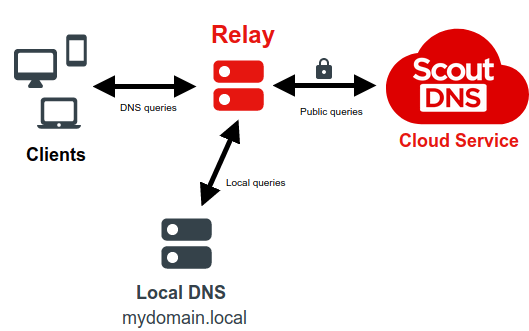
Cloud-configured architecture
The Relay is fully cloud-configured to keep install and management simple. Two steps:
- Install the Relay on a local host.
- Configure the Relay in the ScoutDNS UI.
The Relay service is tested on Debian-based Linux distributions (Ubuntu and similar). Binaries are published per platform, and a Docker container image is available for container deployments.
Install the Relay
Prepare the host
Minimum hardware requirements:
| Scenario | CPU | RAM | Storage |
|---|---|---|---|
| Single subnet, light usage | 1 | 1 GB free | 40 GB |
| Multiple subnets / forward rules | 2 | 2 GB free | 50 GB |
| Each additional 1,000 simultaneous users | +1 | +1 GB | (no change) |
Networking prerequisites:
- The host will act as DNS for every subnet that uses it, so every subnet must be routable to the host.
- The Relay host itself should point at your local DNS server so non-forward-specified local queries still resolve.
Download the installer
In the console, open Help → Download Relay. The page lists a binary for each supported platform, and a container option (docker pull scoutdns/relay) with a link to Docker Hub. There is no install key: install the Relay and it checks in to the console on its own.
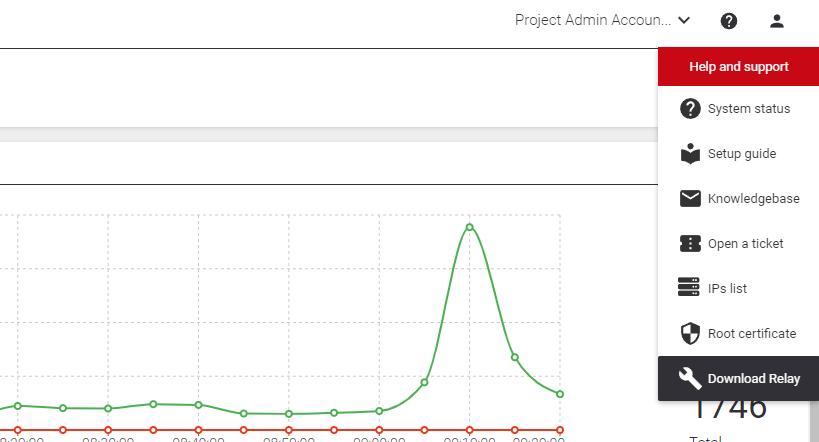
Download the binary for your platform, copy it to your Relay host, and unpack it.
Install the service
sudo ./scoutdns install-dnsThe service starts automatically once installed and self-updates to the latest version when one is available.
Service control commands
# Check service status
sudo systemctl status scoutdns scoutdns-updater

# Restart the relay
sudo systemctl restart scoutdns

# Tail service logs
sudo journalctl -u scoutdns -u scoutdns-updater

# Export logs for a support case (since yesterday)
sudo journalctl -u scoutdns -u scoutdns-updater -S yesterday > scoutdns_log.txt
Uninstall
sudo /opt/scoutdns/scoutdns uninstall-dnsWhen the service is stopped or uninstalled, the host’s DNS settings are automatically reverted.
[!NOTE] The Relay sends all upstream DNS queries to ScoutDNS using DoH over port 443. No port 53 outbound is required for normal operation.
Configure the Relay in the ScoutDNS UI
Before the Relay can be detected, its WAN must already be configured in the Admin Console. See the Quick Start Setup Guide: WAN Forwarding for the initial WAN setup.
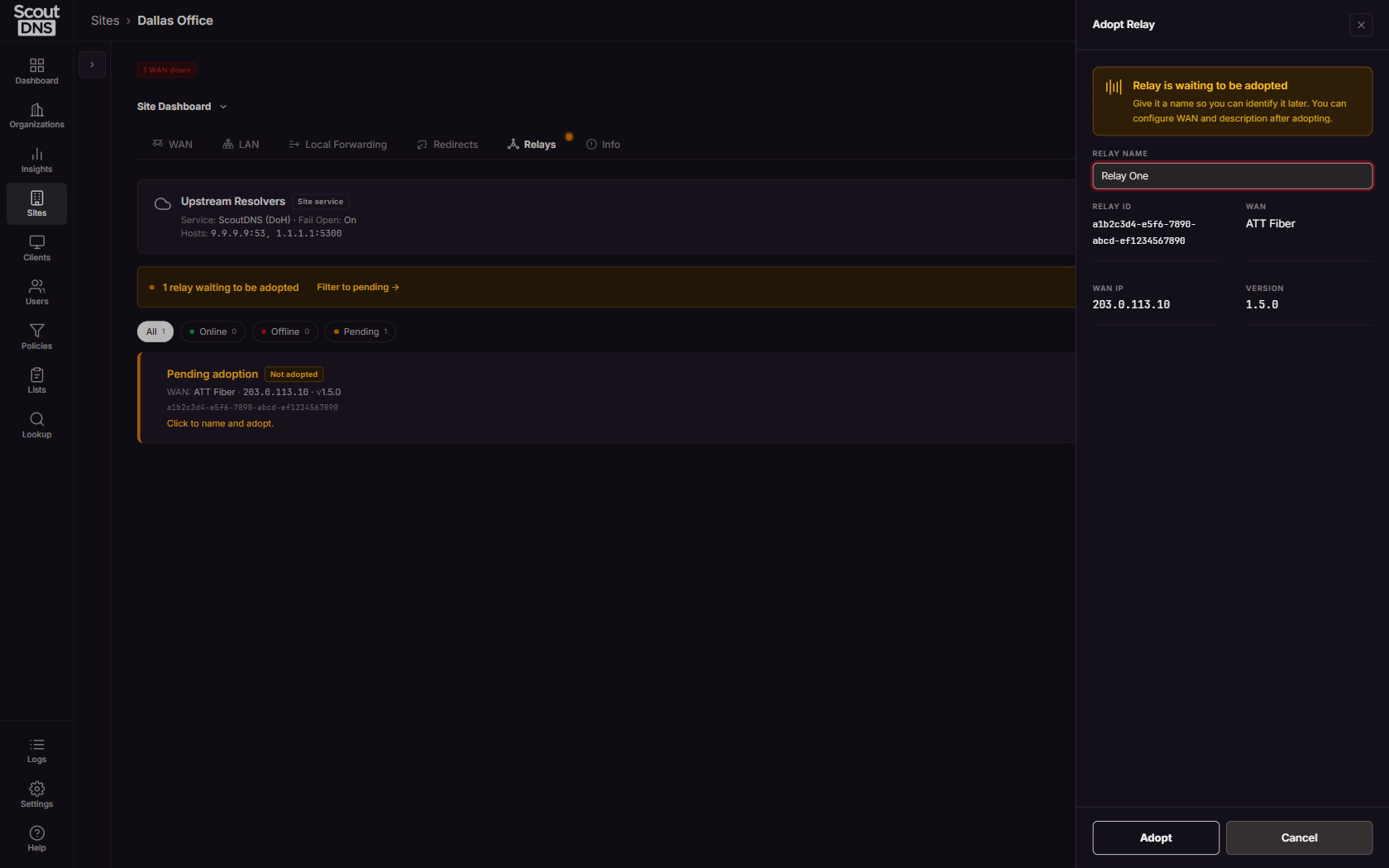
Once the Relay is installed on a configured WAN, it registers itself with ScoutDNS and appears as a card on the site’s Relays tab with a Not adopted badge; the tab shows an amber dot and a banner counts relays waiting to be adopted.
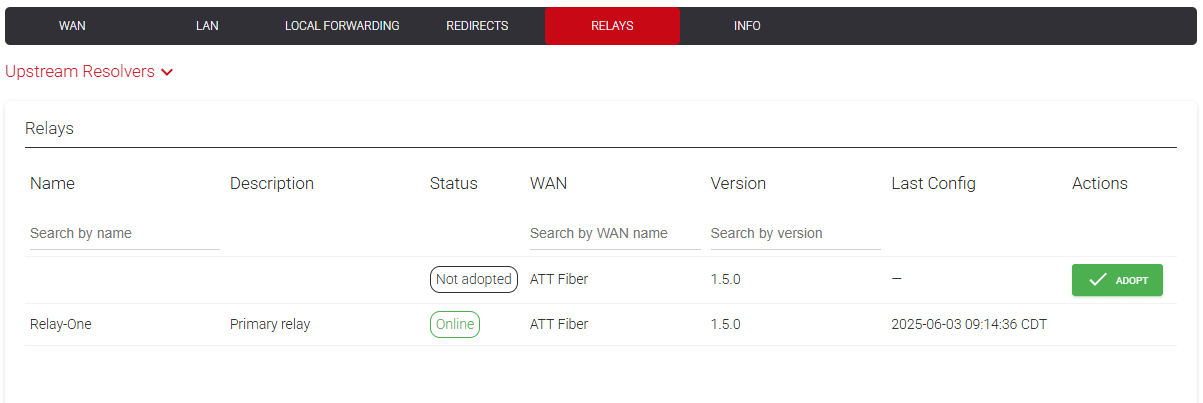
Click the pending card, give the Relay a name in the Adopt Relay drawer, and click Adopt. Adoption binds the Relay to the site and turns it on; the card reads Adopting for a minute or two while it syncs its configuration over HTTPS, then Online.
[!NOTE] Registering a Relay also unlocks the site’s LAN, Local Forwarding, and Redirects tabs, which are locked (with a “Relay required” notice) until then.
[!TIP] Install multiple Relays on the same site for high availability. They share configuration and clients can fail over between them.
Upstream resolvers
By default the Relay forwards to ScoutDNS’s global anycast network over DoH in a fail-closed state. The Upstream Resolvers card at the top of the Relays tab shows the current service, the Fail Open state, and any fallback hosts; click the card to open Edit Fallback DNS. You can switch to other upstream services (Google DoH, Cloudflare DoH), but those are unfiltered: no ScoutDNS policy applies unless ScoutDNS DoH is the upstream.
Fallback DNS (fail-open)
Turning on Fail Open lets the Relay forward to backup resolvers when the ScoutDNS network is unreachable. In Edit Fallback DNS, use Add Host to enter each backup resolver’s address and port.
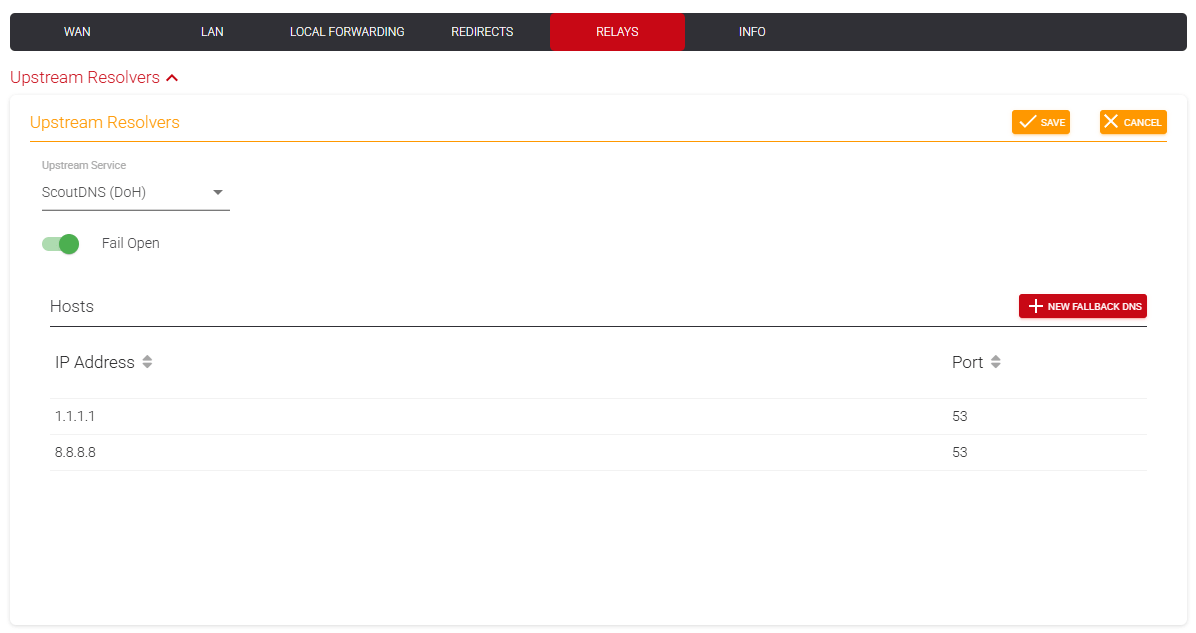
[!WARNING] Fail-open queries use standard port 53 DNS, not DoH. Allow outbound port 53 from the Relay host through your firewall if you enable this.
Dynamic WAN
Under normal conditions the Relay uses the site’s WAN IP as a unique identifier, so the WAN must be static (or kept current with a dynamic-DNS updater). For double-NAT or rapidly-rotating ISP IPs, that updater can lag.
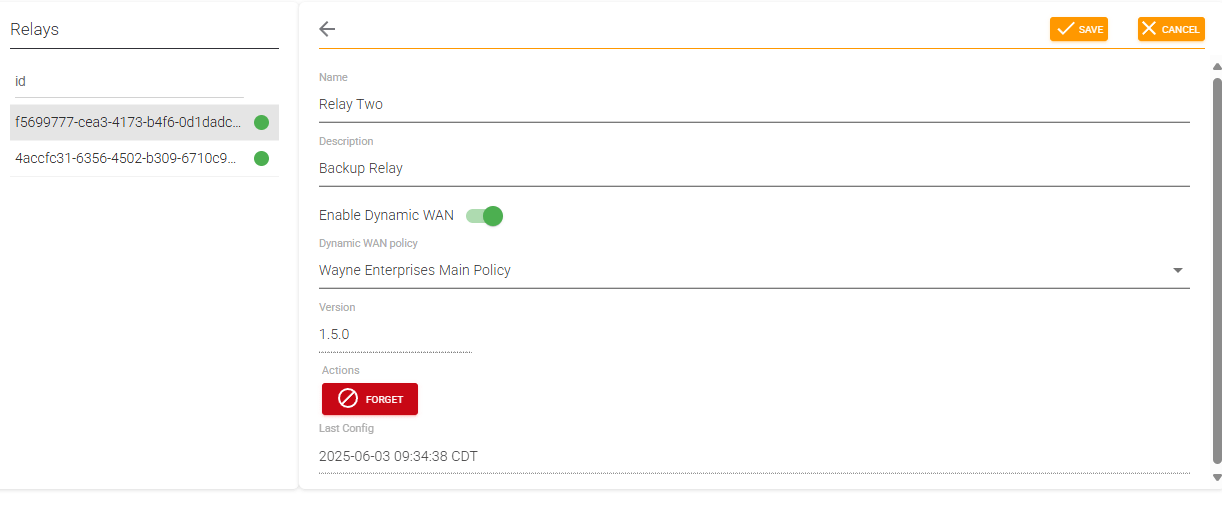
Enabling Dynamic WAN decouples the Relay from the WAN IP after adoption. Traffic is still associated with the site for logging.
Since the Relay normally inherits the WAN’s policy as a default for unconfigured subnets, you must pick a fallback policy when Dynamic WAN is on. Click the Relay’s card to open Edit Relay, turn on the Dynamic WAN toggle, and select a Dynamic WAN policy from the dropdown that appears.
Local forwarders
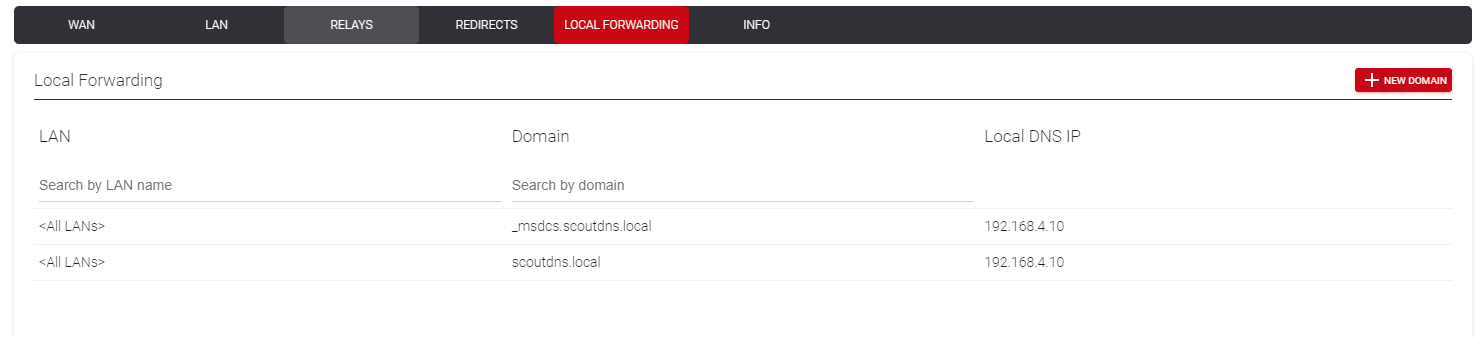
Tell the Relay where to send queries for internal domains (Active Directory, internal apps, etc.). On the site’s Local Forwarding tab:
- Click New Domain.
- Choose which configured LAN the rule applies to, or leave All LANs.
- Enter the local domain name (e.g.
corp.example.com). - Use Add IP to enter each internal DNS server (your domain controllers); at least one is required.
- Save.
Forward lookup zones
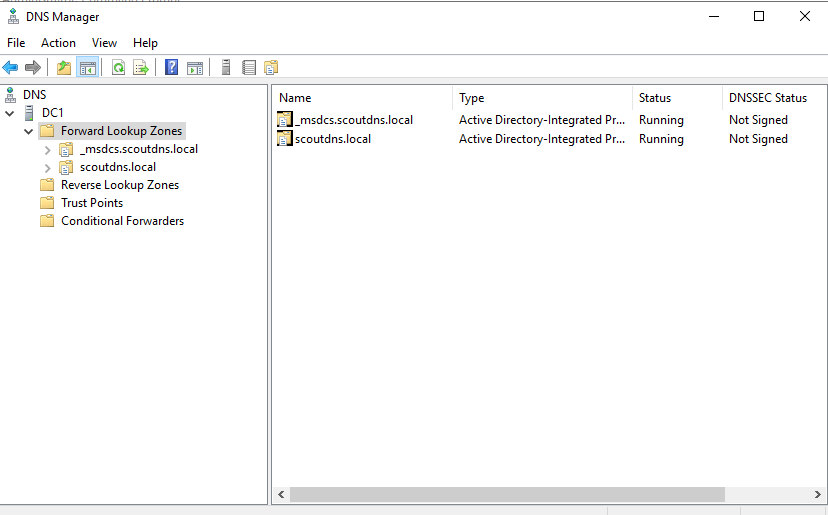
Add every domain listed in your domain controller’s Forward Lookup Zones. From Windows DNS Manager, identify each forward-lookup zone and create a matching forwarder entry in ScoutDNS.
Redirects
Redirects let you point a specific domain at a specific IP, useful for internal printers, video players, or overriding any internal/external domain to a custom IP. Effectively manual DNS records for Relay-connected devices.
- Open the site’s Redirects tab and click New Redirect.
- Pick the WAN it applies to, or leave All WANs.
- Enter the domain and target IP.
- Save.
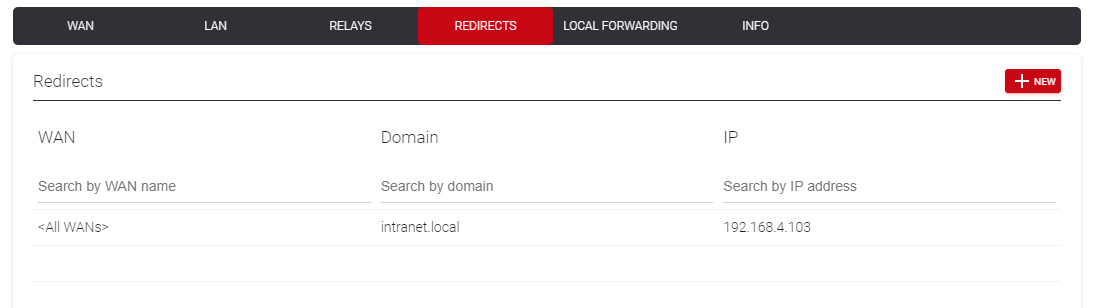
[!WARNING] Redirecting a domain that has an existing TLS certificate will cause certificate errors in browsers. Use redirects for internal-only hostnames or accept the cert warning.
LAN
LAN rules let you apply different policies to different subnets. On the site’s LAN tab:
-
Click New LAN.
-
Name the LAN (shown in reports and other tabs).
-
Pick the WAN it applies to (default: All WANs).
-
Set the IP range (CIDR). Examples:
192.168.3.0/24 10.10.0.1/22 10.10.0.1/20 172.16.0.0/21 -
Assign one of your existing policies.
-
Save.
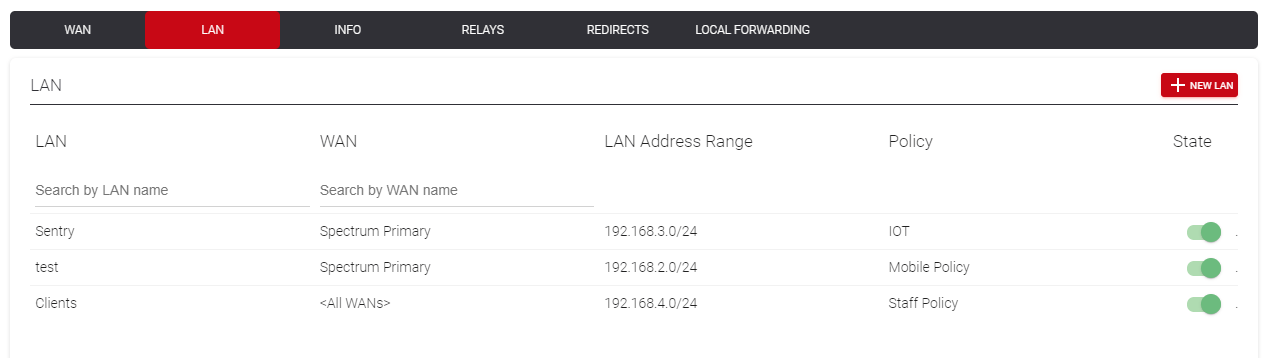
You can also specify individual IPs to give one device its own policy. Pair this with a static IP or DHCP reservation so the device’s address doesn’t change.
Test the Relay
Before pointing client devices at the Relay, verify it resolves both public and local queries from every subnet you plan to use it on.
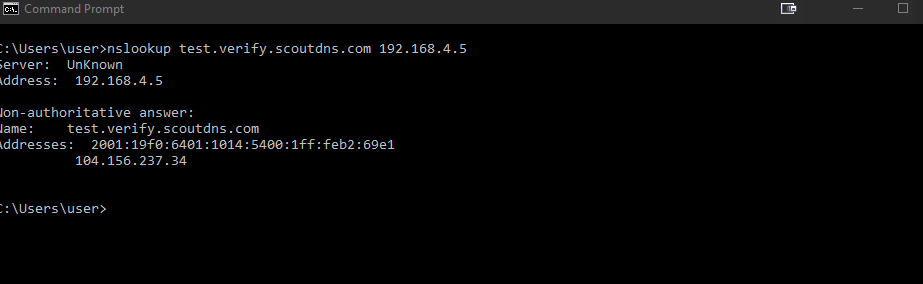
Public DNS test:
nslookup test.verify.scoutdns.com <RELAY_HOST_IP>test.verify.scoutdns.com only resolves through a configured ScoutDNS network, a successful answer confirms the Relay is reaching ScoutDNS and returning results.
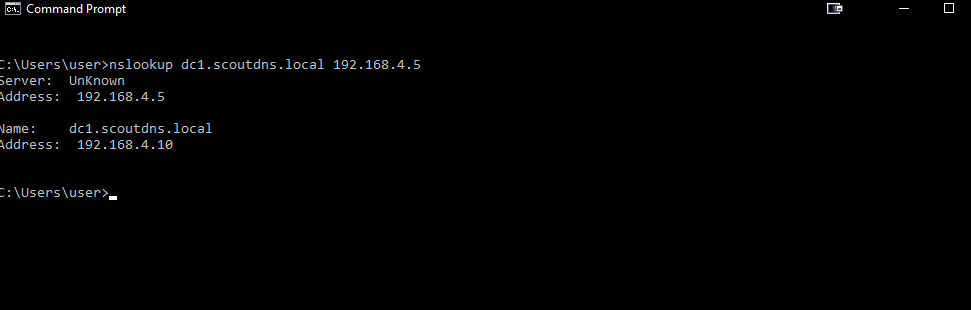
Local DNS test:
nslookup example.yourlocaldomain.corp <RELAY_HOST_IP>This verifies the Relay is forwarding correctly to your local DNS for internal domains.
If either resolution fails, confirm the Relay host is online and reachable (ping/route) from the affected subnet. If you run multiple Relays, repeat both tests against each Relay’s IP.
Point local clients at the Relay
Configure your DHCP server to hand out the Relay host IP(s). With multiple Relays installed, hand out multiple IPs for redundancy. Test every Relay before rolling out broadly.
[!IMPORTANT] Do not mix DNS server types on client devices. Don’t combine a Relay IP with a domain controller IP, a ScoutDNS Anycast IP, or any other resolver in the same DHCP option. Mixed sets produce inconsistent policy enforcement and some queries won’t be logged or filtered.
[!TIP] Best practice: manually set the Relay as DNS on a handful of test devices across each subnet, validate behavior, then push the change via DHCP.
Existing IP leases
DHCP renewal pushes new DNS settings to clients. For domain-joined machines under Group Policy you can force this via:
ipconfig /renewrun via batch file. Unmanaged devices need a manual renewal or a restart.
Support boundary
[!NOTE] In scope: ScoutDNS supports installation and configuration of the Relay service on qualified hosts, and the cloud-side GUI configuration.
Out of scope: ScoutDNS does not provide support for local network configurations, host OS/networking issues, Windows domain controllers, or DHCP configuration in Windows or other vendor equipment. Please consult the relevant vendor documentation for those areas.