Browse Admin Console
- Dashboard overview
- Insights overview
- Sites Overview - Network Deployments
- Policies Overview - Create and Edit
- Custom Lists overview
- Clients Overview - Device Agents and Profiles
- Users Overview - Directory Users and Personas
- Organizations Overview - MSP Tenant Management
- Lookup Tool Overview
- Query Log Overview
- Settings Overview - Account Administration
- Help & Support Overview
- Signing In - Login, 2FA, and Password Reset
- Two-factor authentication (2FA)
- Add system users (role-based access)
- Check domain classification with the Lookup Tool
- Configurable objects and their associations
- Configure notifications
- Working with organizations (multi-tenant)
- Working with policies
- Content categories
- Security categories
- Application categories (Zero Trust app management)
- Working with allow and block lists
- Zero Trust TLD Filters
- Safe Search explained
- Safe Search supported search engines
- YouTube Restricted Mode explained
- Custom block pages
- Prevent DNS bypass
- Don't mix DNS providers
- Active Directory group policies
- Entra ID group policies
- Tracking individual users
Add system users (role-based access)
Add and manage operator accounts: built-in roles, organization operators for MSP tenants, revoking access, and Super Admin transfer.
ScoutDNS supports role-based access control so multiple operators can share an account with the right level of access. Operators are managed under Settings → Access Management, on the Operators tab.
[!NOTE] To manage role assignments through Microsoft Entra ID instead of (or in addition to) local ScoutDNS users, see SSO with Entra ID. For MSPs granting scoped access to customer tenants, use the Organization operator role below.
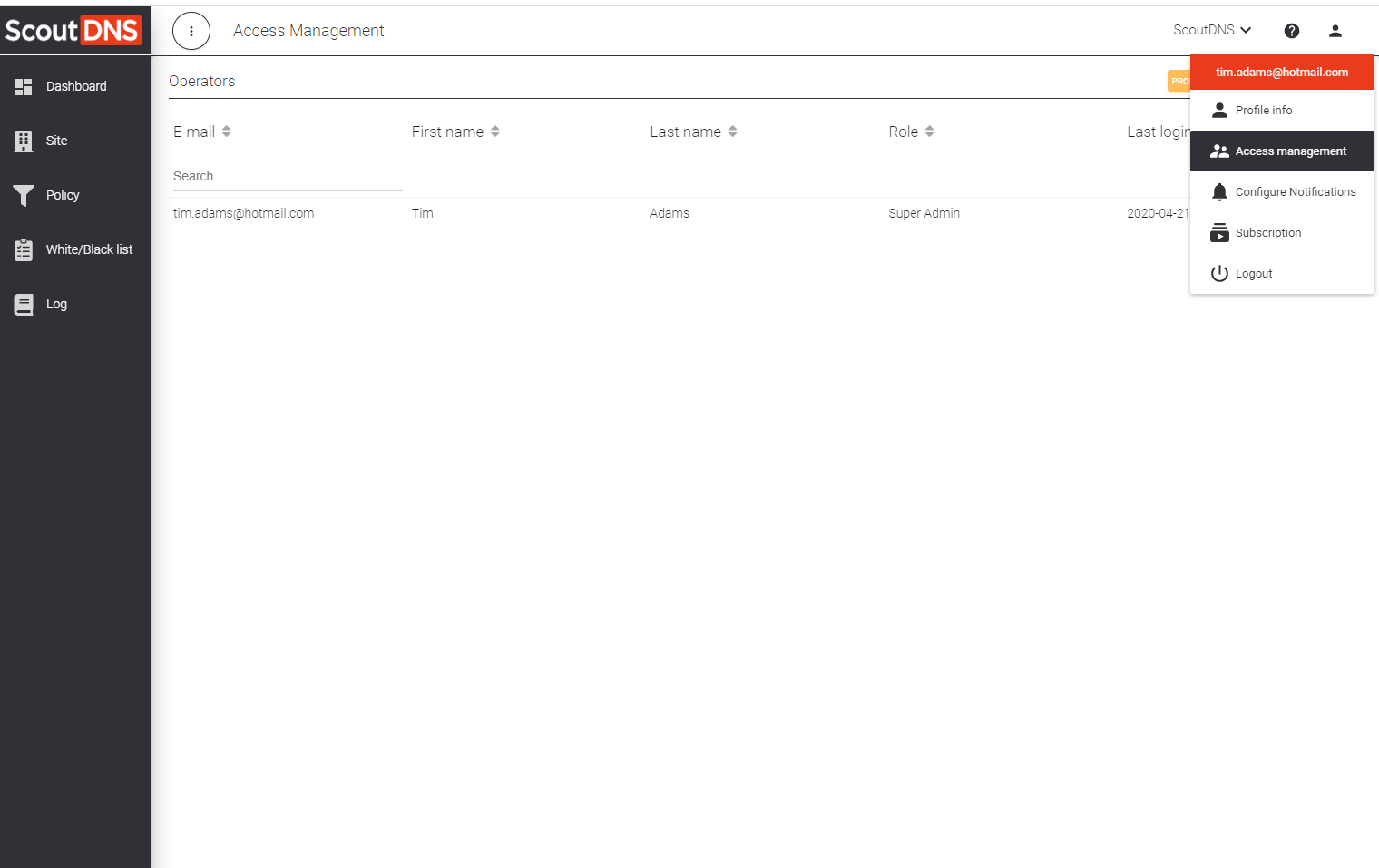
The operator table shows each operator’s email, name, role, Auth Provider (ScoutDNS for password accounts, Azure for operators provisioned through Entra SSO), and last login. The Force 2FA and Method controls at the top set the account-wide two-factor policy; see Two-factor authentication.
Built-in roles
| Role | Manage operators | Objects (sites, policies, lists) | Notes |
|---|---|---|---|
| Super Admin | Create and remove all operators (including Admins) | Full | One per account. Also the only role that can configure SSO. |
| Admin | Create and remove all operators except the Super Admin | Full | Most common admin role |
| Viewer | None | View-only | Read-only access |
| Organization operator | None | Scoped to assigned organizations | For MSP customer tenants; see below |
[!NOTE] Legacy Service Desk operators (view-only plus allow/block list editing) continue to work, but the role can no longer be assigned to new operators.
Create an operator account
- Open Settings → Access Management and click New Operator.
- Enter the operator’s e-mail, first name, and last name.
- Pick a role.
- Save.
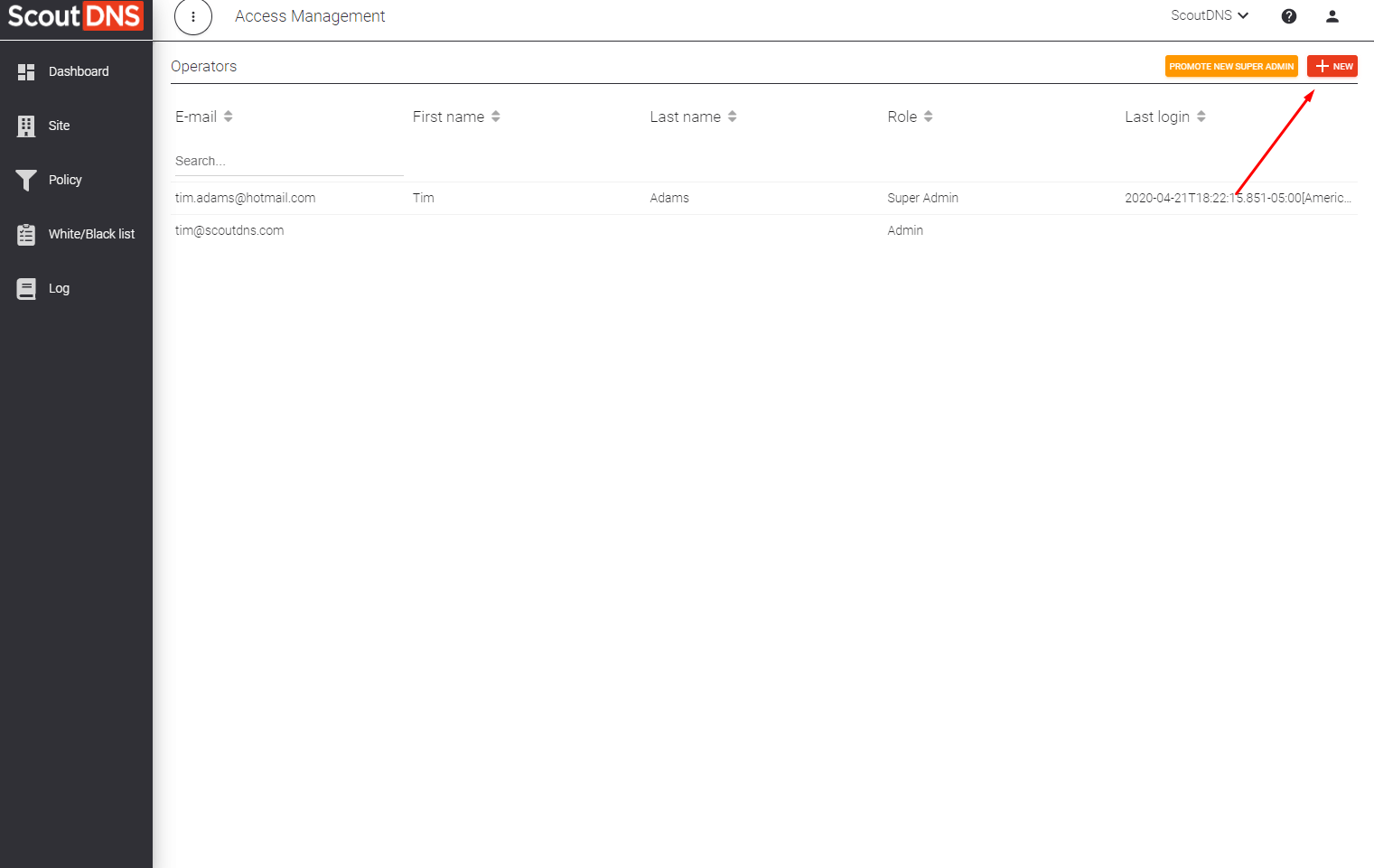
What happens next depends on whether the email is already known to ScoutDNS:
- Existing ScoutDNS user: their account is linked to yours with the selected role.
- New email: a new operator account is created with the chosen role.
[!IMPORTANT] Once an operator account is created or linked, you cannot edit their name or email; only the operator can change those, from their own Profile section. You can still change their role or revoke access at any time.
Organization operators (MSP tenants)
Choosing the Organization operator role adds an Organizations block to the form. Assign one or more organizations, each with a permission:
| Permission | Access within the assigned organizations |
|---|---|
| Manager | Create, edit, and remove objects |
| Viewer | Read-only |
At sign-in, an organization operator sees only their assigned organizations. See Working with organizations for how org scoping works.
Edit an operator
Click the operator’s row, then Edit Operator. You can change the role and (for organization operators) the organization assignments. Operators provisioned through Entra SSO cannot be edited locally: their role comes from the SSO role mapping, and the only local action is revoking access.
Revoke access
- Click the operator’s row on the Access Management page.
- Click Revoke Access.
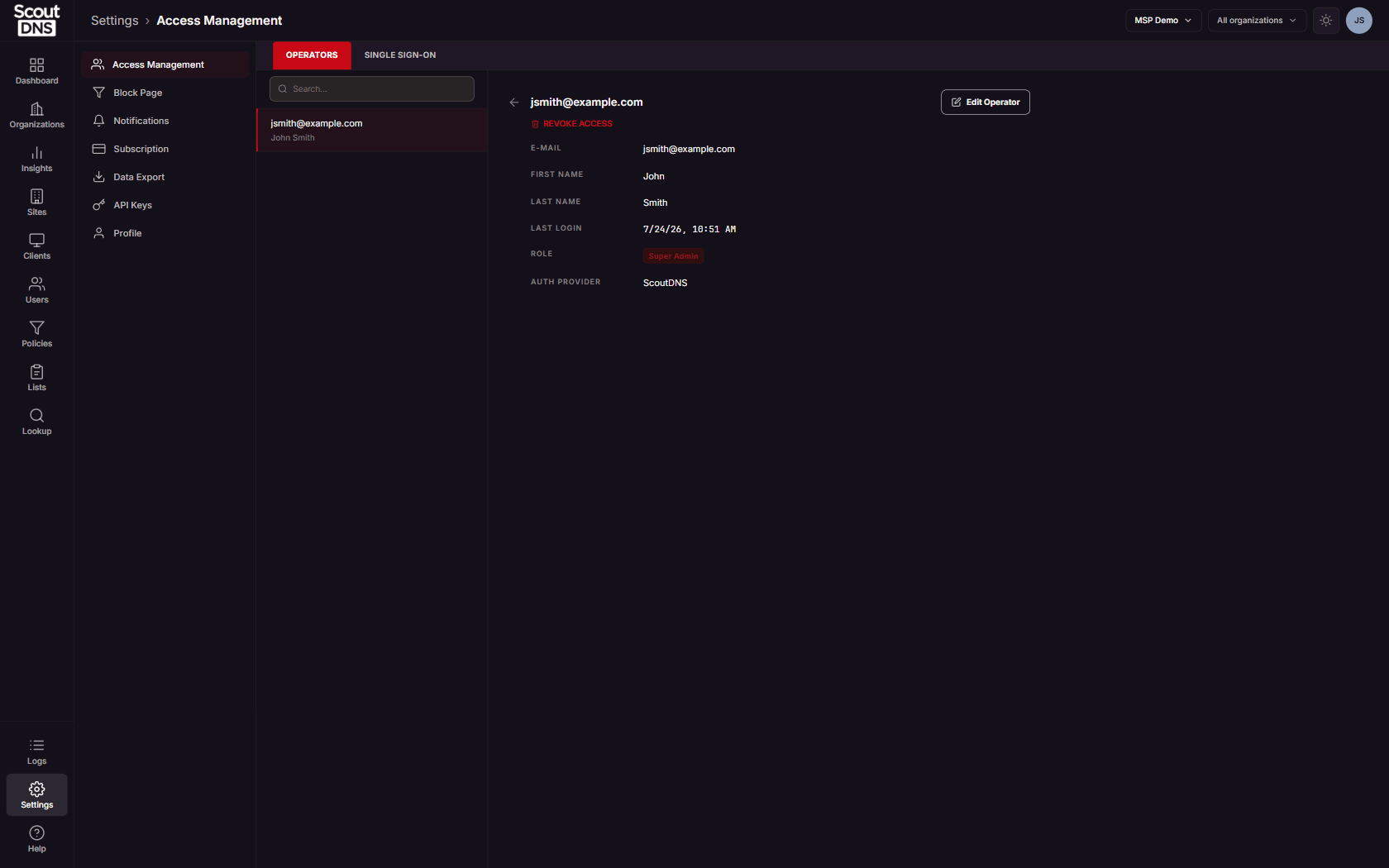
This removes the operator from your account only; if their email is linked to other ScoutDNS accounts, those are unaffected. Two guards apply: an account must always keep at least one operator, and the Super Admin cannot be revoked directly (transfer the role first, then revoke).
Transfer the Super Admin role
An account has exactly one Super Admin. To transfer the role:
- Click the target operator’s row and then Promote to Super Admin.
- Confirm. On accounts with 2FA enabled, you will be asked for a verification code first.
The current Super Admin is automatically demoted to the promoted operator’s previous role. Only the new Super Admin can change it back.
[!IMPORTANT] Make sure the new Super Admin has 2FA protecting their sign-in before the transfer. The Super Admin is your break-glass account if SSO ever needs to be turned off.