Browse Admin Console
- Dashboard overview
- Insights overview
- Sites Overview - Network Deployments
- Policies Overview - Create and Edit
- Custom Lists overview
- Clients Overview - Device Agents and Profiles
- Users Overview - Directory Users and Personas
- Organizations Overview - MSP Tenant Management
- Lookup Tool Overview
- Query Log Overview
- Settings Overview - Account Administration
- Help & Support Overview
- Signing In - Login, 2FA, and Password Reset
- Two-factor authentication (2FA)
- Add system users (role-based access)
- Check domain classification with the Lookup Tool
- Configurable objects and their associations
- Configure notifications
- Working with organizations (multi-tenant)
- Working with policies
- Content categories
- Security categories
- Application categories (Zero Trust app management)
- Working with allow and block lists
- Zero Trust TLD Filters
- Safe Search explained
- Safe Search supported search engines
- YouTube Restricted Mode explained
- Custom block pages
- Prevent DNS bypass
- Don't mix DNS providers
- Active Directory group policies
- Entra ID group policies
- Tracking individual users
Working with organizations (multi-tenant)
Configure multi-tenancy in ScoutDNS: create organizations, link sites, profiles, and personas, scope policies per tenant, add operators.
ScoutDNS has two levels of multi-tenancy:
| Level | Pattern | Best for |
|---|---|---|
| Account membership (default) | An operator can be a member of multiple separate accounts, each with its own role. Switch accounts via the selector at the top right. | Consultants and resellers who manage truly separate customers |
| Organizations (this article) | One parent account containing multiple sub-organizations. Each org has its own sites, profiles, personas, and users; the parent rolls up dashboards across all orgs. | MSPs and large enterprises who want per-tenant isolation with account-level reporting |
For the tour of the Organizations page itself (the MSP Overview, per-tenant dashboards, and Usage / Billing), see Organizations Overview. This article is the configuration side: creating tenants, linking resources, scoping objects, and organization operators.
Create an organization
- In the All organizations scope, open Organizations in the sidebar.
- Click New Organization.
- Enter the Organization Name and an optional Description, then click Create Organization.
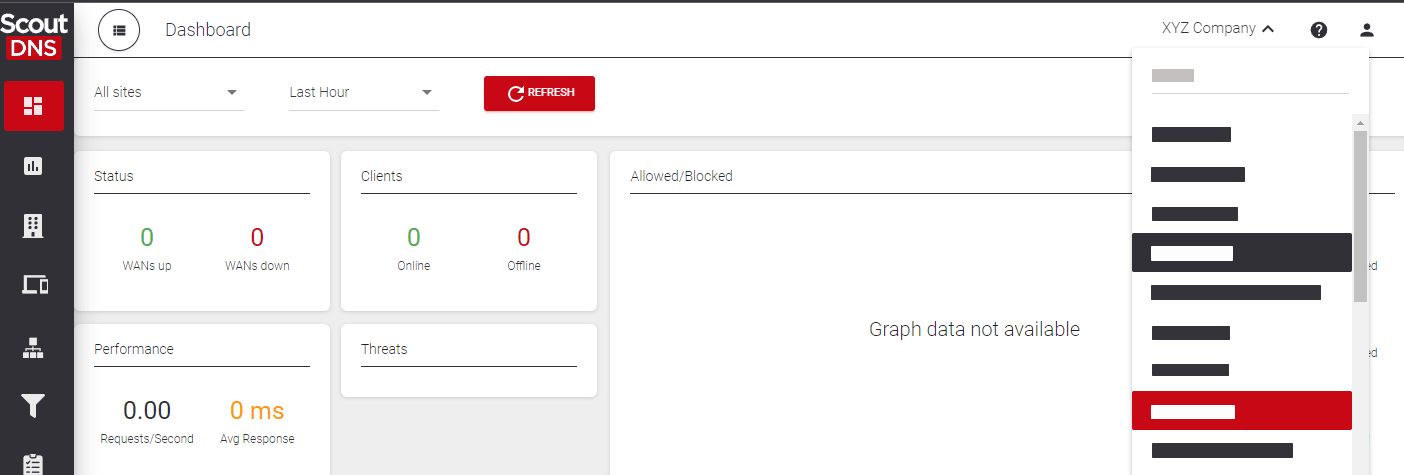
[!NOTE] After creating (or deleting) an organization, reload the portal to refresh the header’s organization selector.
Link sites, profiles, and personas
Organizations link resources rather than containing them: sites, roaming client profiles, and personas exist at the account level, and you attach them per tenant. Build the site or profile first, then link it.
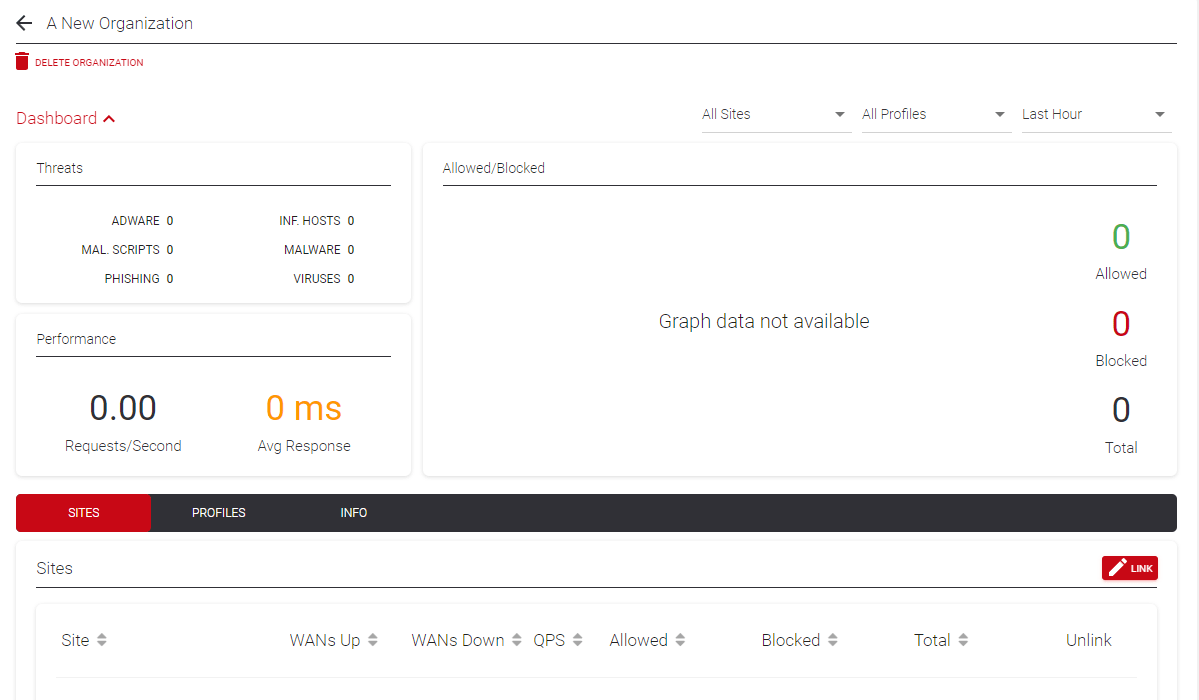
- Open the organization from the MSP Overview.
- Switch to the Sites, Profiles, or Personas sub-tab.
- Click Link Site / Link Profile / Link Persona, tick the items to attach, and click Link (N).

To unlink, use the removal control on the resource’s row; it confirms first.
[!IMPORTANT] A site, profile, or persona can be linked to one organization at a time. To move it, unlink it from its current org first; it will then appear in the other org’s Link drawer. Anything left unlinked stays account-level and reports under “
” in Usage / Billing.
Statistics follow the link: each organization’s dashboard aggregates from its linked resources.
The organization selector
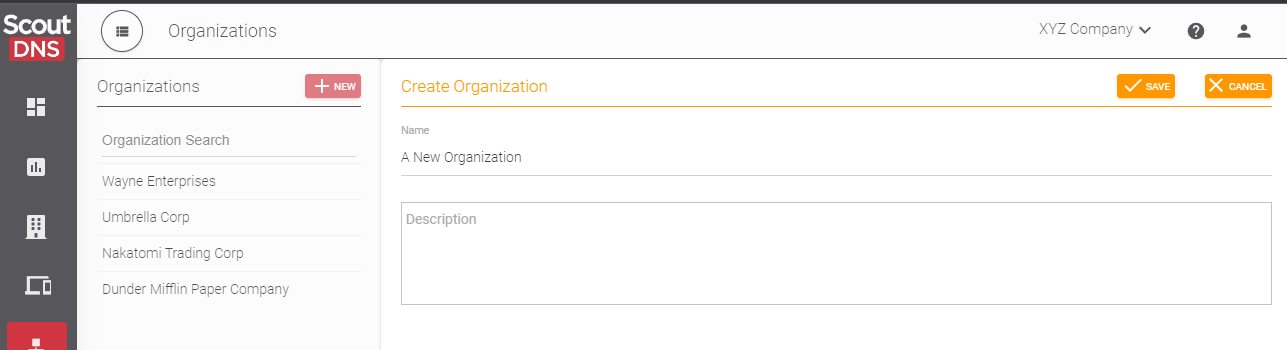
The organization selector sits in the header, next to the account selector. Account operators can switch to any organization’s view or back to All organizations; organization operators only see the orgs they are assigned to. Selecting an organization filters every screen in the portal to that org’s data, and hides the Organizations page itself (which manages all orgs and so only exists in the All organizations scope).
Account objects vs organization objects
Policies and custom lists behave differently depending on where they were created. This is the most common source of “why can’t I edit this?” confusion.
| Created from | Editable by | Visible to |
|---|---|---|
| All organizations view (account-wide) | Primary-account operators only | Everyone (read-only for org users) |
| Organization view (a specific org) | Primary-account operators and org users with the right role | Primary account + that organization only |
If you want org users to manage their own policies and custom lists, create those objects from inside the org’s view, not from the All organizations view.
[!NOTE] Global allow/block lists are always account-level. They apply automatically to every policy across every organization; org users can’t see or edit them. See Working with allow and block lists.
Organization tags
An object created from within an org view carries that org’s tag, shown as a scope badge in inventories (for example on the Policies page). Tagged objects are available to that org’s users; primary-account admins can manage them from either view.
Template pattern for shared policies
Create the policy from the All organizations view as a template, then use Copy a policy to duplicate it from inside each organization’s view. Each copy is then independently managed by that org’s users. See Policies Overview - Create and Edit.
[!TIP] Use a consistent naming convention across every organization’s objects (
acme-hq-site,acme-roaming-profile). The All organizations roll-up views are far easier to scan.
Organization operators
Organization operators are user accounts scoped to specific organizations, created under Settings (see Add system users). They can be members of any number of orgs across any number of accounts; at sign-in, their selector shows only their assigned orgs.
| Role | Permissions |
|---|---|
| Manager | Create, edit, or remove objects within their assigned organizations |
| View | Read-only access to objects within their assigned organizations |
[!IMPORTANT] Org operators are exempt from SSO. Even when SSO is enabled, org operators continue to use local logins. That’s deliberate: these accounts are intended for external organizations, partners, or end customers who might not be in your Entra tenant.
Related
- Organizations Overview - MSP Tenant Management, the page tour and Usage / Billing
- Add system users (role-based access), account-level RBAC
- SSO with Microsoft Entra ID
- Policies Overview - Create and Edit, the template pattern for shared policies
- Setup and use guide for MSPs