Browse Admin Console
- Dashboard overview
- Insights overview
- Sites Overview - Network Deployments
- Policies Overview - Create and Edit
- Custom Lists overview
- Clients Overview - Device Agents and Profiles
- Users Overview - Directory Users and Personas
- Organizations Overview - MSP Tenant Management
- Lookup Tool Overview
- Query Log Overview
- Settings Overview - Account Administration
- Help & Support Overview
- Signing In - Login, 2FA, and Password Reset
- Two-factor authentication (2FA)
- Add system users (role-based access)
- Check domain classification with the Lookup Tool
- Configurable objects and their associations
- Configure notifications
- Working with organizations (multi-tenant)
- Working with policies
- Content categories
- Security categories
- Application categories (Zero Trust app management)
- Working with allow and block lists
- Zero Trust TLD Filters
- Safe Search explained
- Safe Search supported search engines
- YouTube Restricted Mode explained
- Custom block pages
- Prevent DNS bypass
- Don't mix DNS providers
- Active Directory group policies
- Entra ID group policies
- Tracking individual users
Settings Overview - Account Administration
Tour the ScoutDNS Settings page: operator access and SSO, block pages, notifications, allowances, SIEM export, API keys, and your profile.
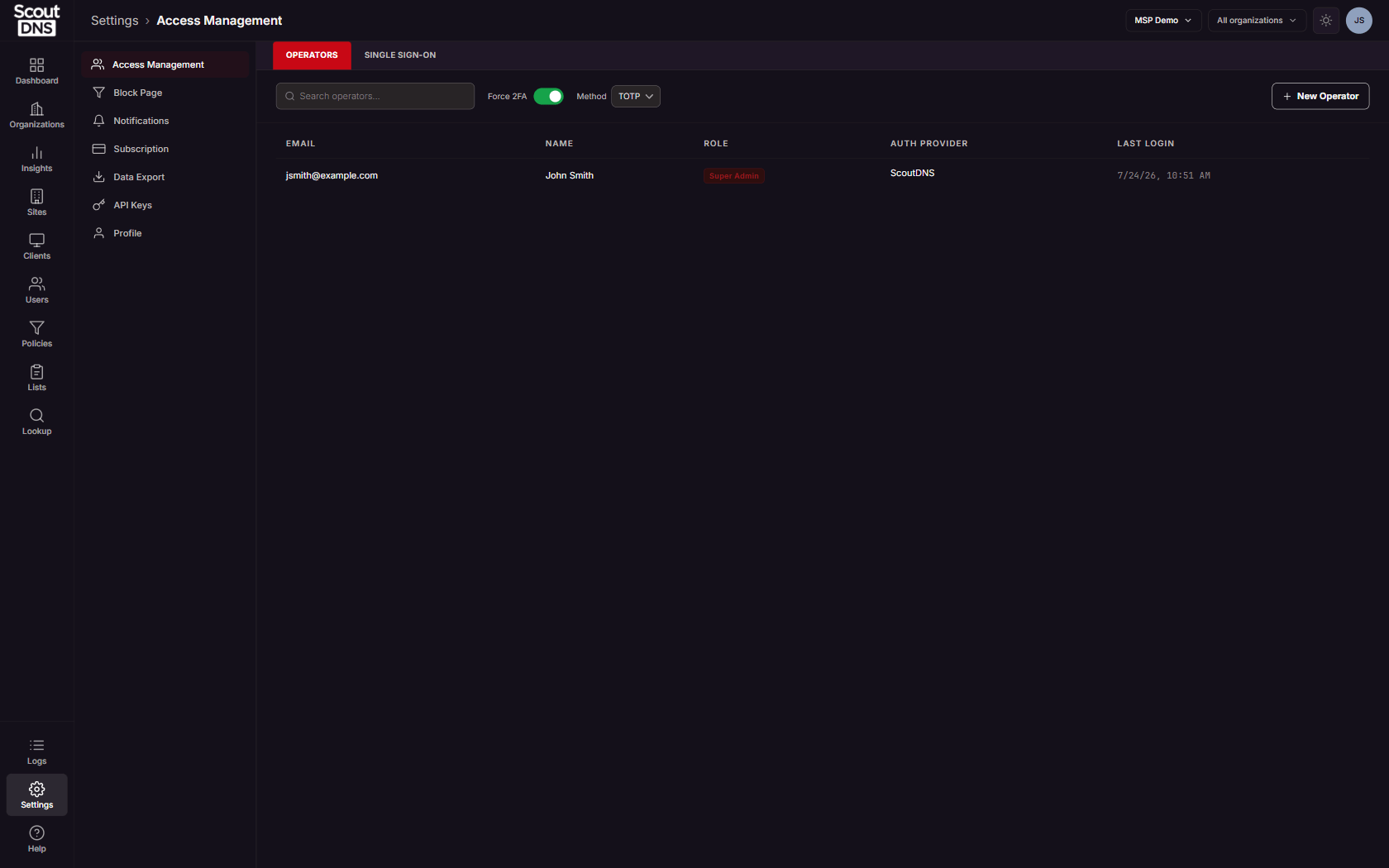
Settings is where account administration lives. It is one page with seven sections, switched from the left-hand section list: Access Management, Block Page, Notifications, Subscription, Data Export, API Keys, and Profile. Each section has its own detailed guide; this page is the map, plus full coverage of the two sections small enough to live here (Subscription and Profile).
Who sees what
Settings is role-gated per section:
- Super Admin and Admin see every section. The Single Sign-On tab inside Access Management is Super Admin only.
- Service Desk operators see only Profile, and land there when opening Settings.
- Viewer and organization operator accounts do not have a Settings page.
The sections
| Section | What it does | Detailed guide |
|---|---|---|
| Access Management | Operator accounts and roles, the account-wide 2FA policy, and the Microsoft Entra ID SSO connection | Add system users, Two-factor authentication, SSO with Entra ID |
| Block Page | The pages people see in their browser when a site is blocked: text, logo, and the optional review-request form | Custom block pages |
| Notifications | Email notification profiles: which address receives which system and block-page alerts | Configure notifications |
| Subscription | Read-only account status and plan allowances | Covered below |
| Data Export | Stream DNS query logs to your SIEM (Splunk HEC, generic HEC, Huntress) | SIEM data export |
| API Keys | Bearer keys for the ScoutDNS Operator API | API access |
| Profile | Your own name, login email, password, and two-factor status | Covered below |
Subscription
The Subscription section is a read-only view of the account:
- Account Status: status, account name, and account type.
- Plan Allowances: how many sites, WANs, organizations, and API keys the plan allows. Plans that include roaming clients also show a usage meter of installed clients against the plan maximum, which turns red as you approach the limit.
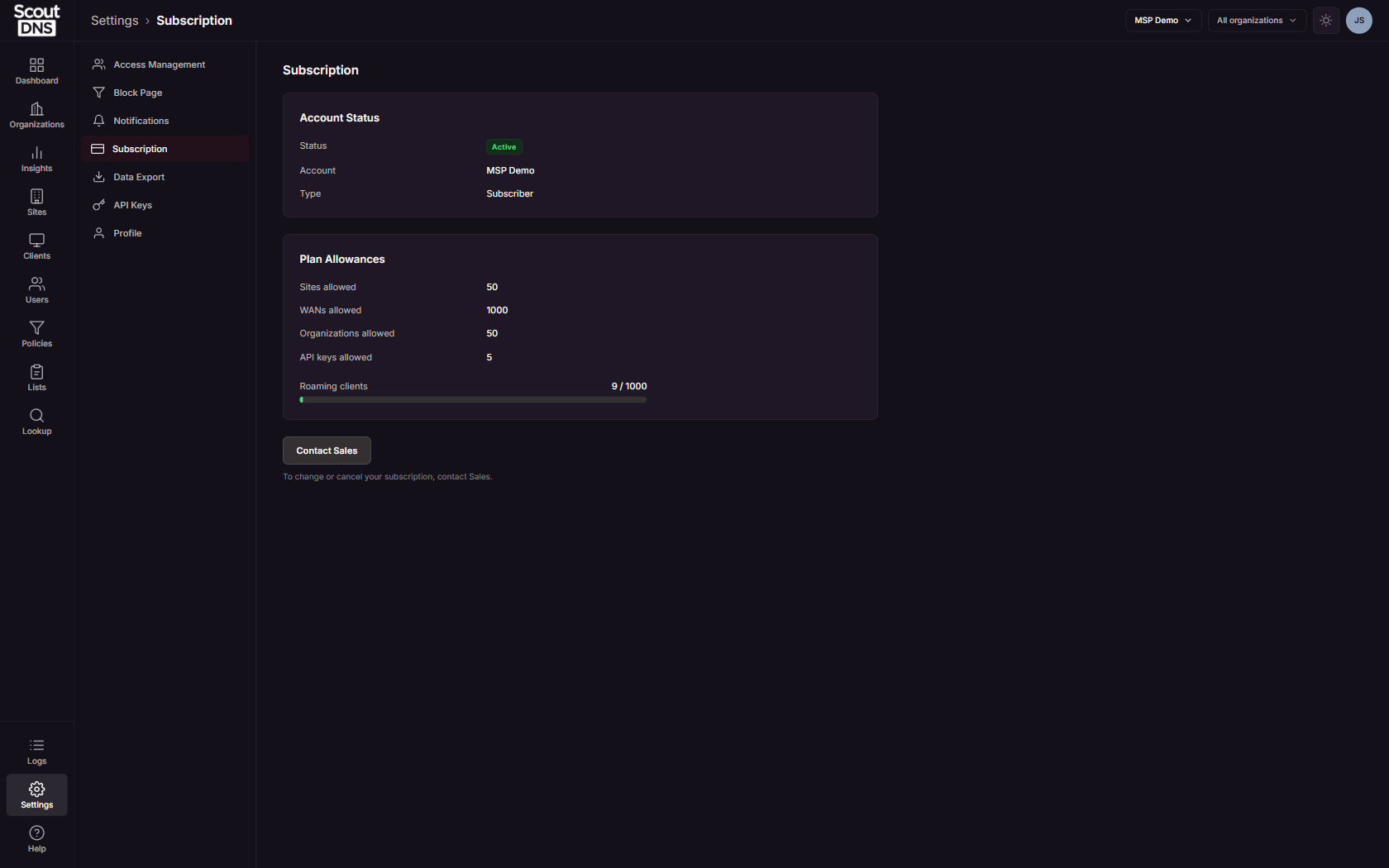
Nothing about the subscription is editable in-app. To change or cancel the plan, use Contact Sales.
[!NOTE] Per-tenant seat and query counts for MSP billing are not here; they live on the Organizations page under Usage / Billing.
Profile
Profile is the signed-in operator’s own record, and the one section every Settings-capable role can reach:
- Name and email. Changing your login email is a two-step process: ScoutDNS sends a confirmation link to the new address, and the change completes when you click it. Until then you keep signing in with the old address.
- Change Password: requires your current password.
- Two-Factor Authentication: shows whether 2FA is active for your sign-in and, when the account uses authenticator apps, offers Reset authenticator app. See Two-factor authentication for the account-wide policy and the reset walkthrough.
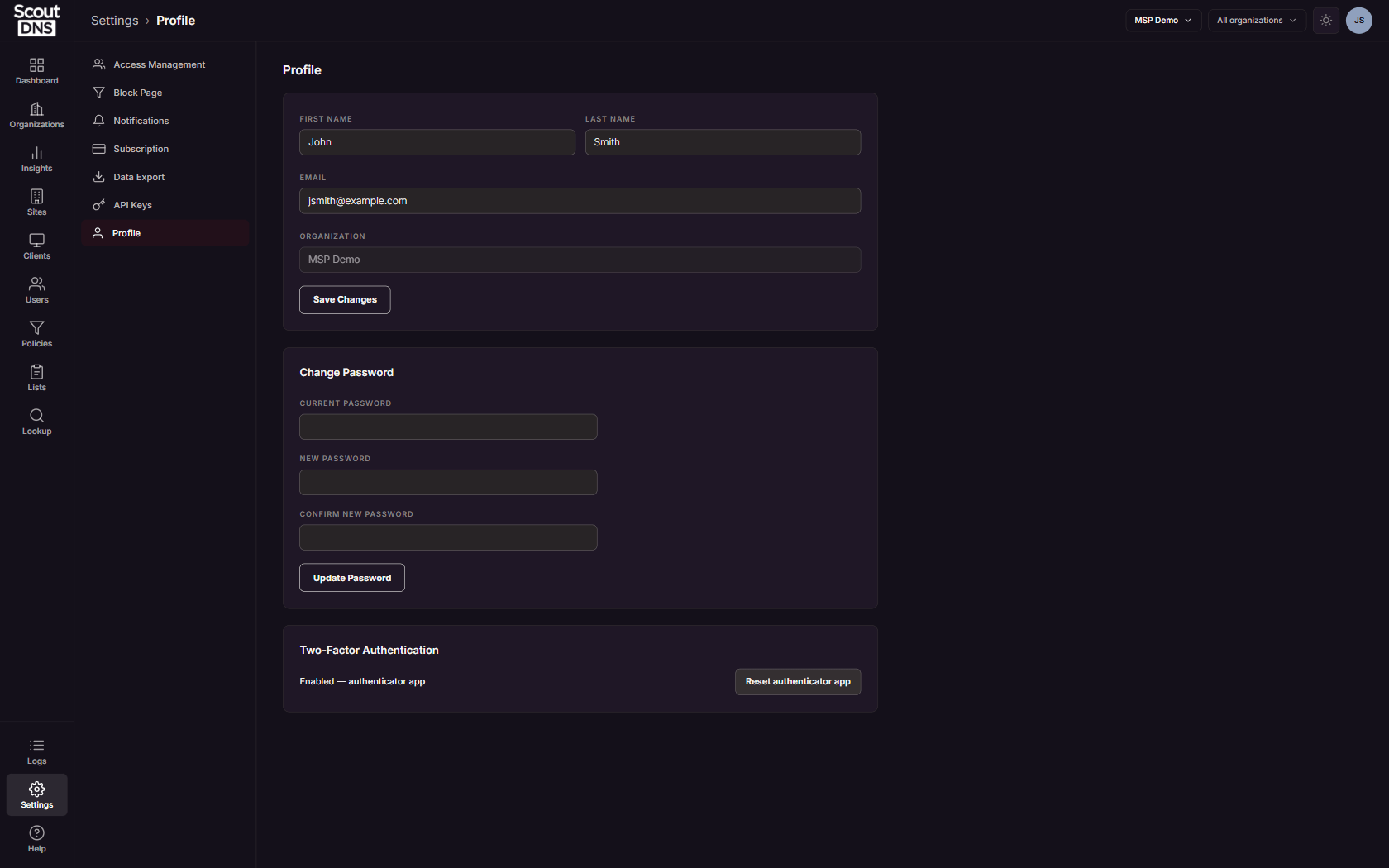
[!NOTE] The read-only field labeled Organization on the Profile section shows the name of the ScoutDNS account you are signed in to. It is not related to the organization selector in the header.
FAQ
I opened Settings and only see Profile. Your role (Service Desk) is limited to self-service settings. Account administration sections require an Admin or Super Admin role.
Where do I add operators for a customer organization? Also under Access Management: create the operator with the Organization operator role and assign their organizations. See Add system users and Working with organizations.
Where is the root certificate download? Under Help & Support, not Settings.
Why can’t I open the Single Sign-On tab? SSO configuration is limited to the Super Admin, one step above the Admin role. See SSO with Entra ID.