Browse Policies & Filtering
- Dashboard overview
- Insights overview
- Sites Overview - Network Deployments
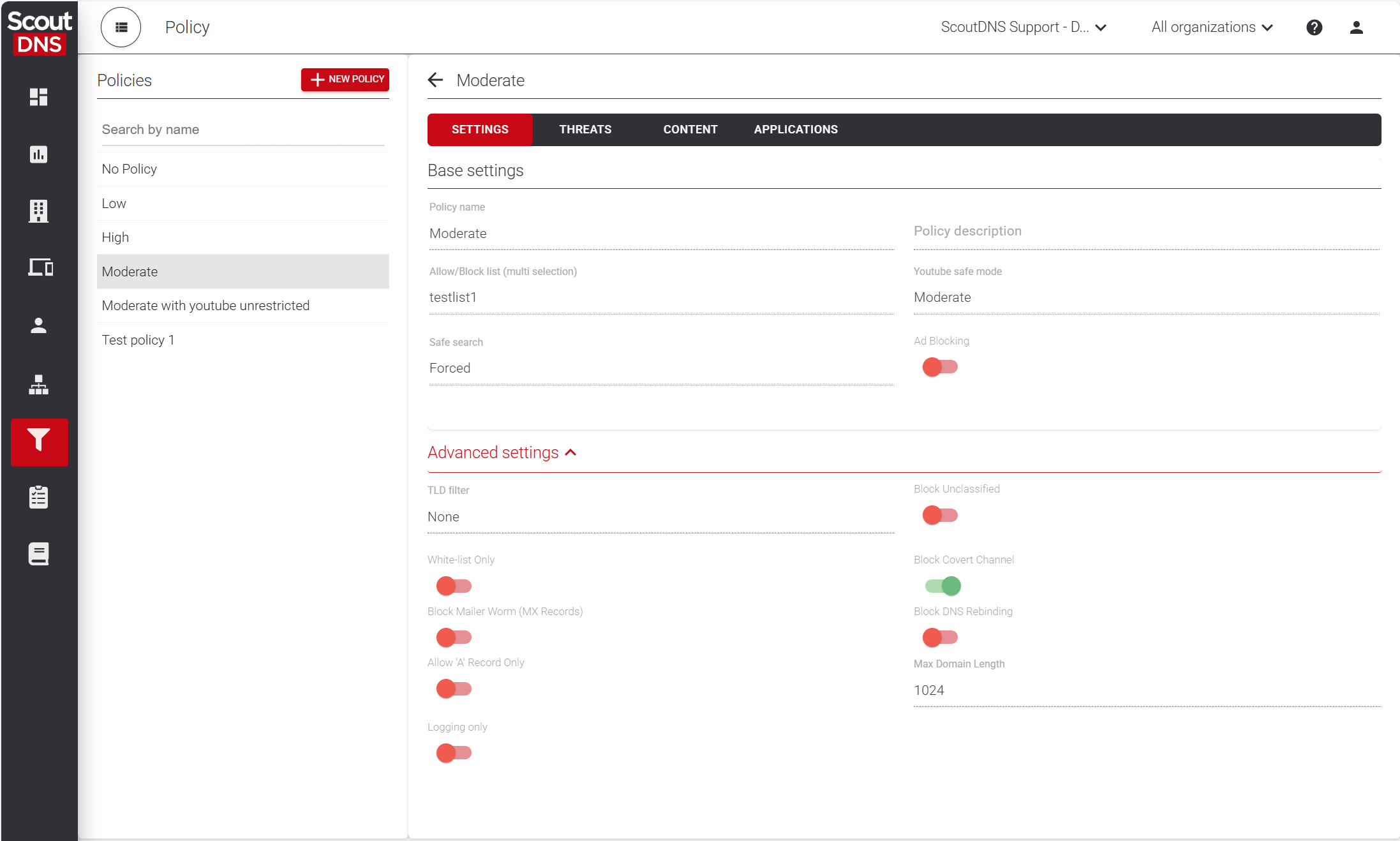
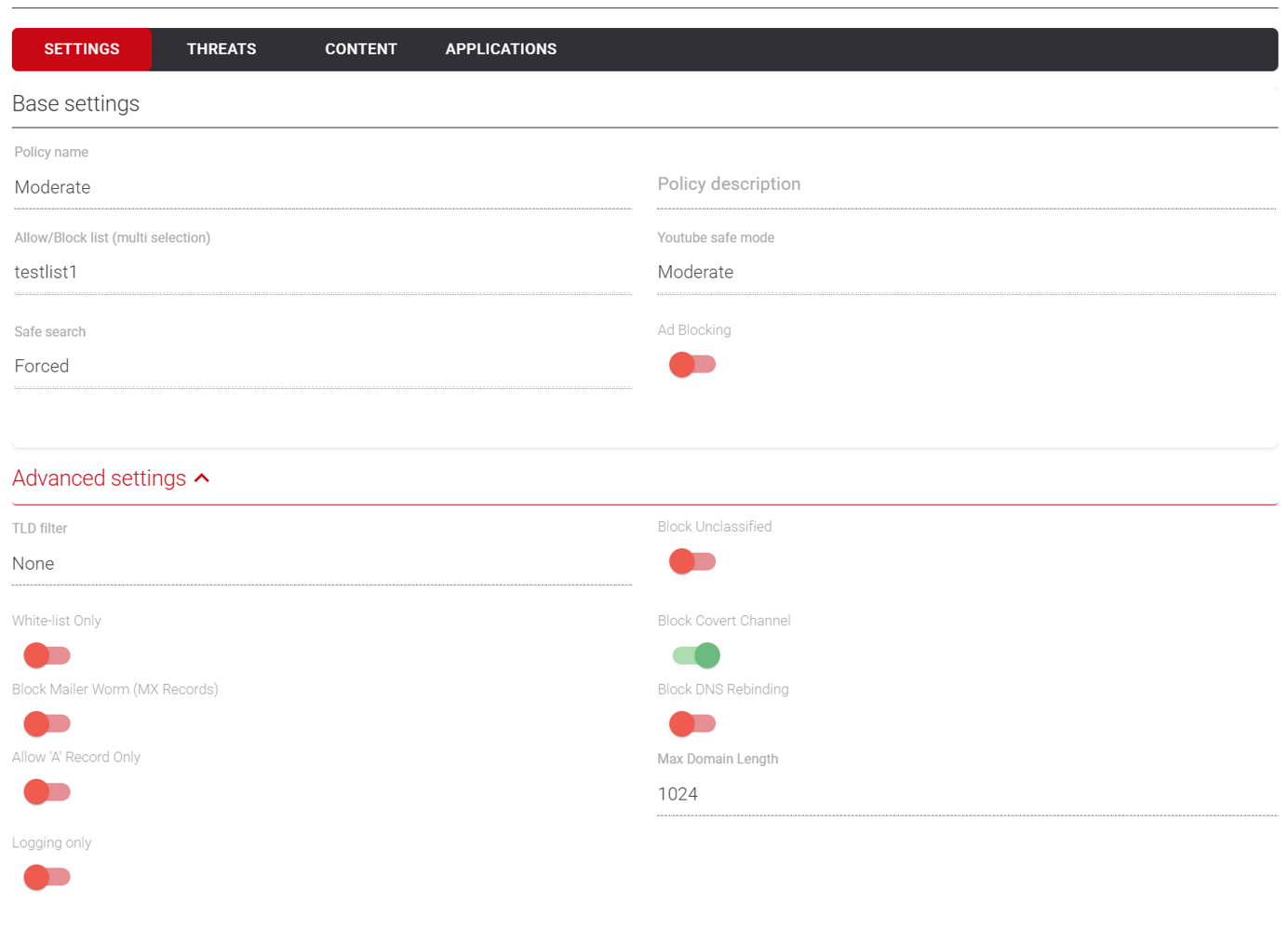
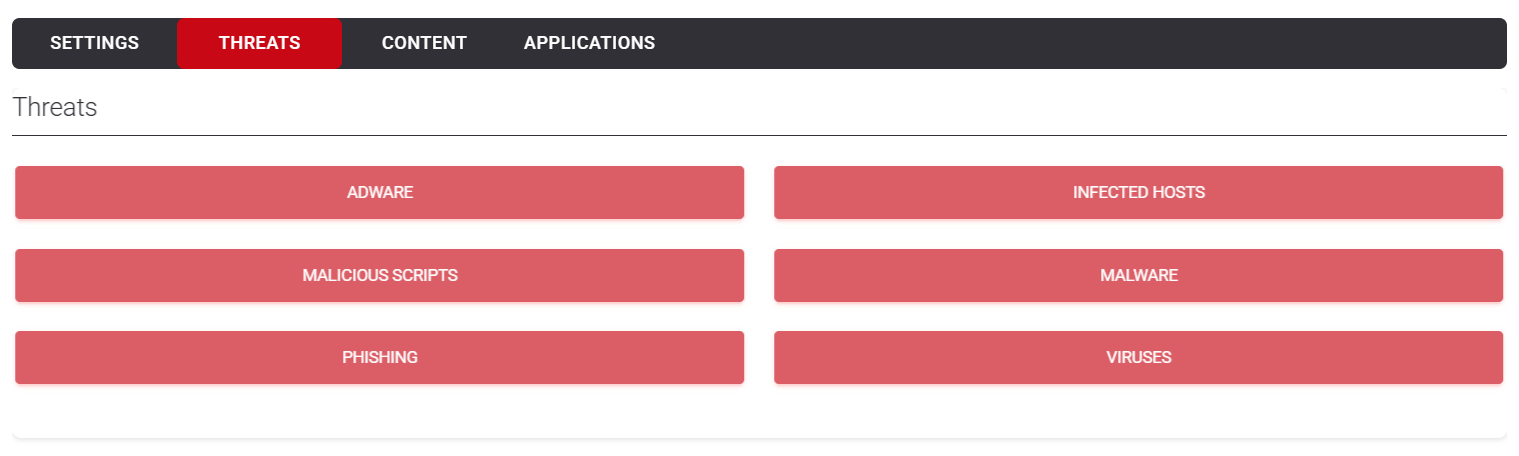
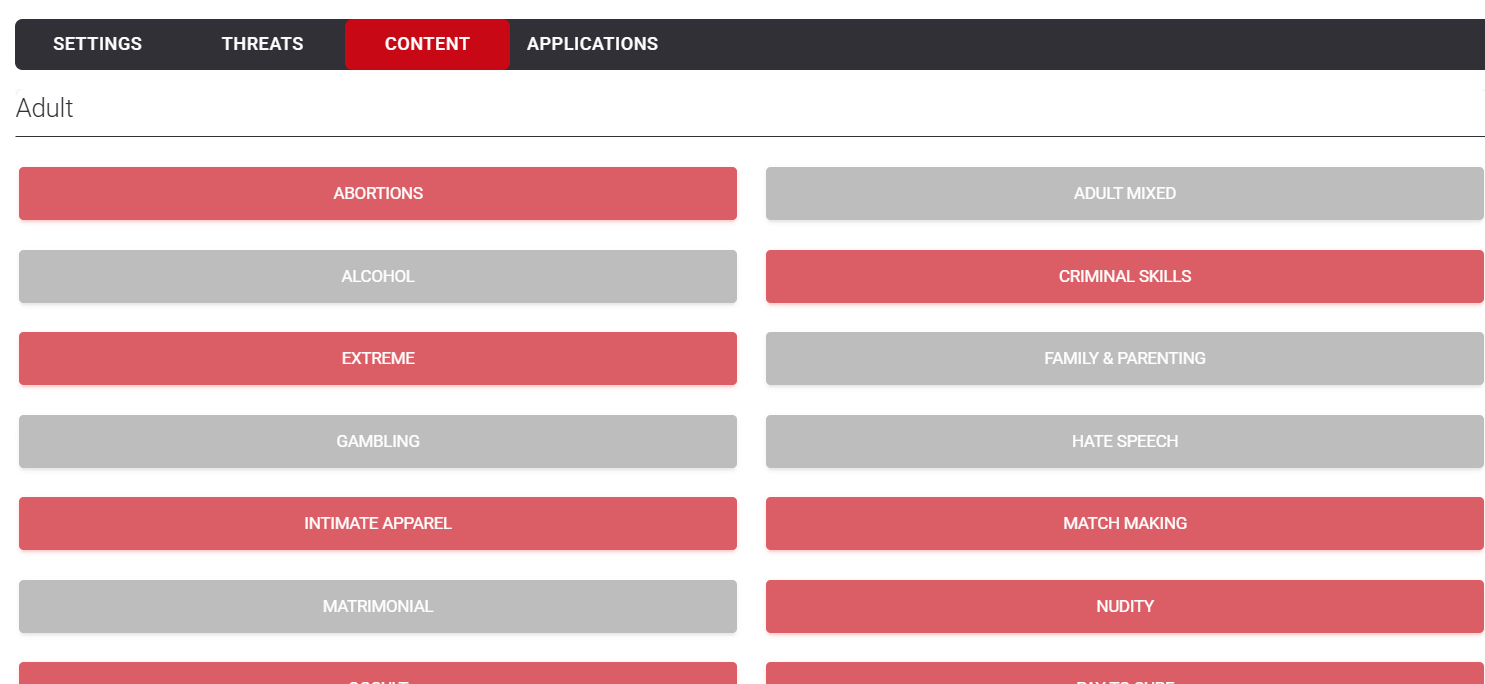
- Policies Overview - Create and Edit
- Custom Lists overview
- Clients Overview - Device Agents and Profiles
- Users Overview - Directory Users and Personas
- Organizations Overview - MSP Tenant Management
- Lookup Tool Overview
- Query Log Overview
- Settings Overview - Account Administration
- Help & Support Overview
- Signing In - Login, 2FA, and Password Reset
- Two-factor authentication (2FA)
- Add system users (role-based access)
- Check domain classification with the Lookup Tool
- Configurable objects and their associations
- Configure notifications
- Working with organizations (multi-tenant)
- Working with policies
- Content categories
- Security categories
- Application categories (Zero Trust app management)
- Working with allow and block lists
- Zero Trust TLD Filters
- Safe Search explained
- Safe Search supported search engines
- YouTube Restricted Mode explained
- Custom block pages
- Prevent DNS bypass
- Don't mix DNS providers
- Active Directory group policies
- Entra ID group policies
- Tracking individual users
Working with policies
Where ScoutDNS policies attach and how to change them: the Deployments view, WANs and LANs, client profiles, and per-device overrides.
A policy is a reusable set of filtering rules; building one is covered in Policies Overview - Create and Edit. A policy does nothing until it is assigned somewhere, and this article covers the somewheres: a site’s WAN or LAN, a client profile, an individual device, or a directory group. The same policy can be assigned to any number of them.
See every assignment in one place
Open Policies and switch to the Deployments view. Every slot that can carry a policy is listed with its current assignment, and the summary cards show how much of your account is covered.
This is also the fastest way to change an assignment: click a row, pick a New policy, and Save change. The sections below cover the same assignments from the pages where each object lives.
To a WAN or LAN
WAN assignments filter everything behind that internet connection. LAN assignments need a Relay at the site; the LAN tab stays locked until one is registered.
- Open Sites and select the site.
- On the WAN (or LAN) tab, click the network.
- Set Policy in the editor.
- Save changes.
For pointing a network’s DNS at ScoutDNS in the first place, see Quickstart: WAN forwarding.
To a client profile (recommended for roaming devices)
Assign policies to profiles rather than individual devices: every device enrolled in the profile inherits the policy, and new devices get it automatically.
- Open Clients and switch to the Configure tab.
- Click the profile, then Edit profile.
- Set Default Policy.
- Save changes.
To an individual device
For a special case on one device, override the profile from the device record:
- Open Clients on the Manage tab and click the device.
- On the Info tab, click Edit Client.
- Set Policy. The default, Profile Defined, inherits from the device’s profile; choosing a policy here overrides it.
- Save changes.
The Policy column on the Manage tab shows each device’s effective policy and where it comes from: Default (the profile’s default policy), Client (a device override), or Persona (a directory-group assignment).
To a directory group
Accounts syncing Active Directory or Entra ID can assign policies per directory group, so filtering follows the signed-in user. See Configure Active Directory policies and Configure Entra ID policies.
FAQ
How do I find everywhere a policy is used? The Deployments view. Filter by the policy in the Policy dropdown to see only its slots, or use the per-policy Used in list on the Inventory tab.
Which policy is a device actually using? Check the Policy column on Clients → Manage. It names the policy and the source (Default, Client, or Persona), so you can see at a glance whether a device inherits from its profile or has an override.
I assigned a policy to a LAN but the tab is locked. LAN-level assignment needs a relay at the site. Register one on the site’s Relays tab and the LAN tab unlocks; see Relay setup and configure.
Related
- Policies Overview - Create and Edit, building the policies you assign here
- Custom Lists overview, the allow/block lists and Zero Trust TLD Filters policies use
- Sites Overview - Network Deployments, the WANs and LANs policies attach to
- Quickstart: WAN forwarding
- Relay setup and configure
- Configure Active Directory policies
- Configure Entra ID policies