Browse Policies & Filtering
- Dashboard overview
- Insights overview
- Sites Overview - Network Deployments
- Policies Overview - Create and Edit
- Custom Lists overview
- Clients Overview - Device Agents and Profiles
- Users Overview - Directory Users and Personas
- Organizations Overview - MSP Tenant Management
- Lookup Tool Overview
- Query Log Overview
- Settings Overview - Account Administration
- Help & Support Overview
- Signing In - Login, 2FA, and Password Reset
- Two-factor authentication (2FA)
- Add system users (role-based access)
- Check domain classification with the Lookup Tool
- Configurable objects and their associations
- Configure notifications
- Working with organizations (multi-tenant)
- Working with policies
- Content categories
- Security categories
- Application categories (Zero Trust app management)
- Working with allow and block lists
- Zero Trust TLD Filters
- Safe Search explained
- Safe Search supported search engines
- YouTube Restricted Mode explained
- Custom block pages
- Prevent DNS bypass
- Don't mix DNS providers
- Active Directory group policies
- Entra ID group policies
- Tracking individual users
Custom block pages
Brand the page users see when ScoutDNS blocks a domain: edit text, logo, and review options, preview before saving, manage multiple pages.
When ScoutDNS blocks a domain, the person browsing sees a block page. Block pages are managed in Settings → Block Page: the text, the company logo, and the optional request-a-review form. An account can have multiple block pages (for example one per organization or policy); one is the account default.
The Block Page section edits page content. Choosing which networks or device profiles use which block page happens on those objects, not here.
The two faces of a block page
Every block page has two faces, and end users see whichever matches the reason for the block:
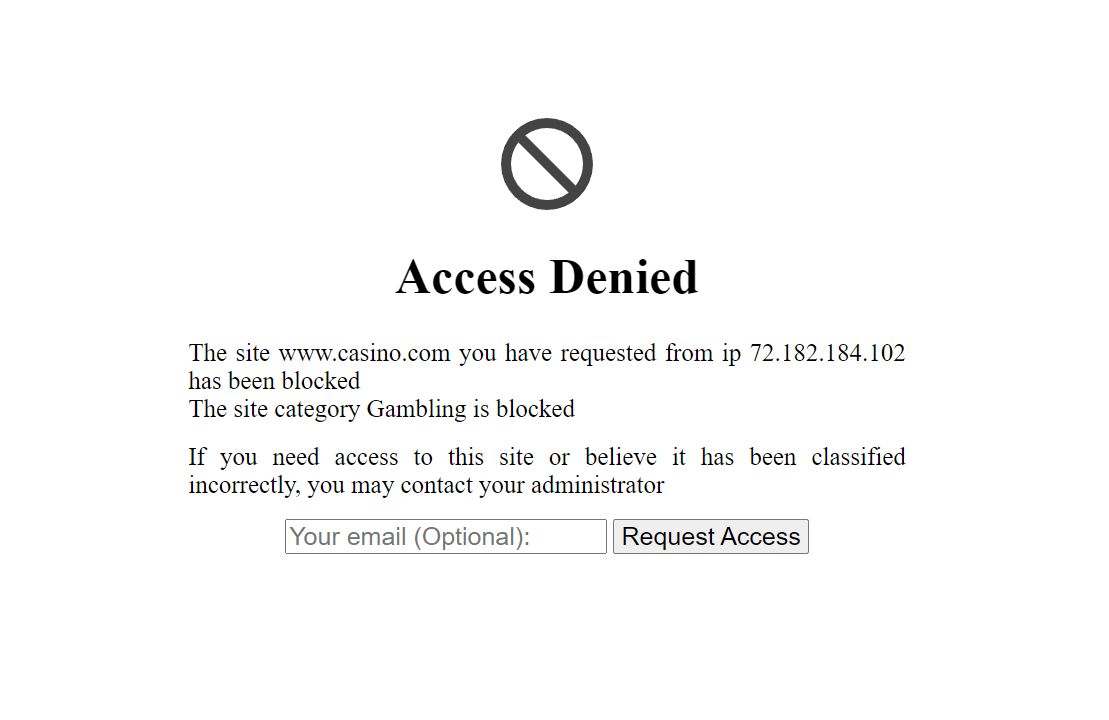
- The standard page, shown for content-category and list blocks (for example “this domain is in the Social Media category”). Its title, heading, and message are fully editable.
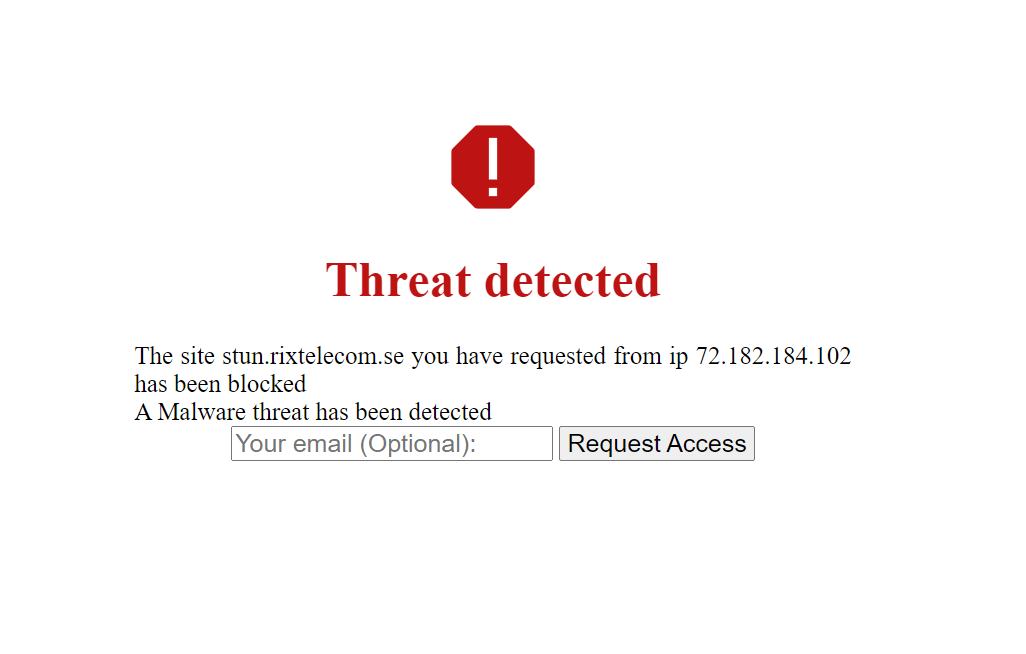
- The threat page, shown for threat-category blocks such as malware and phishing. It keeps its own title, heading, and warning text, which are not editable in this section.
The shared elements you configure (logo, Logo Message, Review Requests, Hide IP addresses, and the email options) apply to both faces.
Managing block pages
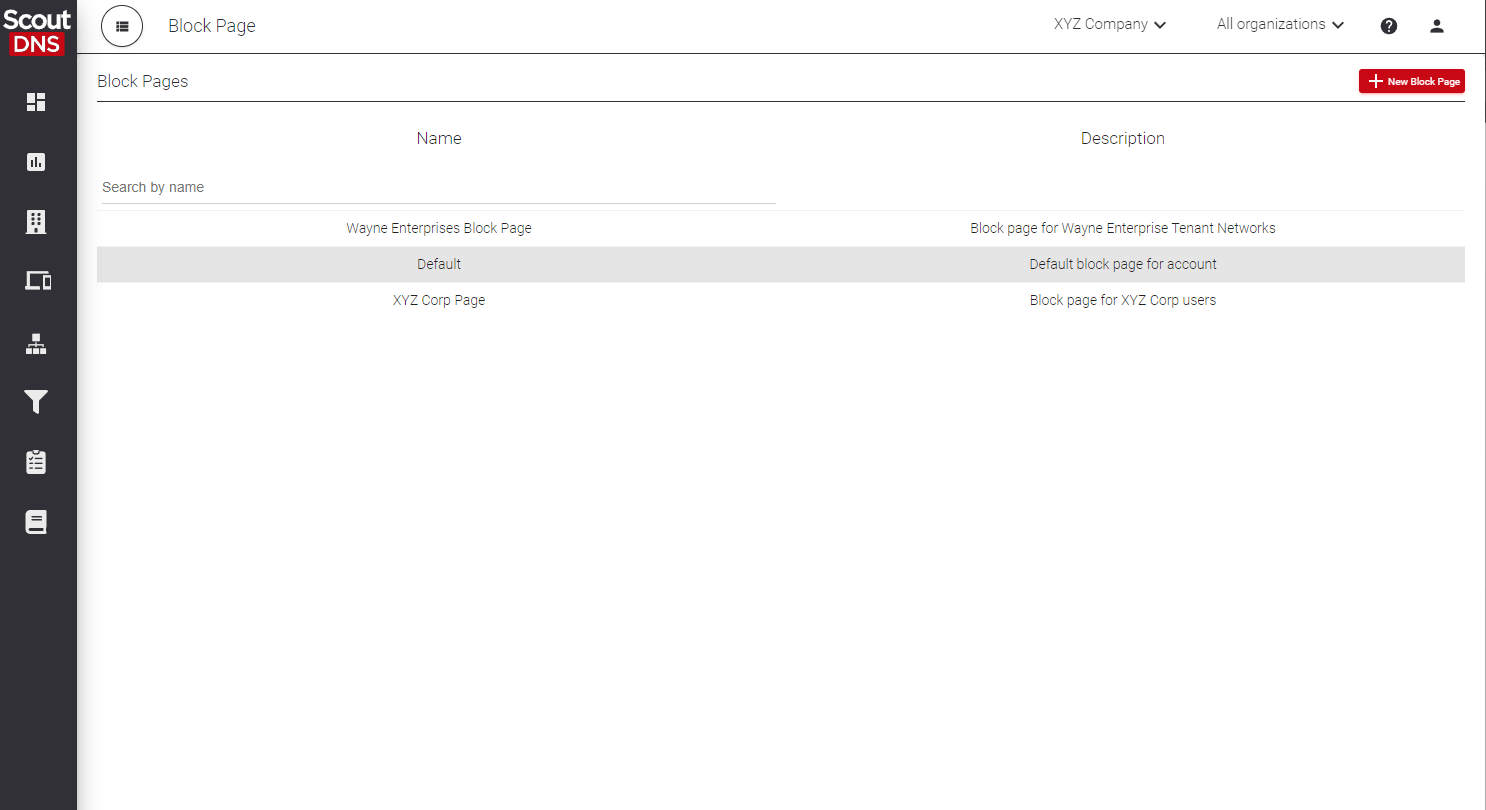
The section opens as a table of your block pages with a search box and a New Block Page button. Selecting a page opens a split view: a sidebar list plus a detail panel showing all fields read-only and the current logo (a back arrow returns to the table). Editing happens in a drawer.
- New Block Page creates a page starting from the account’s default content.
- Edit opens the drawer with all editable fields.
- Preview renders the page as end users will see it (see below).
- Delete Block Page (in the drawer footer) removes the page after a confirmation. The account’s default block page can’t be deleted.
[!NOTE] Duplicate names are rejected when saving. The save fails with a visible error rather than silently creating a second page with the same name.
Editable fields
| Field | Notes |
|---|---|
| Name | The page’s name in the portal. Not shown to end users. |
| Description | Internal note for other admins. Not shown to end users. |
| Page Title | The browser-tab caption of the block page. |
| Heading | The large headline on the page itself (for example “Access Denied”). |
| Response | The message paragraph shown to the blocked user. A good place for “contact IT” instructions. |
| Review Requests | Adds a form letting the blocked user ask for the site to be reviewed. |
| Hide IP addresses | Omits the requester’s IP from the page. |
| Email Input / Require Email Input | Whether the review form asks for (or requires) the requester’s email address. |
| Override Default Email + Email Address | Send review requests somewhere other than the account default address. |
| Insert Logo + Logo Message + Logo File | Display a custom logo image with an optional caption line above it. |
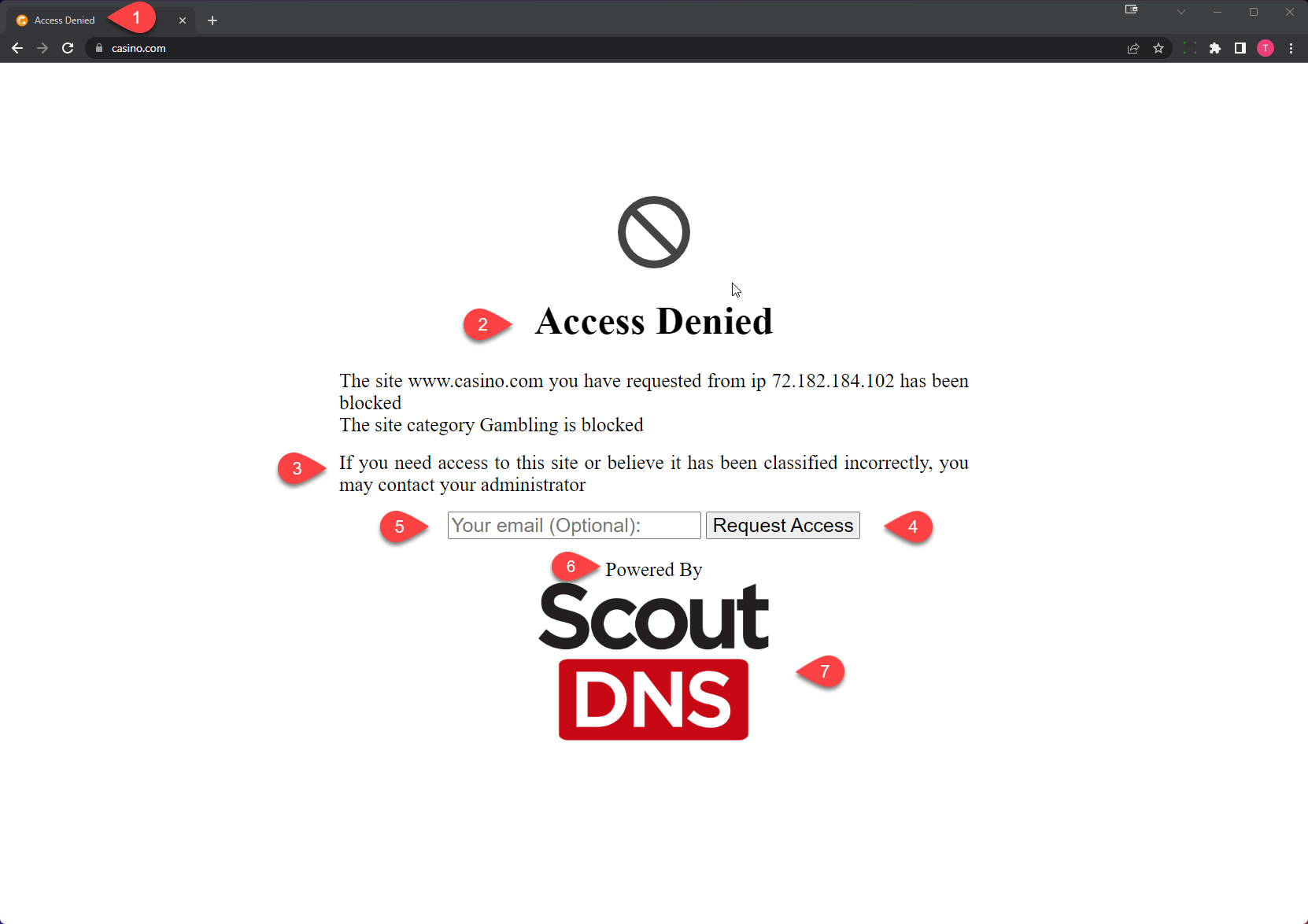
[!IMPORTANT] Page Title and Heading are different fields. Page Title is the browser tab caption; Heading is the big text on the page. Changing Page Title will not change the visible headline. The Preview’s simulated browser tab exists specifically to make this distinction visible.
A few field behaviors worth knowing:
- Hide IP addresses also rewrites the block explanation sentence: the “from IP x.x.x.x” clause is dropped entirely, not left blank.
- A freshly chosen logo file previews immediately below the button, and in the drawer’s Preview, before it is uploaded.
Previewing a page
Preview opens a modal rendering the block page, including a simulated browser tab showing the Page Title, the logo, and the review form if enabled.
Two preview entry points behave slightly differently:
- Preview from the detail panel renders the saved page.
- Preview inside the edit drawer renders your current unsaved draft, including a just-chosen logo file that hasn’t been uploaded yet. Use it to check the page before saving.
[!NOTE] The blocked domain, its category, and the requester IP are filled in by ScoutDNS at the moment of a real block, so the preview substitutes sample values marked with a Sample data badge. Everything you can edit is shown exactly as configured.
Resetting to defaults
Reset content to defaults (in the edit drawer, existing pages only) restores the shipped default text and toggles. Name and Description are kept, so the page’s identity and its assignments survive; only the customer-visible content resets.
Assigning block pages
Assignment doesn’t happen in this section. Which block page a given user sees is determined by where pages are assigned on your networks and device profiles. See Roaming clients (device agents) for profile configuration.
Related
- Working with policies, what triggers a block in the first place
- Working with allow and block lists, custom domain overrides
- Roaming clients (device agents), profile assignment
- Install ScoutDNS certificate for browser HTTPS errors, needed so block pages render cleanly on HTTPS sites