Browse Troubleshooting
- Dashboard overview
- Insights overview
- Sites Overview - Network Deployments
- Policies Overview - Create and Edit
- Custom Lists overview
- Clients Overview - Device Agents and Profiles
- Users Overview - Directory Users and Personas
- Organizations Overview - MSP Tenant Management
- Lookup Tool Overview
- Query Log Overview
- Settings Overview - Account Administration
- Help & Support Overview
- Signing In - Login, 2FA, and Password Reset
- Two-factor authentication (2FA)
- Add system users (role-based access)
- Check domain classification with the Lookup Tool
- Configurable objects and their associations
- Configure notifications
- Working with organizations (multi-tenant)
- Working with policies
- Content categories
- Security categories
- Application categories (Zero Trust app management)
- Working with allow and block lists
- Zero Trust TLD Filters
- Safe Search explained
- Safe Search supported search engines
- YouTube Restricted Mode explained
- Custom block pages
- Prevent DNS bypass
- Don't mix DNS providers
- Active Directory group policies
- Entra ID group policies
- Tracking individual users
Troubleshoot: WAN shows as Down
Why a registered WAN can show as Down in the ScoutDNS console: wrong/changed WAN IP, on-network DNS hijacking, ISP DNS redirection, and how to diagnose each.
A WAN can show as Down in the ScoutDNS console for a handful of common reasons. Work through these in order, the diagnostic test at the end will tell you which one applies.
Possible causes
1. Incorrect or incomplete setup
For a WAN to show Up, DNS traffic arriving at the ScoutDNS resolvers must originate from a WAN IP that’s registered in your ScoutDNS account.
[!IMPORTANT] Adding the ScoutDNS resolver IPs to your router is not enough by itself. You must also register your public WAN IP in Sites → Add Network. Without that, ScoutDNS can’t associate incoming queries with your account.
See the Quickstart: WAN forwarding guide for the full setup.
2. Your WAN IP has changed
ISPs change customer WAN IPs without notice. If yours has changed:
- Static IP (changed once), edit the WAN in Sites and update the IP.
- Dynamic IP (changes regularly), register a dynamic-DNS hostname instead. See Dynamic IP setup.
3. Software or hardware on your network is hijacking DNS
A surprising number of in-network appliances and security tools run their own DNS service or proxy that intercepts client DNS traffic. When that happens, queries never reach ScoutDNS, they’re redirected before they leave your network.
Common culprits:
- “Smart” router features that filter DNS (Pi-hole installed accidentally, AdGuard, OpenDNS Family Shield on the router, etc.)
- Security appliances with built-in DNS filtering
- New endpoint security software that intercepts DNS for its own filtering
[!NOTE] ScoutDNS does not support third-party DNS appliances or software. Consult the vendor’s documentation if you need to keep them in place, most have a setting to disable their DNS interception or forward to upstream resolvers.
4. Your ISP is hijacking DNS
Some ISPs enable “security” features that force customer traffic through the ISP’s own DNS, often without notification. Comcast’s Security Edge, for example, reroutes all DNS through their resolver.
Fix: contact the ISP and ask them to permanently disable the DNS security feature for your account. Confirm with the diagnostic below after they make the change.
Diagnose: which cause is it?
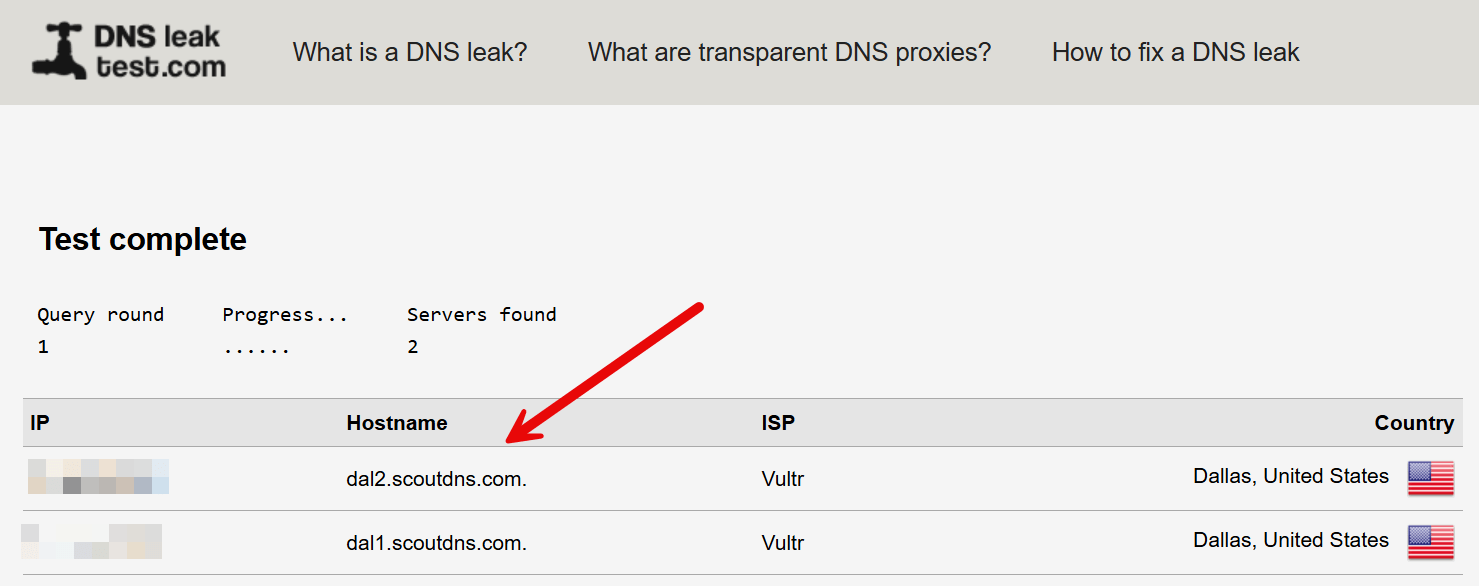
Visit DNSLeakTest.com on a device on the affected network and run the Standard Test. Look at the Hostname column.
| What you see | What it means |
|---|---|
*.scoutdns.com hostnames |
ScoutDNS is reachable from your network. WAN-down is likely cause #1 (not registered) or #2 (IP changed). |
| Your ISP’s domain or another DNS provider | DNS is being intercepted before reaching ScoutDNS. Cause #3 (on-network hijack) or #4 (ISP hijack). |
| Mixed (ScoutDNS plus others) | DNS is being split between resolvers. See Don’t mix DNS providers. |
Still stuck?
If the WAN remains down after working through the checklist, open a support ticket (or update an existing one) with:
- Your WAN IP (or dynamic-DNS hostname) as registered in ScoutDNS
- A screenshot of the DNSLeakTest result
- Your router/firewall make and model
- A note on any DNS-handling software or appliances on the network