Browse Policies & Filtering
- Dashboard overview
- Insights overview
- Sites Overview - Network Deployments
- Policies Overview - Create and Edit
- Custom Lists overview
- Clients Overview - Device Agents and Profiles
- Users Overview - Directory Users and Personas
- Organizations Overview - MSP Tenant Management
- Lookup Tool Overview
- Query Log Overview
- Settings Overview - Account Administration
- Help & Support Overview
- Signing In - Login, 2FA, and Password Reset
- Two-factor authentication (2FA)
- Add system users (role-based access)
- Check domain classification with the Lookup Tool
- Configurable objects and their associations
- Configure notifications
- Working with organizations (multi-tenant)
- Working with policies
- Content categories
- Security categories
- Application categories (Zero Trust app management)
- Working with allow and block lists
- Zero Trust TLD Filters
- Safe Search explained
- Safe Search supported search engines
- YouTube Restricted Mode explained
- Custom block pages
- Prevent DNS bypass
- Don't mix DNS providers
- Active Directory group policies
- Entra ID group policies
- Tracking individual users
Working with allow and block lists
Create allow/block lists that override category decisions: exact vs subtree matching, precedence, global lists, and import/export.
Sometimes you need to force-allow or force-block a specific domain regardless of how ScoutDNS categorizes it: a vendor whose domain is mis-categorized, an internal tool that must bypass category filtering, or a domain you want denied account-wide. Allow/block lists handle this. They live on the Custom Lists page (see the Custom Lists overview) and take effect through the policies that reference them.
Create a list
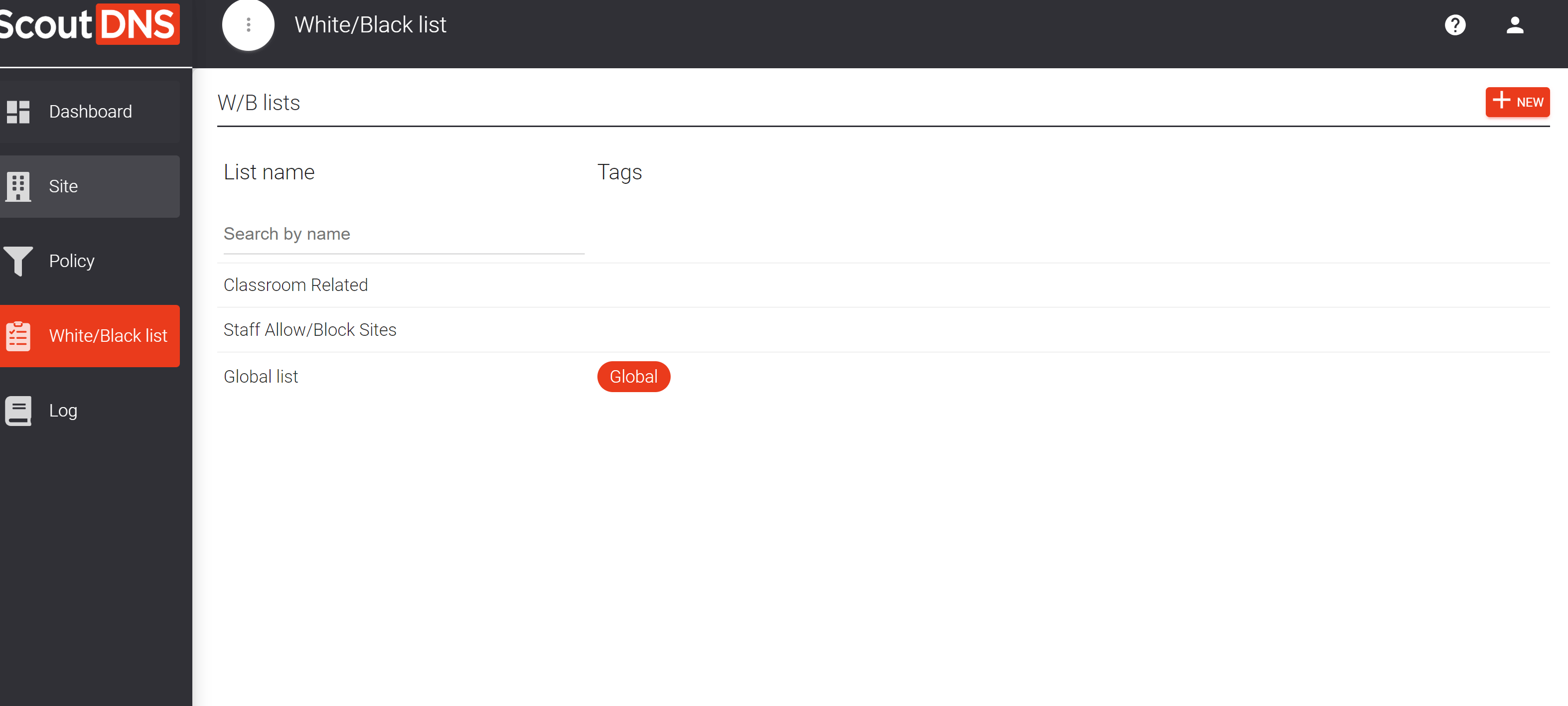
- Open Lists in the sidebar and stay on the Allow/Block tab.
- Click New W/B list.
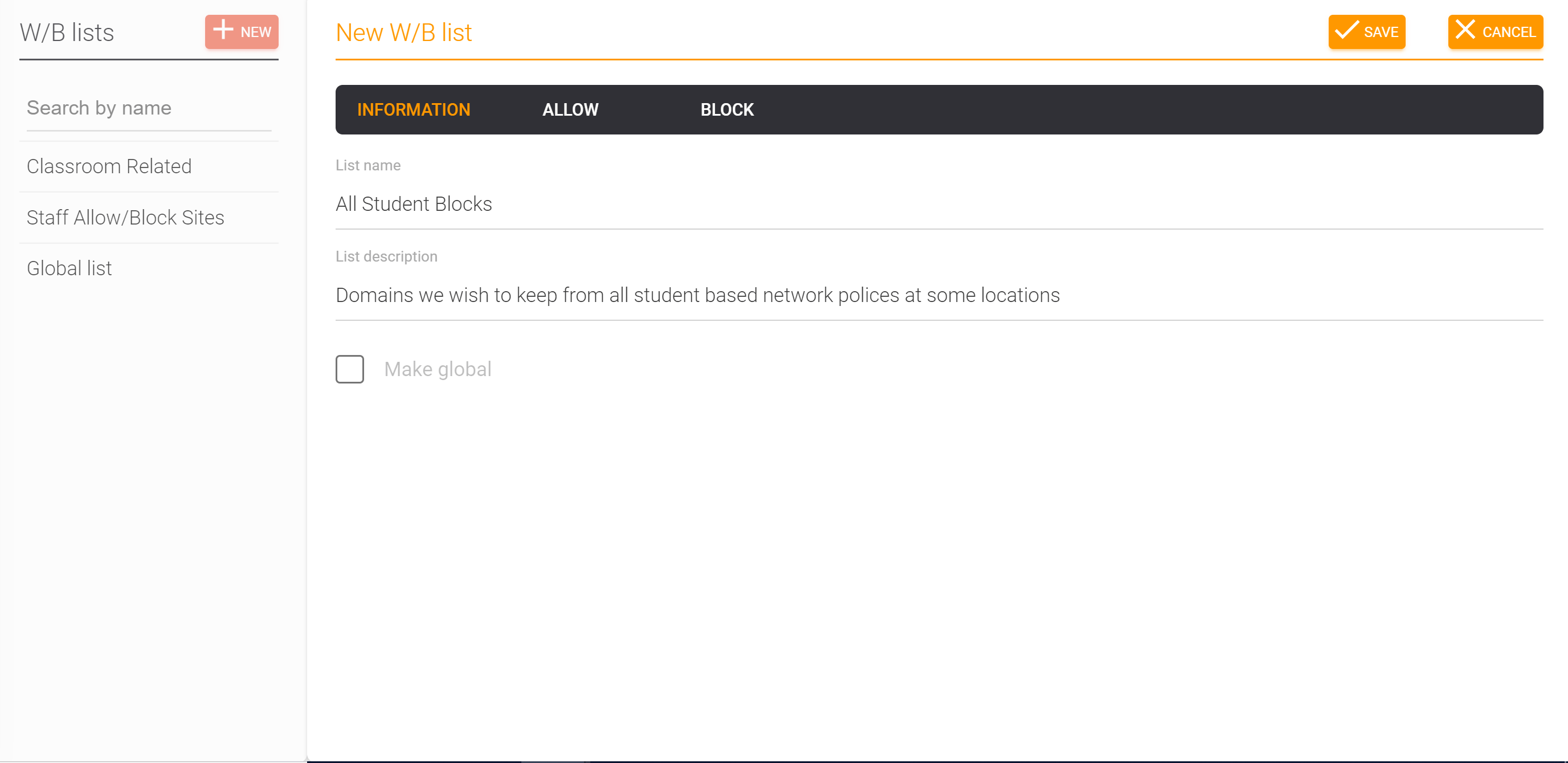
- Name the list and add a description so other admins know its purpose.
- (Admins) Tick Make global if the list should apply to every policy automatically.
- Create list.
Add rules
Open a list and use its Rules tab. Every rule does two things: it allows or blocks, and it matches either an exact hostname or a whole subtree.
The match type is the part people most often get wrong:
| Match type | Covers | Example |
|---|---|---|
| Match (exact) | That one hostname, nothing else | foo.com matches only foo.com, not www.foo.com |
| Subtree | The domain and every subdomain under it | foo.com matches foo.com, www.foo.com, api.foo.com, and so on |
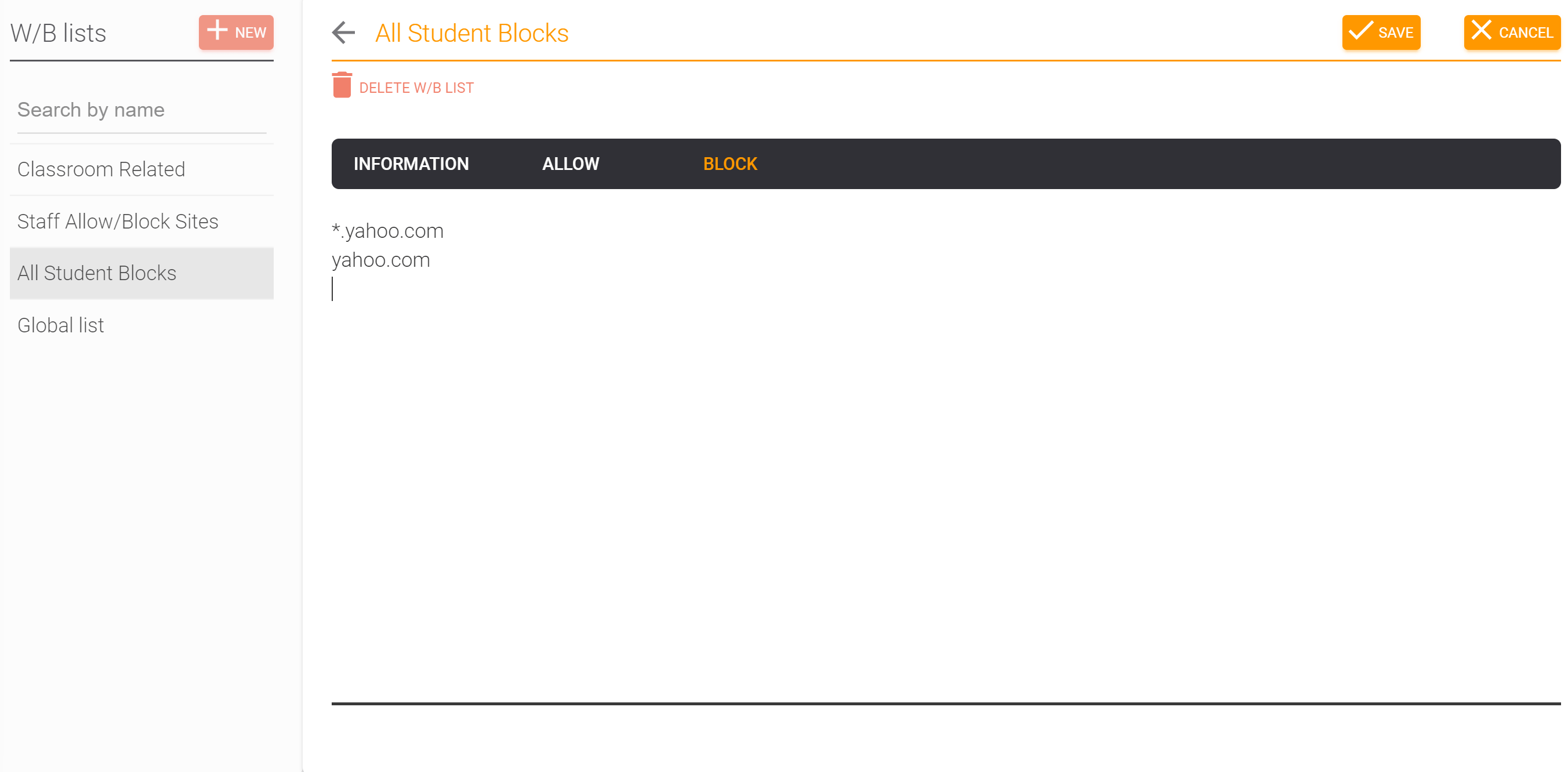
To add a rule, choose Allow or Block, type the domain, pick Match or Subtree, and click Add. A few shortcuts speed this up:
- Typing a leading
*.(as in*.foo.com) forces Subtree. - A
#after the domain starts an inline note. - On an existing row, the Allowed/Blocked badge and the Match/Subtree badge are both buttons: click either to flip that setting in place.
[!IMPORTANT] Entries must be domains, not URLs. No
http://prefixes and no paths. ScoutDNS filters at the DNS layer, which only sees the hostname.
[!NOTE] A single Subtree rule covers the whole site, apex and subdomains alike. If you previously added both
foo.comand*.foo.comto cover a site fully, one Subtree rule now does that; having both is harmless but no longer necessary.
How rules are evaluated
When rules disagree:
- Global lists overrule policy-attached lists. A rule on a global list wins over any rule on a list attached to the policy.
- Within the same scope, the deeper, more specific rule wins.
- At the same depth, an exact Match beats a Subtree.
- If still tied, allow beats block.
Find a domain across lists
On the Custom Lists page, switch the search bar to By domain and type a hostname to see every list that already covers it, which side each uses, and which rule the resolver would actually pick. This is the fastest way to answer “why is this domain allowed (or blocked)?”
Apply a list
A list does nothing until it is applied. There are two ways:
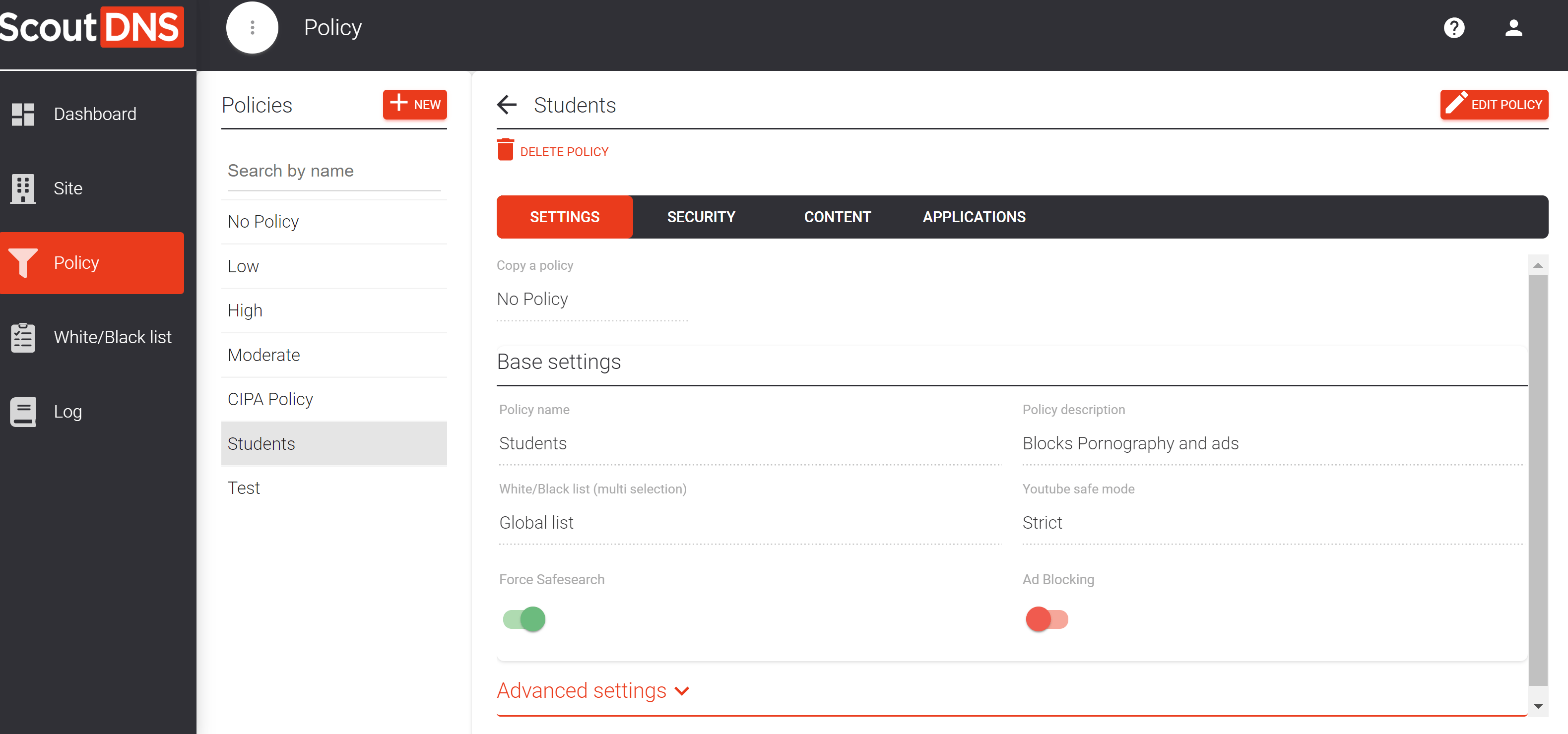
- Attach it to specific policies. On the Policies page, open a policy, click Edit, tick the list under Allow / Block List (multi selection) on the Settings tab, and Save.
- Make it global. A global list applies to every policy automatically, with nothing to tick. Global lists show in each policy’s picker with a globe icon, already ticked and greyed out, because they cannot be removed from one policy in isolation. Making a list global requires an Admin.
[!NOTE] Built-in read-only policies (Low, Moderate, High, No Policy) cannot have lists attached. Copy one into your own policy first; see Policies Overview - Create and Edit.
Import and export
- Export downloads the list’s rules as a CSV file.
- Import rules is a paste box: put one domain per line and it previews how many are new, already present, or rejected before you commit. (It reads a plain domain list, not a spreadsheet file.)
Adding domains from Insights and the Query Log
On Insights and Query Log rows, an Add to List action opens a small drawer showing the domain and how many lists already cover it, and drops you onto that list’s Rules tab with the matching rule highlighted. This is the fastest path from “I see this domain in my logs” to “it’s handled.”
FAQ
I added a domain to a block list but a subdomain still resolves.
Your rule is probably a Match (exact) rule, which covers only that one hostname. Change it to Subtree (or add a *. rule) to cover all subdomains.
Why are there two rules for the same domain? Match and Subtree are stored separately, so a domain can have one of each. That is expected.
A domain is both allowed and blocked. Which wins? Global lists overrule policy-attached lists. Within the same scope the most specific rule wins, and at the same specificity allow beats block. Use By domain search to see exactly which rule the resolver picks.
I made a list but nothing is being filtered. A list only takes effect when a policy references it. Mark the list global, or attach it to a policy.
I exported a CSV. Can I re-import it? Import reads a plain list of domains, one per line, not the full exported spreadsheet. Paste just the domain column to bring rules back in.
Who can edit lists? Roles with write access. Making a list global additionally requires an Admin. Viewer and service-desk roles can see lists and their rules but cannot change them.
Related
- Custom Lists overview, the page where lists live
- Zero Trust TLD Filters, the other kind of custom filtering
- Policies Overview - Create and Edit, attaching lists to policies
- Check domain classification with the Lookup Tool, when a domain is mis-categorized