Browse Getting Started
- Dashboard overview
- Insights overview
- Sites Overview - Network Deployments
- Policies Overview - Create and Edit
- Custom Lists overview
- Clients Overview - Device Agents and Profiles
- Users Overview - Directory Users and Personas
- Organizations Overview - MSP Tenant Management
- Lookup Tool Overview
- Query Log Overview
- Settings Overview - Account Administration
- Help & Support Overview
- Signing In - Login, 2FA, and Password Reset
- Two-factor authentication (2FA)
- Add system users (role-based access)
- Check domain classification with the Lookup Tool
- Configurable objects and their associations
- Configure notifications
- Working with organizations (multi-tenant)
- Working with policies
- Content categories
- Security categories
- Application categories (Zero Trust app management)
- Working with allow and block lists
- Zero Trust TLD Filters
- Safe Search explained
- Safe Search supported search engines
- YouTube Restricted Mode explained
- Custom block pages
- Prevent DNS bypass
- Don't mix DNS providers
- Active Directory group policies
- Entra ID group policies
- Tracking individual users
Dynamic IP setup
Register a dynamic-DNS hostname instead of a static WAN IP so ScoutDNS keeps your network registration in sync as your public IP changes.
ScoutDNS registers networks by public WAN IP. Most business connections have a static IP, perfect. If your ISP gives you a dynamic IP, you can register a dynamic-DNS hostname instead, and ScoutDNS will poll it to keep your network registration current. (Sites running a LAN Relay have a simpler option that needs no dynamic-DNS provider.)
Supported providers
Any dynamic-DNS provider that publishes a regular DNS A record works. Common options:
You’ll need an account with one of these and a hostname that resolves to your current public IP.
Configure the network in ScoutDNS
- Open your site and switch to its WAN tab.
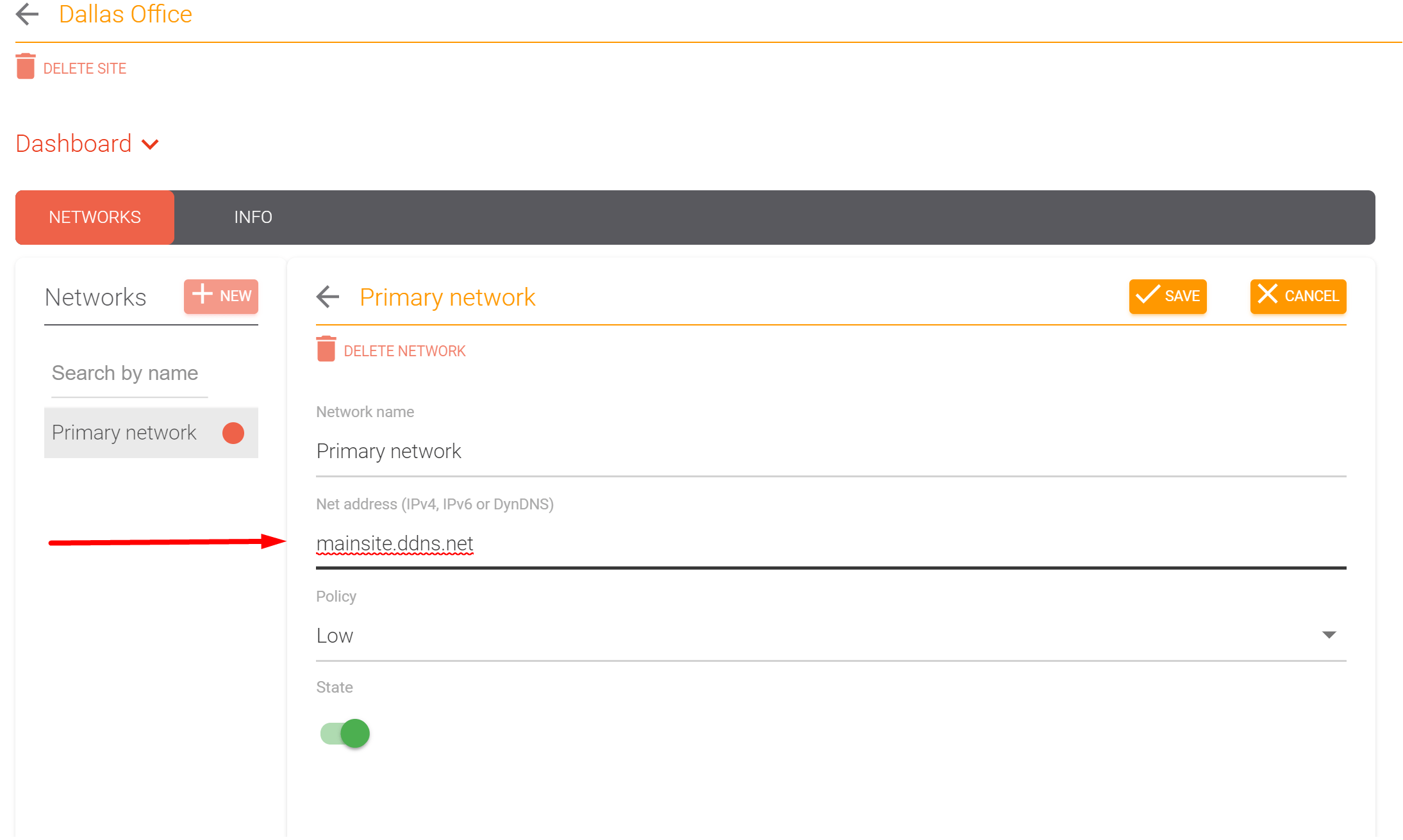
- Click the WAN to open Edit WAN (or click New WAN).
- In the Net address field, enter your fully qualified dynamic-DNS hostname (e.g.
acme-hq.ddns.net) instead of a literal IP. A WAN has one address; the same field takes either. - Save.
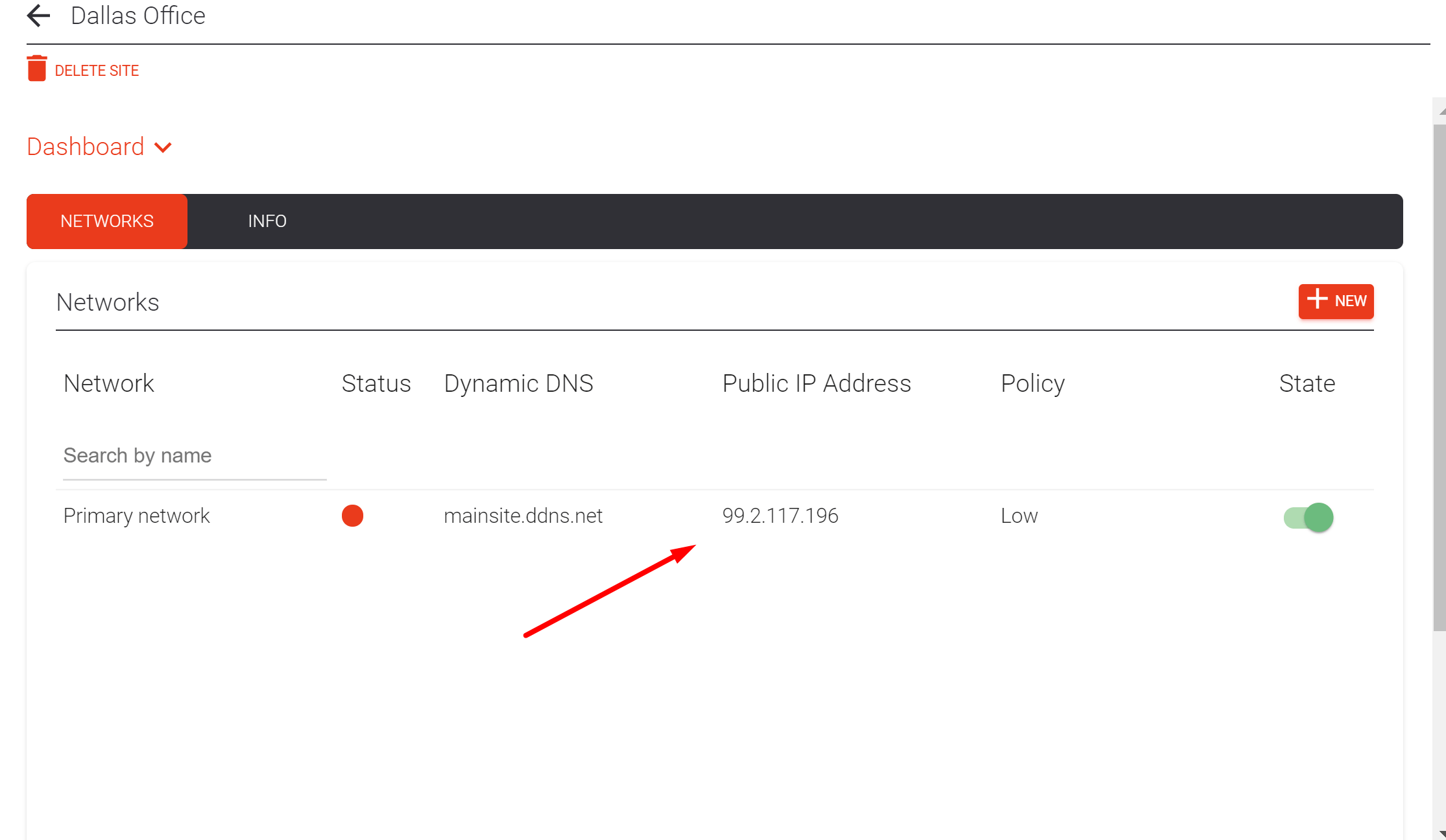
The ScoutDNS Dynamic DNS updater service starts polling immediately, resolves the hostname, and registers the resulting IP. The hostname shows in the WAN row’s Dynamic DNS column, and the resolved address fills the Public IP column once the updater picks it up.
How the sync works
[!NOTE] ScoutDNS’s updater runs in the cloud and only watches your provider’s DNS record. It does not install anything on your network and does not push updates to your router.
You still need the provider’s client-side updater (typically a small daemon on your router or a host on the network) to push your current public IP to the dynamic-DNS service. Once that piece is in place, ScoutDNS picks up the change from the public DNS record automatically.
Alternative: a Relay with Dynamic WAN
If the site runs (or could run) a LAN Relay, you don’t need a dynamic-DNS provider at all. The Relay’s Dynamic WAN option decouples the Relay from the WAN IP after adoption: the Relay identifies the site itself, traffic stays associated with the site for logging, and IP changes stop mattering. Because the Relay normally inherits the WAN’s policy for unconfigured subnets, you pick a fallback Dynamic WAN Policy when turning it on.

See Relay setup and configuration: Dynamic WAN for the setup steps.
Troubleshoot
- ScoutDNS shows the wrong IP, confirm the dynamic-DNS hostname resolves to your actual current public IP from an external network (e.g.
nslookup acme-hq.ddns.net 8.8.8.8). If it doesn’t, the provider’s updater isn’t running or has stale credentials. - No queries arriving even though the IP looks right, wait a few minutes for the updater service’s poll cycle, then verify with the Quickstart checklist.
If neither helps, open a support ticket.
Related
- Quickstart: WAN forwarding
- Relay setup and configuration, including the Dynamic WAN option
- ScoutDNS resolver IPs