Browse Admin Console
- Dashboard overview
- Insights overview
- Sites Overview - Network Deployments
- Policies Overview - Create and Edit
- Custom Lists overview
- Clients Overview - Device Agents and Profiles
- Users Overview - Directory Users and Personas
- Organizations Overview - MSP Tenant Management
- Lookup Tool Overview
- Query Log Overview
- Settings Overview - Account Administration
- Help & Support Overview
- Signing In - Login, 2FA, and Password Reset
- Two-factor authentication (2FA)
- Add system users (role-based access)
- Check domain classification with the Lookup Tool
- Configurable objects and their associations
- Configure notifications
- Working with organizations (multi-tenant)
- Working with policies
- Content categories
- Security categories
- Application categories (Zero Trust app management)
- Working with allow and block lists
- Zero Trust TLD Filters
- Safe Search explained
- Safe Search supported search engines
- YouTube Restricted Mode explained
- Custom block pages
- Prevent DNS bypass
- Don't mix DNS providers
- Active Directory group policies
- Entra ID group policies
- Tracking individual users
Two-factor authentication (2FA)
Enforce two-factor authentication for every ScoutDNS operator with email codes or TOTP apps, including trusted devices, recovery codes, and resets.
ScoutDNS supports two-factor authentication for all operators who access the console, with a choice of two delivery methods: email codes (a six-digit token sent to the operator’s email) or TOTP authenticator apps (Google Authenticator, Microsoft Authenticator, 1Password, and similar). The policy is account-wide: one on/off switch and one method that applies to every operator.
[!IMPORTANT] 2FA is strongly recommended for every production account. It is the only protection your Super Admin break-glass account has if SSO is enabled and Entra ID is the rest of the auth surface. See SSO with Entra ID for the broader auth model.
Enable 2FA
The controls sit at the top of the Operators tab under Settings → Access Management, visible to Admin and Super Admin roles.
- Open Settings → Access Management.
- Switch Force 2FA on.
- Pick the Method: Email or TOTP.

From the next login onward, every operator on the account authenticates with a second factor:
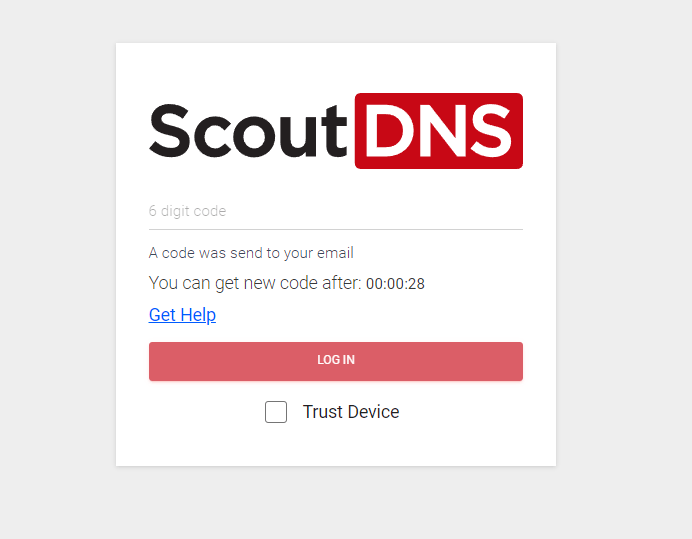
- Email: a six-digit code is sent to the email address on their operator account.
- TOTP: at their next sign-in, each operator is walked through a one-time authenticator setup: scan a QR code (or enter the key manually), confirm a six-digit code from the app, and save the recovery code shown at the end.
Switching methods
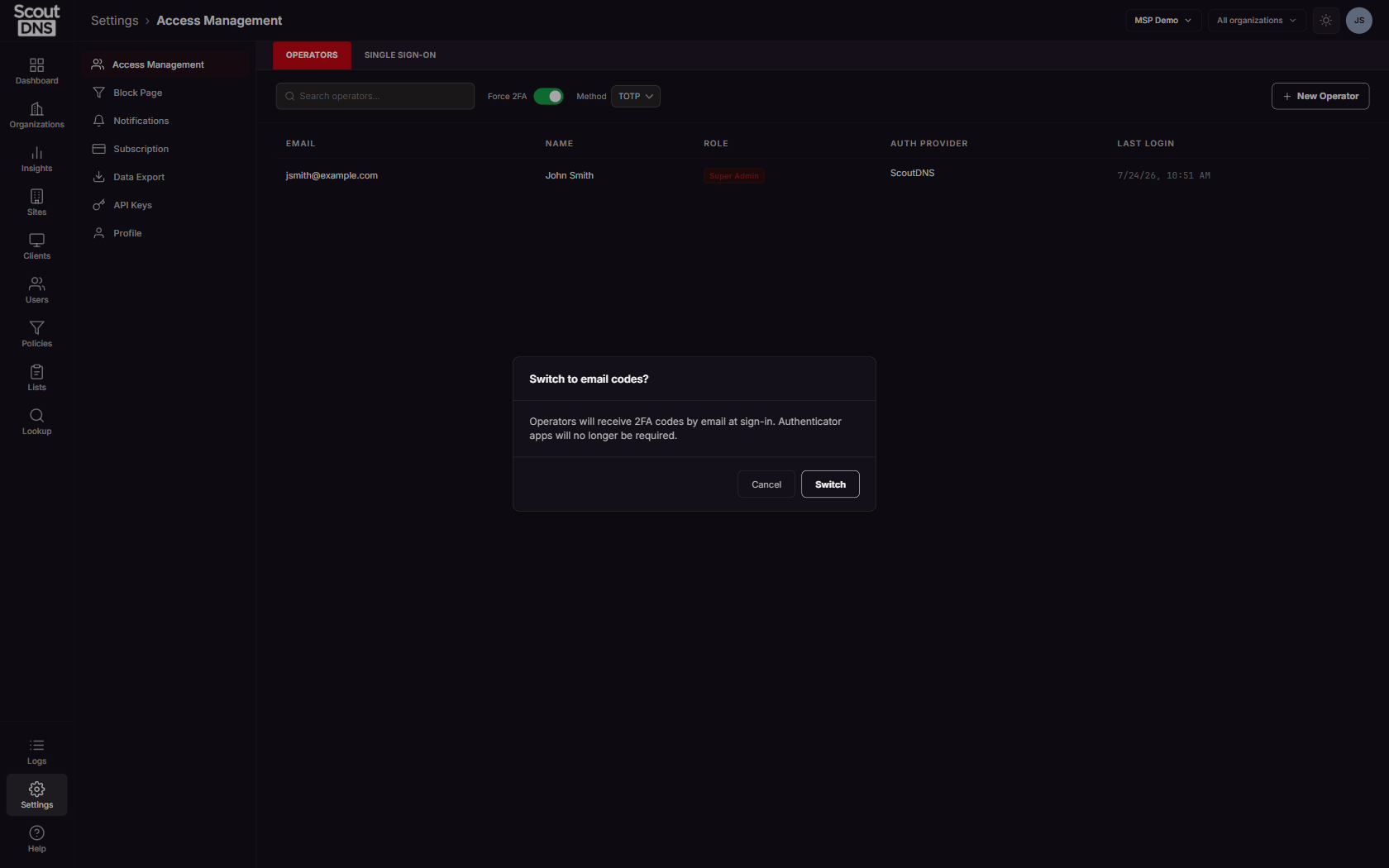
Changing the Method affects every operator, so it confirms first. Switching to TOTP means every operator sets up an authenticator app at their next sign-in and email codes stop; switching back to email retires the authenticator requirement.
Trust this device
When entering a code at sign-in, operators can check Trust this device. The second factor is then skipped on that browser for 30 days, after which the next login prompts again.
[!TIP] “Trust this device” is per browser, not per machine. Logging in from an incognito window or a different browser triggers a fresh prompt.
Recovery codes and lost authenticators
TOTP setup ends with a one-time recovery code. Store it in a password manager; it is the self-service way back in if the authenticator app is lost.
An operator who still has console access can replace their authenticator from Settings → Profile with Reset authenticator app. The reset replaces both the authenticator and the recovery code; the old app stops working once the new setup completes. See the Profile section for where this lives.
Cross-account behavior
If an operator has access to multiple ScoutDNS accounts (typical for MSPs), the second factor from one account carries across the accounts that enforce 2FA for as long as the session stays active. Switching accounts does not re-prompt.