Browse Admin Console
- Dashboard overview
- Insights overview
- Sites Overview - Network Deployments
- Policies Overview - Create and Edit
- Custom Lists overview
- Clients Overview - Device Agents and Profiles
- Users Overview - Directory Users and Personas
- Organizations Overview - MSP Tenant Management
- Lookup Tool Overview
- Query Log Overview
- Settings Overview - Account Administration
- Help & Support Overview
- Signing In - Login, 2FA, and Password Reset
- Two-factor authentication (2FA)
- Add system users (role-based access)
- Check domain classification with the Lookup Tool
- Configurable objects and their associations
- Configure notifications
- Working with organizations (multi-tenant)
- Working with policies
- Content categories
- Security categories
- Application categories (Zero Trust app management)
- Working with allow and block lists
- Zero Trust TLD Filters
- Safe Search explained
- Safe Search supported search engines
- YouTube Restricted Mode explained
- Custom block pages
- Prevent DNS bypass
- Don't mix DNS providers
- Active Directory group policies
- Entra ID group policies
- Tracking individual users
Lookup Tool Overview
Check how ScoutDNS classifies any domain: categories, threats, and parent-domain classification, plus reporting for reclassification.
The Lookup Tool answers one question fast: how does ScoutDNS see this domain right now? Enter a domain (or paste a full URL, the tool uses its host name) and you get its current categories, any detected threats, and its parent domain’s classification, which together predict whether a policy would block it. From the same screen you can report the domain to the ScoutDNS team for reclassification, or flag it as malicious.
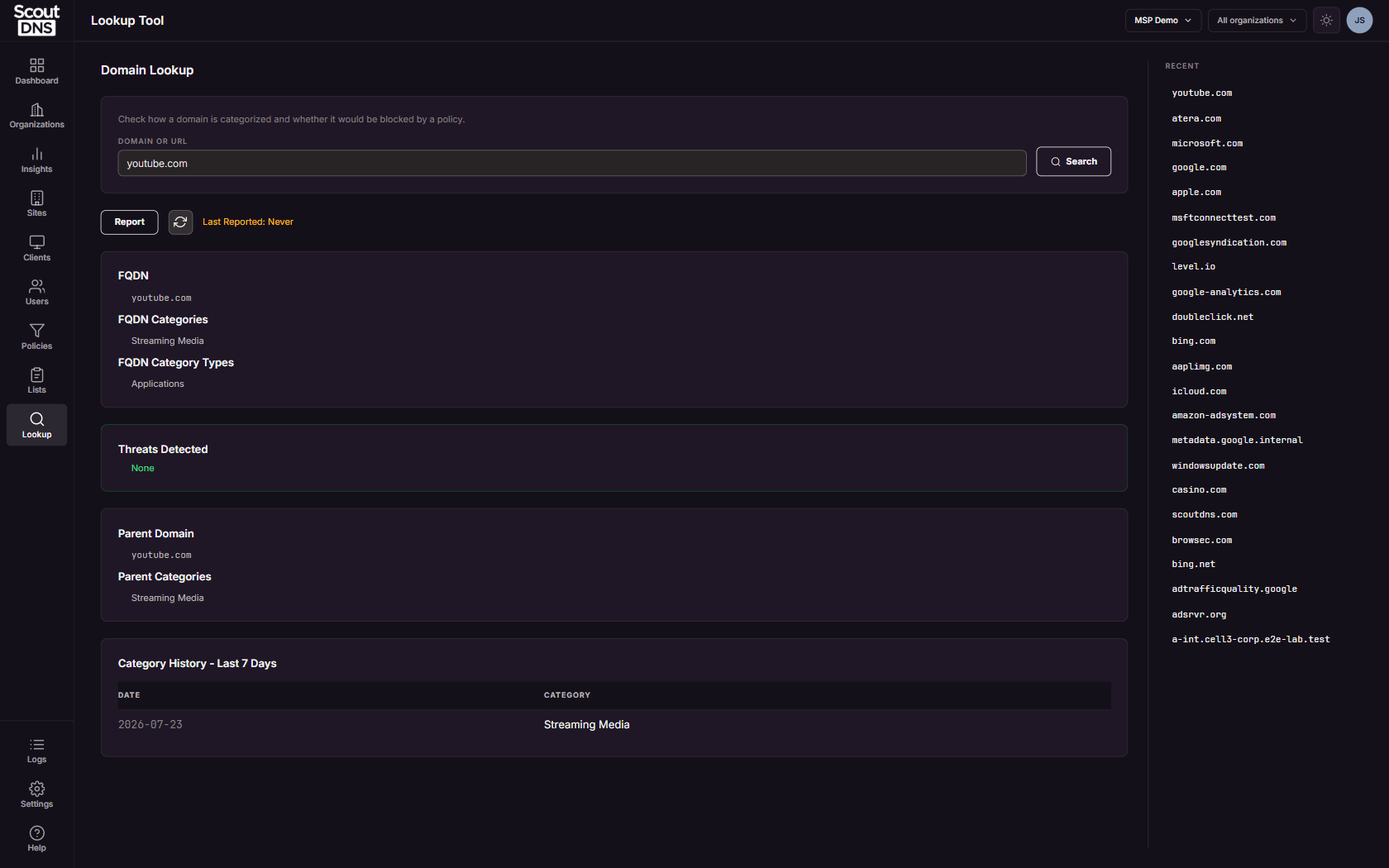
Every role can use Lookup; it is reachable from the sidebar (Lookup) or straight from an Insights row’s Lookup action, which opens the same tool as a drawer.
Reading a result
- FQDN Categories and FQDN Category Types are the domain’s current classification. A domain can carry several categories at once; “Unknown” means the classifier returned none.
- Threats Detected is the binary that matters: a green None, or a red list of threat classifications.
- Parent Domain and Parent Categories are shown separately because a subdomain can be classified differently from its parent (
mail.example.comvsexample.com). - Category History - Last 7 Days appears when the domain’s classification changed recently.
- Last Reported shows when anyone on your account last reported this domain, or “Never”.
The Recent sidebar remembers your previous lookups for quick re-checks, and the refresh button re-runs the current one. Classification is queried live each time; there is no stale cache to worry about.
Reporting a domain
If a classification looks wrong, or you have found something malicious, click Report:
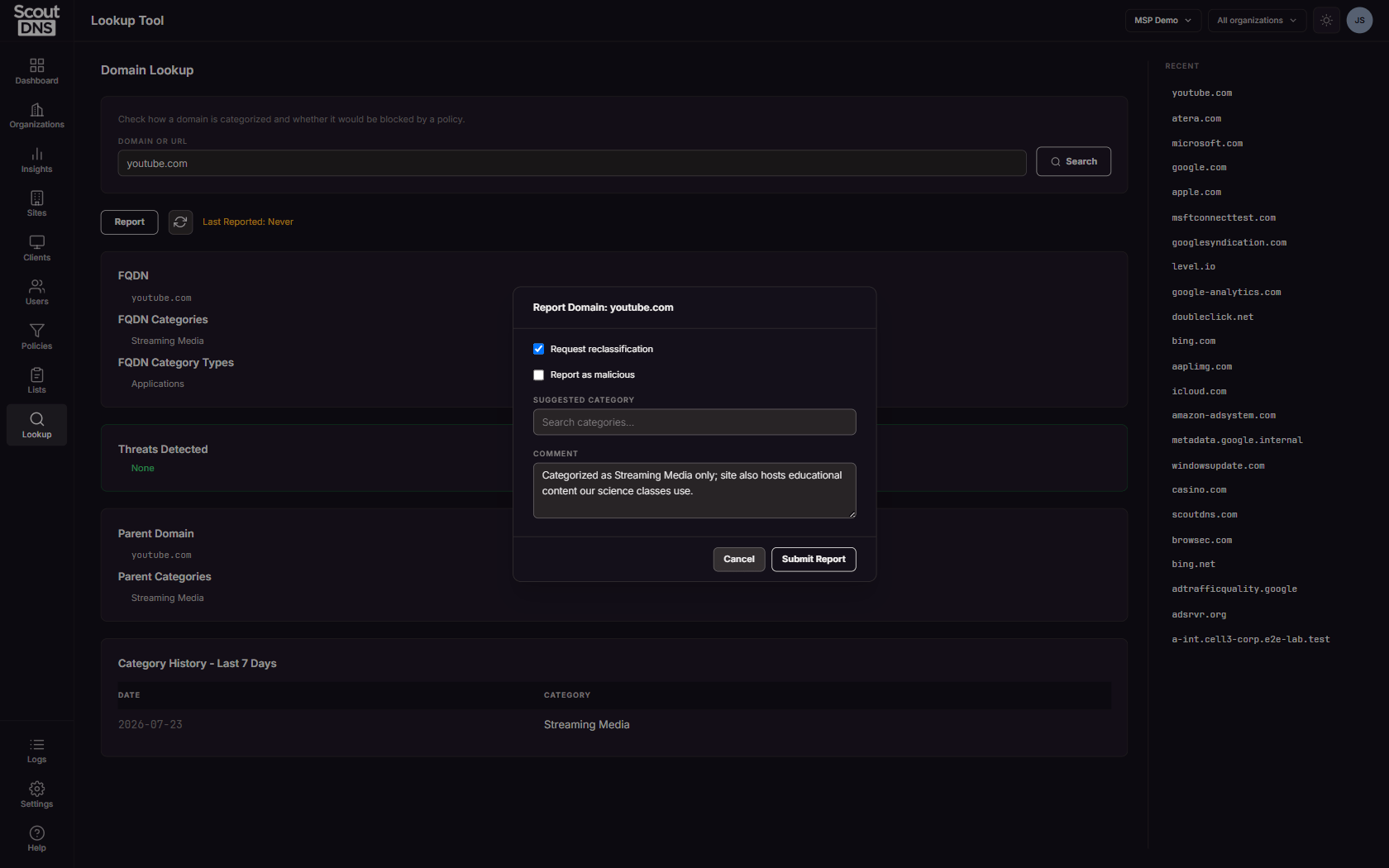
- Tick Request reclassification, Report as malicious, or both (at least one is required).
- Optionally pick a Suggested Category.
- Write a brief Comment explaining why (required, up to 299 characters), even for malicious reports; context is what makes a report actionable.
The ScoutDNS team reviews reports and updates classifications when appropriate.
[!TIP] If a wrongly classified domain is blocking your users right now, don’t wait for reclassification: add the domain to an allow list for immediate relief, then file the report so the classification gets fixed at the source.
FAQ
A domain shows “Unknown” categories. Will it be blocked? Unknown means unclassified. Whether it resolves depends on the policy: a policy with Block Unclassified on will block it; otherwise it is allowed unless a list or another control catches it.
The subdomain and the main site show different categories. That’s expected; classification is per-hostname. The parent card is there precisely so you can compare.
How long does reclassification take? There’s no fixed turnaround; reports are reviewed by the ScoutDNS team. Use an allow or block list for anything time-sensitive.
Where did my Recent list come from? It’s your account’s lookup history. Clicking an entry re-runs the lookup live.
Related
- Check domain classification and request changes, the step-by-step how-to
- Insights overview, where the row-level Lookup action lives
- Working with allow and block lists, immediate overrides while a report is reviewed
- Security categories, what the threat classifications mean