Browse Admin Console
- Dashboard overview
- Insights overview
- Sites Overview - Network Deployments
- Policies Overview - Create and Edit
- Custom Lists overview
- Clients Overview - Device Agents and Profiles
- Users Overview - Directory Users and Personas
- Organizations Overview - MSP Tenant Management
- Lookup Tool Overview
- Query Log Overview
- Settings Overview - Account Administration
- Help & Support Overview
- Signing In - Login, 2FA, and Password Reset
- Two-factor authentication (2FA)
- Add system users (role-based access)
- Check domain classification with the Lookup Tool
- Configurable objects and their associations
- Configure notifications
- Working with organizations (multi-tenant)
- Working with policies
- Content categories
- Security categories
- Application categories (Zero Trust app management)
- Working with allow and block lists
- Zero Trust TLD Filters
- Safe Search explained
- Safe Search supported search engines
- YouTube Restricted Mode explained
- Custom block pages
- Prevent DNS bypass
- Don't mix DNS providers
- Active Directory group policies
- Entra ID group policies
- Tracking individual users
Signing In - Login, 2FA, and Password Reset
How operators sign in to ScoutDNS: password or Log In with Microsoft, 2FA prompts, authenticator setup, recovery codes, and password reset.
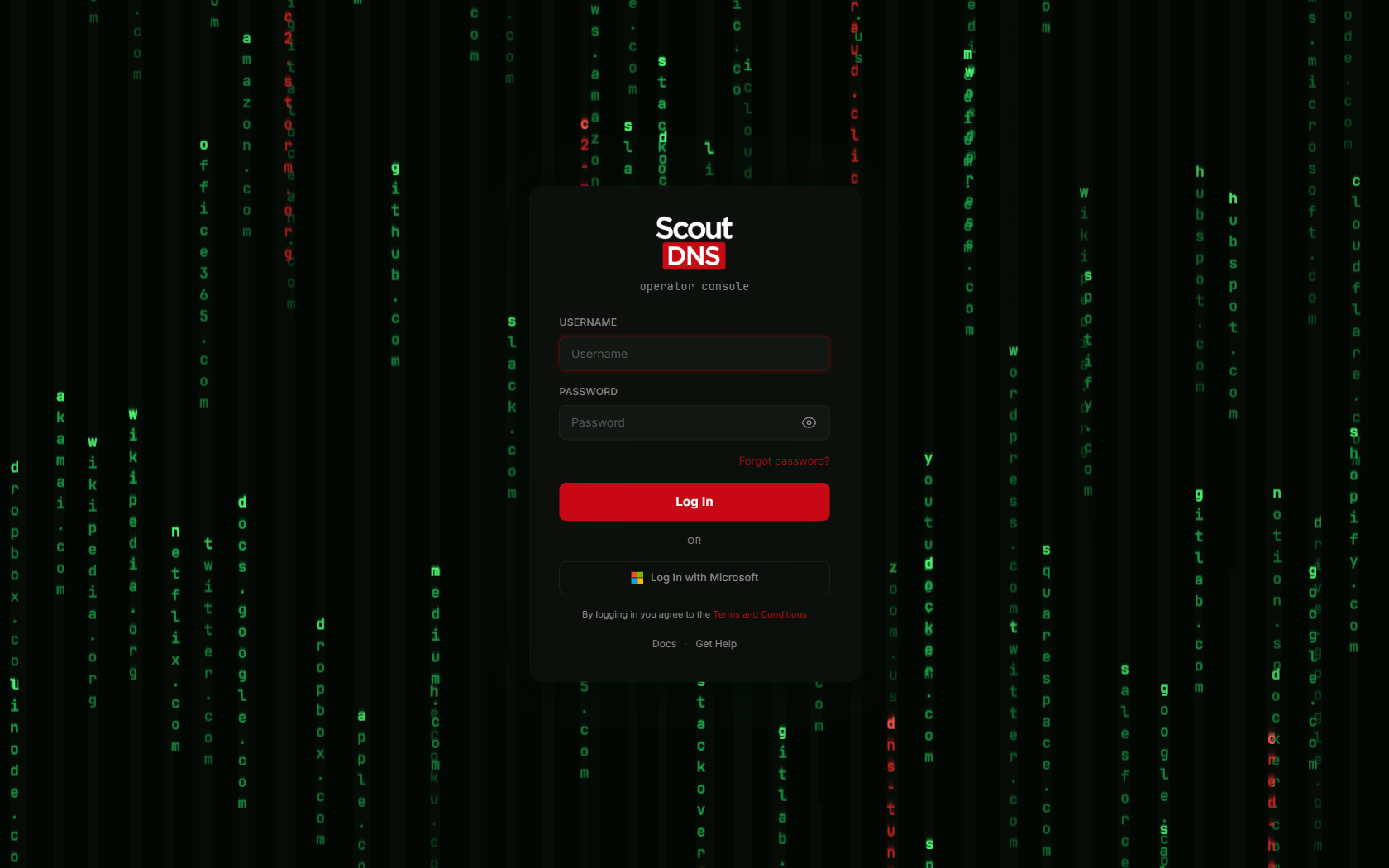
Operators sign in at the console’s login page with a username and password, or with Log In with Microsoft on accounts using Entra ID SSO. What happens after the password depends on the account’s two-factor policy.
The second factor
Accounts with 2FA enforced prompt for a second step after the password. The method is account-wide, set by an admin under Settings → Access Management:
- Email codes: a six-digit code arrives at your operator email. Resend code is available after a 30-second cooldown.
- Authenticator app: enter the six-digit code your app shows.
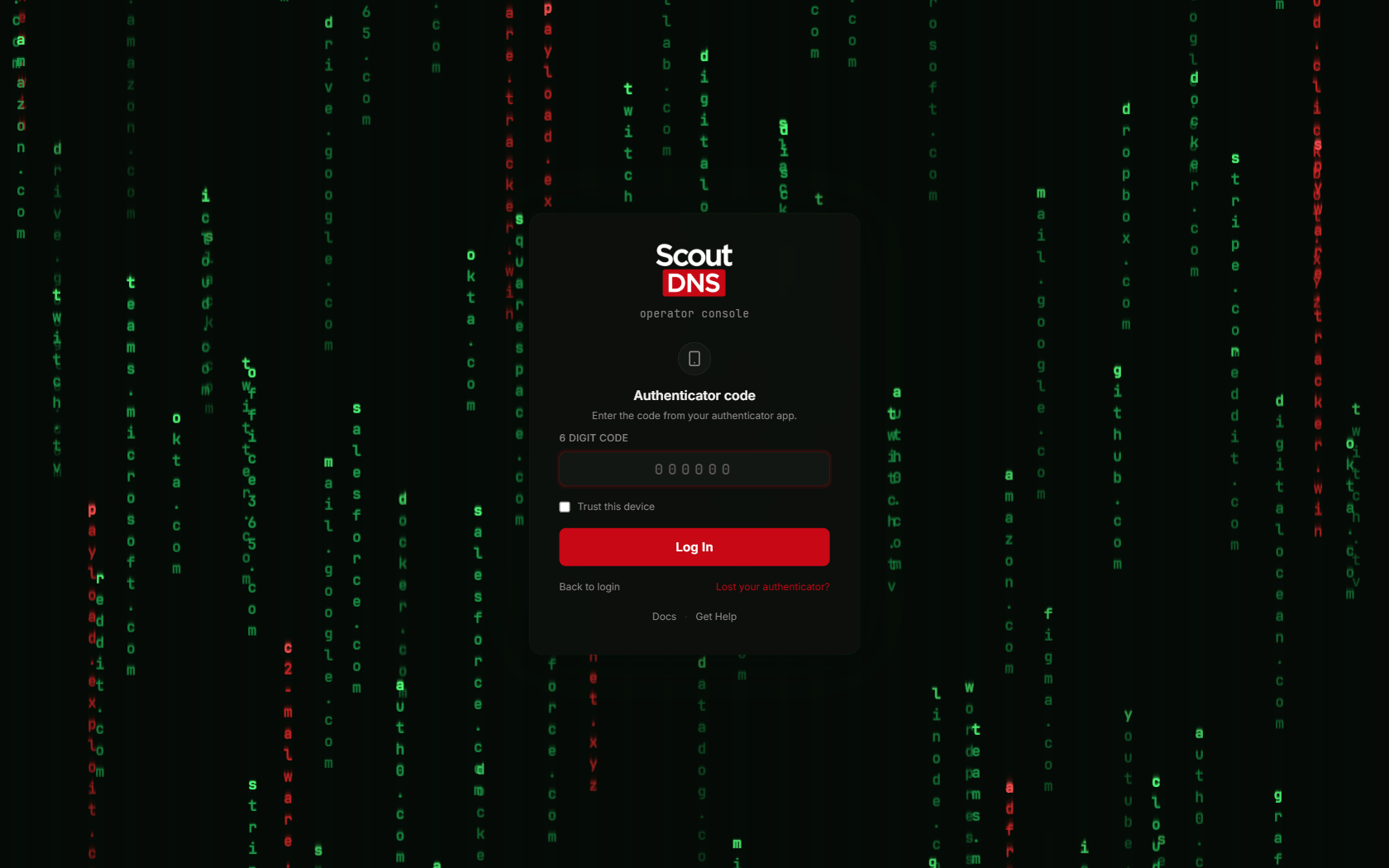
Checking Trust this device skips the second factor on that browser for 30 days. It is per browser, not per machine; an incognito window or a different browser prompts again.
First sign-in after the account switches to authenticator apps
When the account requires an authenticator you haven’t set up yet, sign-in walks you through enrollment: scan the QR code (or copy the key into your app manually), enter the six-digit code the app shows, and Verify & Log In.
After the code verifies, a recovery code appears exactly once. Save it in a password manager and confirm before continuing; it is the only self-service way back in if you lose the authenticator.
Lost your authenticator?
The authenticator prompt has a Lost your authenticator? link. Enter your recovery code and ScoutDNS resets the authenticator and walks you straight into setting up a new one, with a new recovery code. Each recovery code works once.
If you have neither the authenticator nor the recovery code, contact an admin on your account or open a support ticket.
Signing in with Microsoft
- On accounts using the standard SSO setup, click Log In with Microsoft on the login page. You are redirected to Microsoft and back; the first use in your Entra tenant shows Microsoft’s consent prompt for the ScoutDNS app.
- Accounts with their own Entra App Registration have a unique SSO link instead; get it from your administrator.
Which operators use SSO, and which stay on local passwords, is covered in SSO with Entra ID.
Reset your password
- Click Forgot password? on the login page.
- Enter your account email and Send Reset Link.
- Open the link from your email, enter a new password (minimum 7 characters) twice, and Reset Password.
The confirmation screen reads “If an account exists for…” no matter what you enter; the form deliberately does not reveal which emails have accounts. Expired or already-used links show an Invalid reset link message with a pointer to request a fresh one.
FAQ
I signed in but landed on a page I didn’t expect. The console returns you to wherever you were originally headed before it asked you to sign in; otherwise you land on the Dashboard.
My 2FA prompt changed from email codes to an authenticator app. An admin switched the account’s 2FA method. Sign-in walks you through the authenticator setup automatically; see Two-factor authentication.
The login page ignores my light-mode preference. By design; the login page is always dark. Your theme applies once you are in the console.