Browse Policies & Filtering
- Dashboard overview
- Insights overview
- Sites Overview - Network Deployments
- Policies Overview - Create and Edit
- Custom Lists overview
- Clients Overview - Device Agents and Profiles
- Users Overview - Directory Users and Personas
- Organizations Overview - MSP Tenant Management
- Lookup Tool Overview
- Query Log Overview
- Settings Overview - Account Administration
- Help & Support Overview
- Signing In - Login, 2FA, and Password Reset
- Two-factor authentication (2FA)
- Add system users (role-based access)
- Check domain classification with the Lookup Tool
- Configurable objects and their associations
- Configure notifications
- Working with organizations (multi-tenant)
- Working with policies
- Content categories
- Security categories
- Application categories (Zero Trust app management)
- Working with allow and block lists
- Zero Trust TLD Filters
- Safe Search explained
- Safe Search supported search engines
- YouTube Restricted Mode explained
- Custom block pages
- Prevent DNS bypass
- Don't mix DNS providers
- Active Directory group policies
- Entra ID group policies
- Tracking individual users
Zero Trust TLD Filters
Shrink your attack surface with Zero Trust TLD filters: untrusted TLDs are blocked immediately, trusted TLDs still get full filtering.
A Zero Trust TLD Filter splits every top-level domain into Trusted and Untrusted. A query to an untrusted TLD is blocked immediately. A query to a trusted TLD continues through every other stage of the policy as normal: threat categories, content categories, custom lists, and the rest all still apply.
The traditional approach to TLD abuse is a block list: a TLD earns a bad reputation, then someone adds it. Zero trust inverts that. You trust only the TLDs your users actually need and use, and everything else is blocked on sight, including TLDs nobody has heard of yet. That shrinks your attack surface against zero-day and short-lived domains, which cluster heavily in the cheap, obscure TLDs no one in your organization has a reason to visit.
Trusting a TLD is not allow-listing it. Trust means only that queries to it are not blocked outright; a phishing domain on .com is still caught by the policy’s threat categories even though .com is trusted.
Building a filter
Zero Trust TLD Filters live on the Custom Lists page, on the TLD Filter tab. New TLD filter creates one; click a filter to open it.
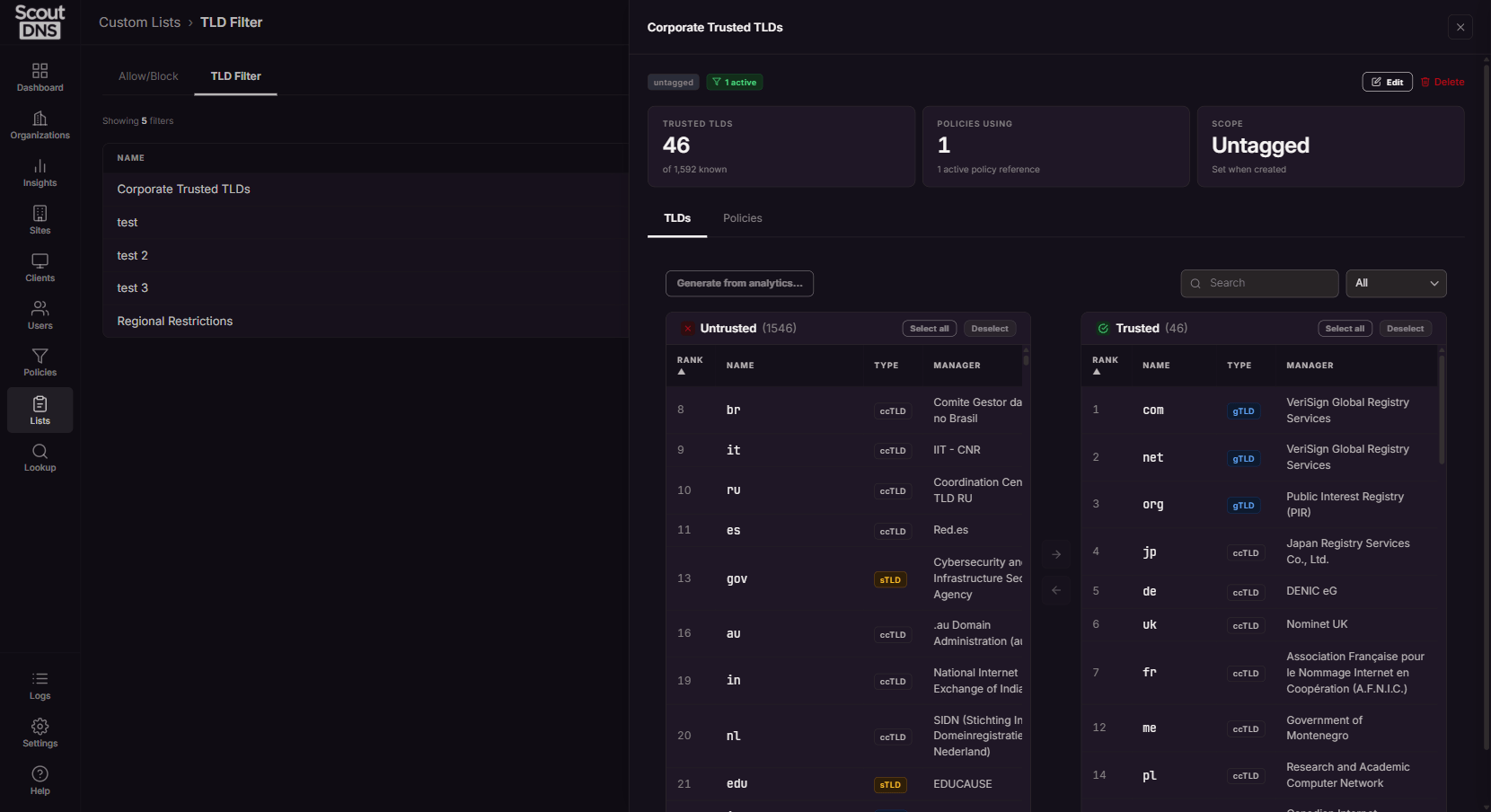
The TLDs tab is a two-pane transfer: Untrusted on the left, Trusted on the right. Search, filter by type, and move TLDs between panes. Each TLD is labeled by type (ccTLD country-code, gTLD generic, or sTLD sponsored) and carries a popularity rank (1 is most popular).
A Block .arpa queries option additionally blocks the .arpa reverse-DNS pseudo-domain.
Generate a trusted set from your traffic
Rather than sorting hundreds of TLDs by hand, click Edit on the filter and use Generate trusted TLDs (the generator is disabled while viewing). It looks at your organization’s last 30 days of query analytics and lets you keep the top N TLDs by volume, showing how much of your real traffic that set would cover and previewing exactly what it would add, keep, or remove.
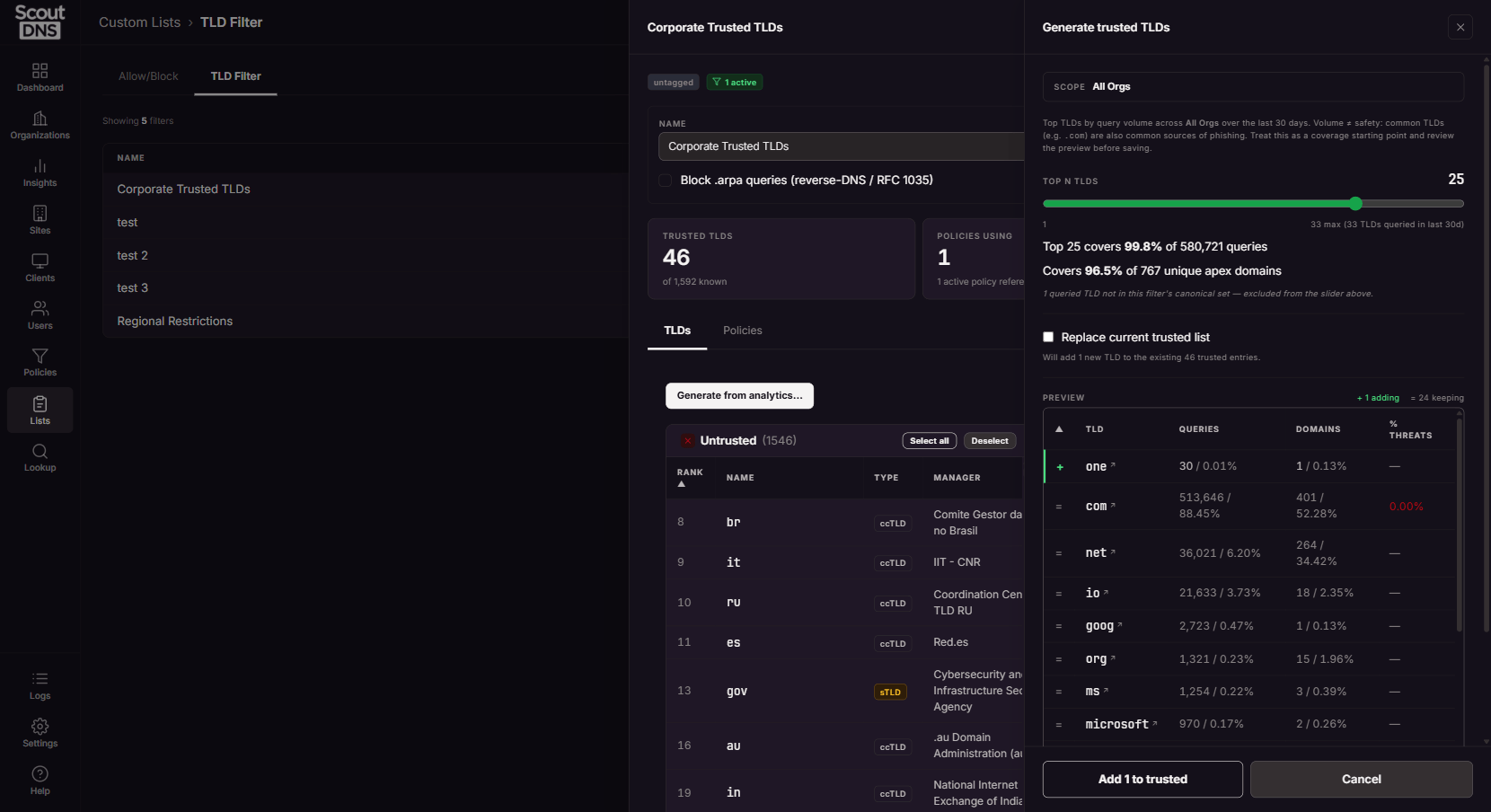
A Replace current trusted list option chooses whether it merges with or replaces what you already trust. The generator only fills in the drawer; press Save changes on the filter to apply it.
[!NOTE] Query volume measures demand: how much your users, or the selected organization’s users, actually use each TLD. It does not by itself indicate safety, so treat the generated set as a starting point and review the preview before saving.
Putting a filter to work
A filter takes effect only when a policy references it: open the policy, click Edit, and set TLD filter on the Settings tab (see Policies Overview - Create and Edit). The filter’s Policies tab shows where it is in use.
If a legitimate site sits on a TLD you have not trusted, you have two options: trust the TLD (everything on it still gets fully filtered), or leave it untrusted and add the specific domain to an allow list (see below), which wins for that domain.
FAQ
Does trusting a TLD allow everything on it? No. Trusted means the TLD is not blocked outright; every domain on it still goes through the policy’s threat, content, and list filtering. Only untrusted TLDs skip all of that and get blocked immediately.
How is this different from blocking bad TLDs with categories or lists? Block lists chase known-bad TLDs after they earn a reputation. A Zero Trust TLD Filter starts from what your users actually need, so brand-new and short-lived TLD abuse is blocked by default instead of after the fact.
A site my users need is on an untrusted TLD. Either move that TLD to Trusted, or add the specific domain to an allow list and leave the TLD untrusted. Allow-list entries override the TLD filter by design, so you can make exceptions without loosening the TLD rule itself.
How many TLDs should I trust? Most organizations’ real traffic concentrates in a surprisingly small set; the generator typically shows the top 25 or so TLDs covering more than 99% of queries. Start there, review the preview, and add the specific TLDs your business needs.
Related
- Custom Lists overview, the page where filters live
- Working with allow and block lists, per-domain overrides for untrusted TLDs
- Policies Overview - Create and Edit, applying a filter to a policy
- Prevent DNS bypass, companion controls for locking down DNS