Browse Admin Console
- Dashboard overview
- Insights overview
- Sites Overview - Network Deployments
- Policies Overview - Create and Edit
- Custom Lists overview
- Clients Overview - Device Agents and Profiles
- Users Overview - Directory Users and Personas
- Organizations Overview - MSP Tenant Management
- Lookup Tool Overview
- Query Log Overview
- Settings Overview - Account Administration
- Help & Support Overview
- Signing In - Login, 2FA, and Password Reset
- Two-factor authentication (2FA)
- Add system users (role-based access)
- Check domain classification with the Lookup Tool
- Configurable objects and their associations
- Configure notifications
- Working with organizations (multi-tenant)
- Working with policies
- Content categories
- Security categories
- Application categories (Zero Trust app management)
- Working with allow and block lists
- Zero Trust TLD Filters
- Safe Search explained
- Safe Search supported search engines
- YouTube Restricted Mode explained
- Custom block pages
- Prevent DNS bypass
- Don't mix DNS providers
- Active Directory group policies
- Entra ID group policies
- Tracking individual users
Clients Overview - Device Agents and Profiles
Manage every device running the ScoutDNS roaming agent: fleet status, per-device dashboards, remote actions, profiles, and install keys.
The Clients page manages every device running the ScoutDNS roaming client agent (Windows and macOS). It has two tabs. Manage is your fleet inventory: every enrolled device with its status, policy, signed-in user, location, and last check-in, plus the actions to disable, forget, or uninstall agents. Configure is where Profiles live: the reusable configuration bundles that decide which policy, block page, and DNS behavior a group of devices gets, along with the install keys used to enroll new devices.
[!NOTE] Everyone can view Clients. Device actions, Edit Client, and profile creation require an Admin role, or, on multi-tenant accounts, an organization Manager working within their selected organization.
The fleet at a glance
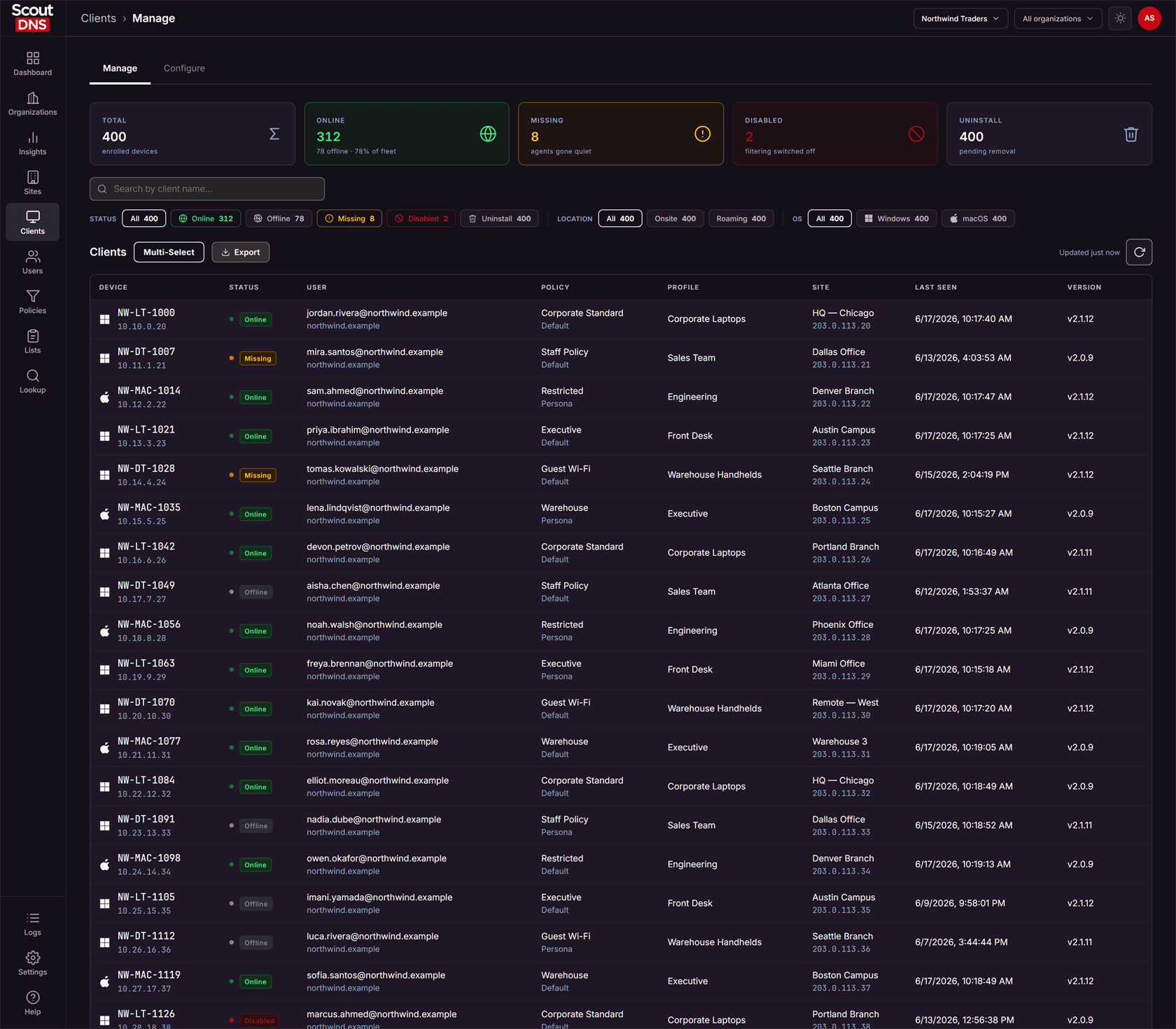
Five cards summarize the fleet: Total, Online, Missing (agents gone quiet), Disabled (filtering switched off), and Uninstall (pending removal). Filter chips narrow the table by Status, Location (Onsite / Roaming), and OS, and the search box matches device names as you type.
Each row shows the device and its LAN IP, status, the signed-in user, the active Policy with its source underneath, the Profile, the Site (or Roaming) with WAN IP, Last seen, and agent Version. Click a column header to sort the fleet by it (click again to flip, a third time to reset); every column sorts except Policy.
The policy source label is worth reading:
| Source label | The policy comes from |
|---|---|
| Default | The device’s profile |
| Dynamic Onsite / Dynamic Offsite | The profile’s dynamic policy pair, picked by network location |
| Client | A per-device override set in Edit Client |
| Persona | A directory-group policy from Active Directory or Entra ID |
[!NOTE] Large fleets load 100 devices at a time; the footer shows how many are loaded and how many match your filters in total (for example “100 clients of 1,240 matching”), with a Load 100 more button to fetch the next page. The stat cards always count the whole fleet.
Device details
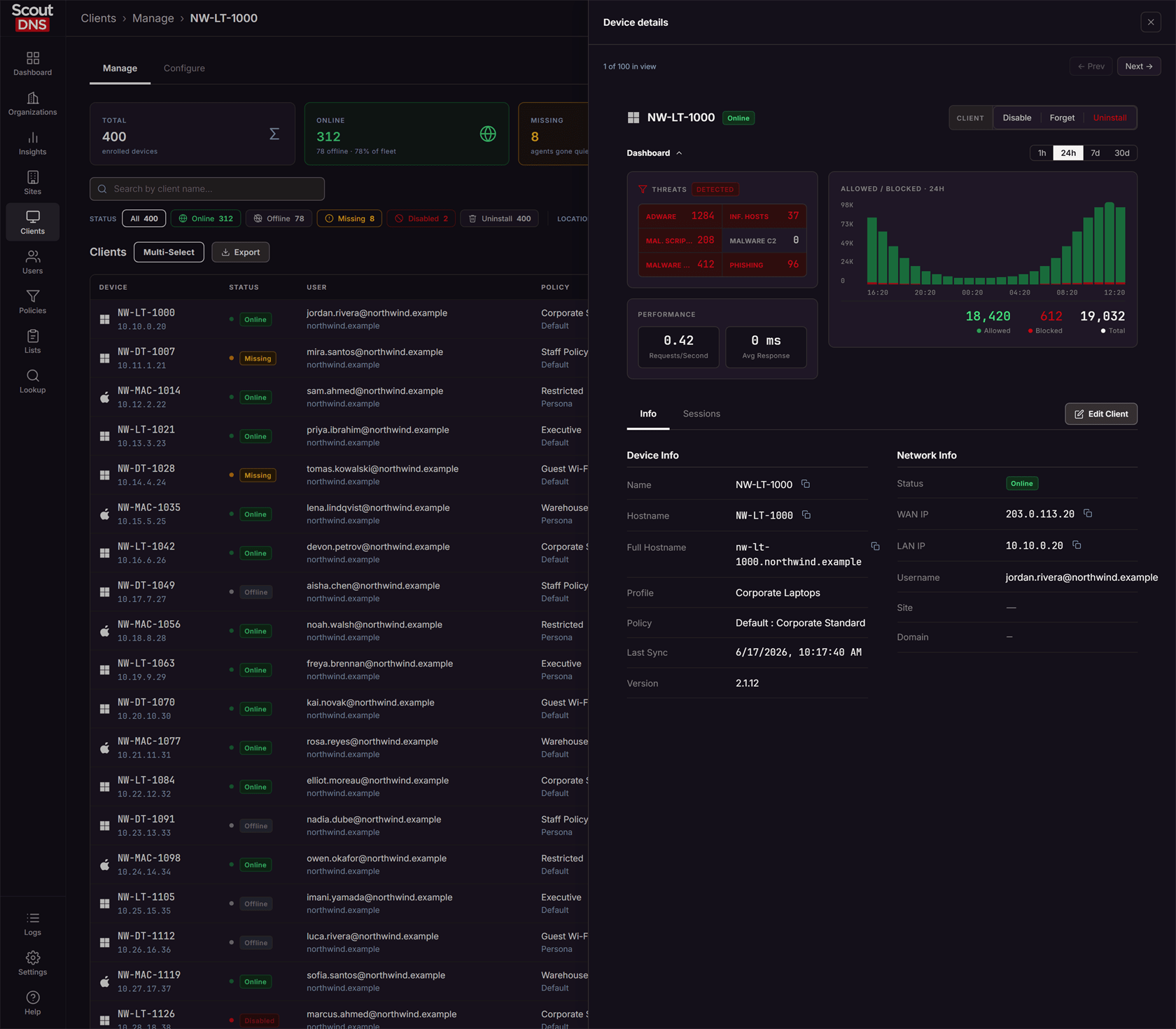
Click a device to open its drawer: a collapsible Dashboard (threat hits, requests per second, and an allowed/blocked chart over 1h to 30d), an Info tab with the device and network facts, and a Sessions tab listing recent sign-ins with site and IPs, which is where per-user activity on a shared device shows up.
Edit Client changes the device’s display name, its profile, and its policy. The policy dropdown’s first option, Profile Defined, means “no override, follow the profile”; picking a specific policy overrides the profile for this one device.
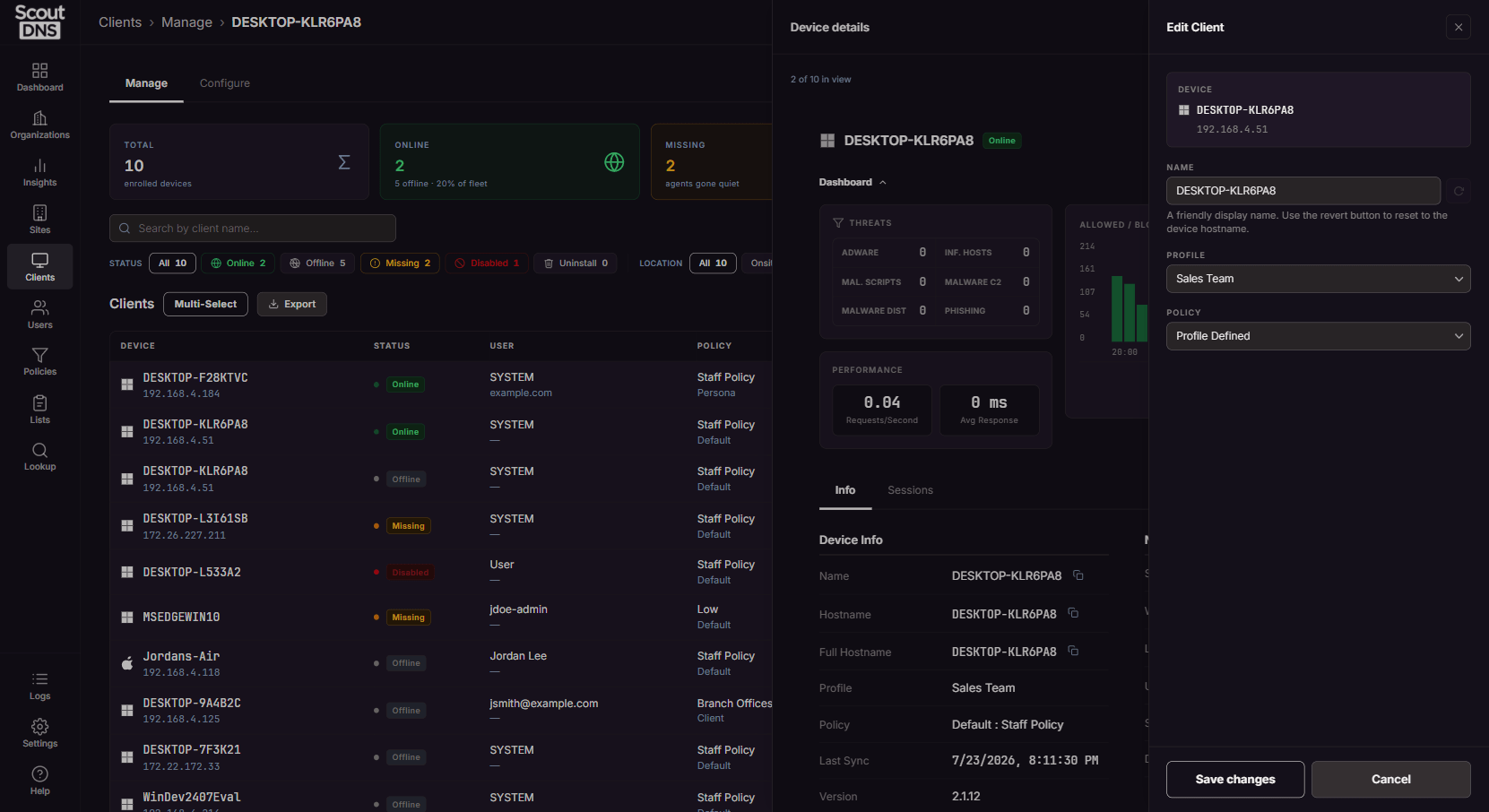
[!NOTE] If a device’s policy comes from a persona, the policy field is locked here and points you to the personas surface instead; see Users Overview.
Disable, Forget, and Uninstall
The drawer’s action banner (and Multi-Select on the list for bulk) offers four actions whose differences matter:
| Action | What it does | Reversible? |
|---|---|---|
| Disable | Turns filtering off; the agent stays installed and DNS falls back to the LAN’s default servers | Yes, Enable any time |
| Enable | Resumes filtering, and also cancels any pending uninstall | N/A |
| Forget | Removes the device from the console only | A still-running agent reappears on the next sync |
| Uninstall | Removes the agent from the device at its next sync | No. Re-adding the device requires a fresh install |
Bulk Forget and Uninstall ask you to type the word to confirm. When you select every loaded row and more devices match your filters on the server, a banner tells you the bulk action will apply to all matching devices, not just the loaded ones, and the confirmation shows the full count.
Export downloads a CSV of every device matching the current filters (search, status, location, OS, and profile), in the table’s current sort order, not just the rows on screen.
Profiles
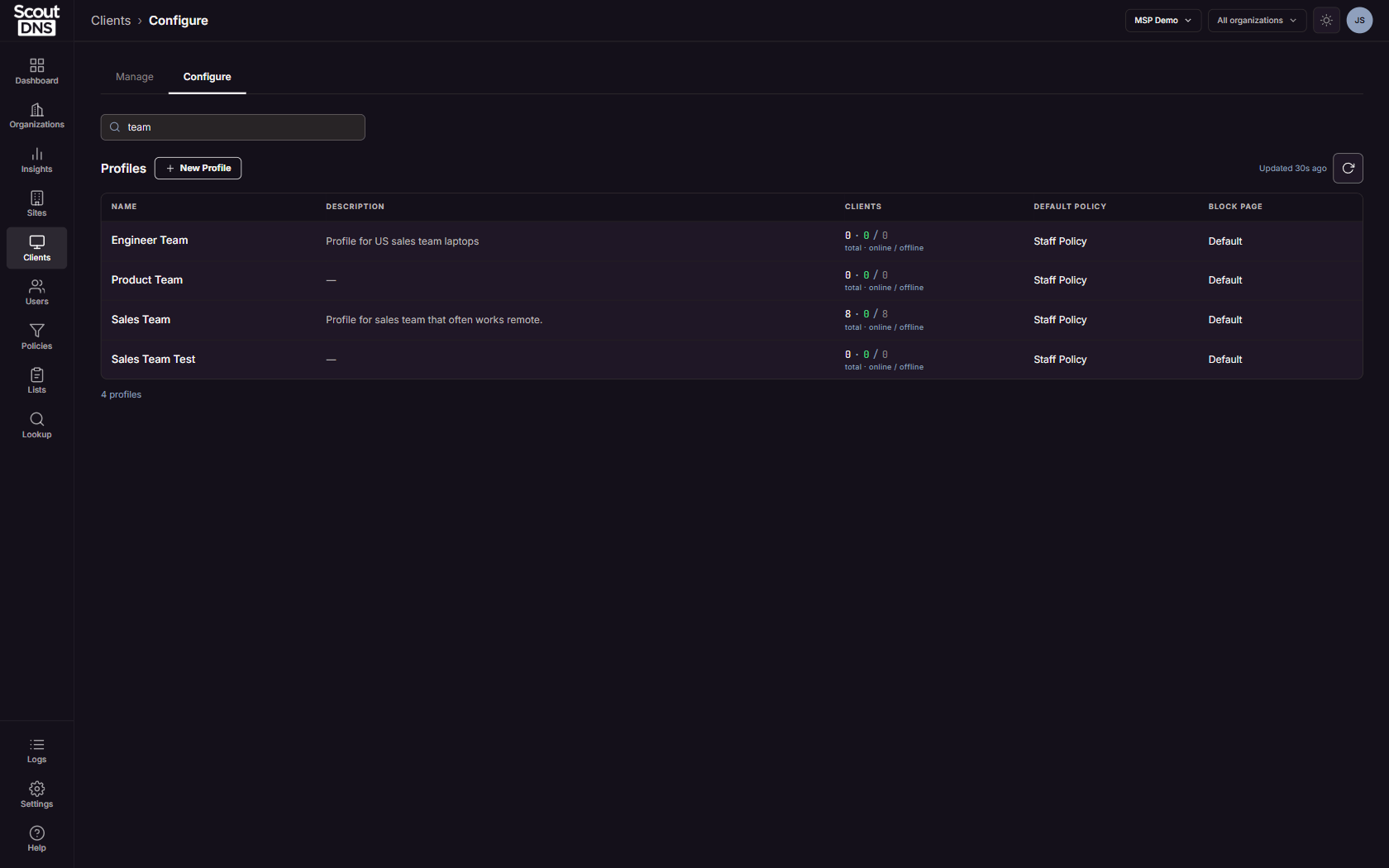
The Configure tab lists your profiles: name, description, enrolled client counts, default policy, and block page.
Open a profile for its three tabs:
Settings
Edit profile sets the profile name, Default policy, Block page, and description, plus two switches:
- Enable User Policies allows persona (directory-group) policies to apply to users on this profile’s devices. Persona-based filtering does not work on a profile without this.
- Dynamic Policies (under Advanced) sets an Onsite policy / Offsite policy pair, applied automatically depending on whether the device is on a recognized network. Profiles using it show a “Dynamic” badge.
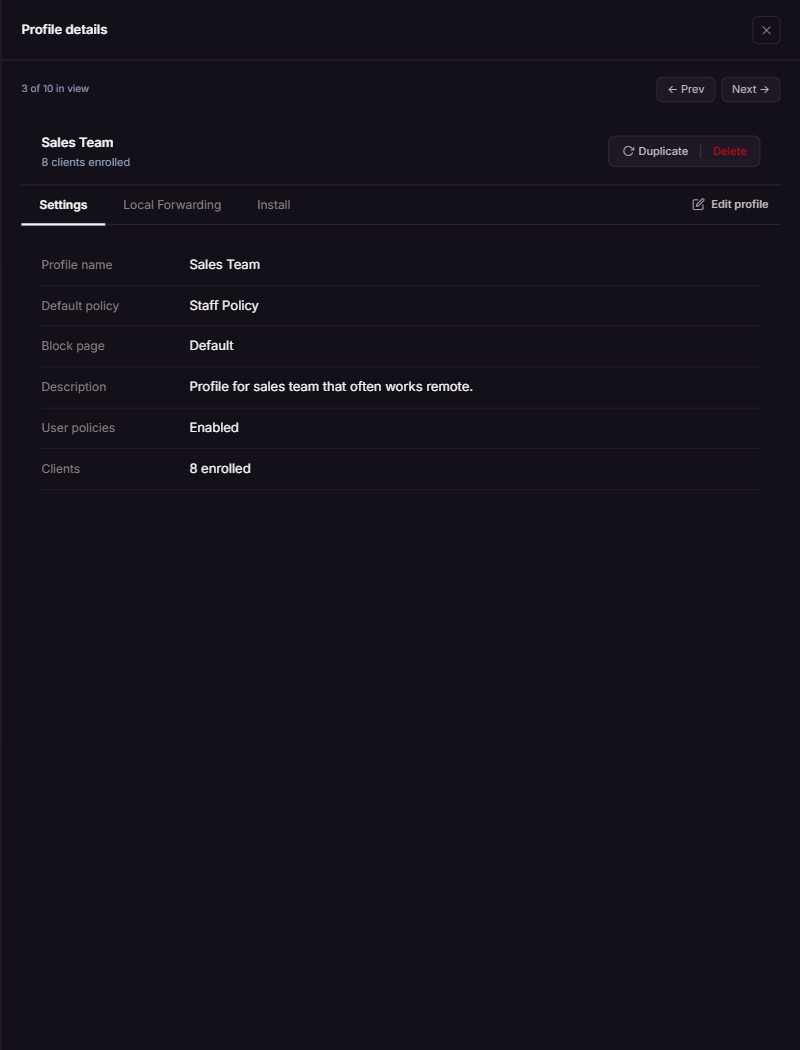
Duplicate copies the profile’s name, policy, and description into a new profile (forwarding rules, install keys, and block page are not copied). A profile with clients enrolled cannot be deleted; move the clients first.
Local Forwarding
Per-profile split DNS: send queries for named internal domains either to the device’s own resolvers (Use Device Resolvers (Auto)) or to specific DNS Server IPs, overriding cloud resolution for those domains. This is the roaming-device equivalent of a site’s Local Forwarding.
Install
Install keys enroll new devices into this profile. Each key has a platform, architecture, expiry, a maximum install count, and a used-installs tally. Platform and architecture are fixed once a key is created; generate a new key to change them (expiry and max installs stay editable). Expanding a key shows two enrollment paths, both copyable:
- Script Installer: a download URL, the key, and a ready-to-paste install command for scripted or RMM deployment.
- Packaged Installer: the MSI/PKG for push-based deployment tools.
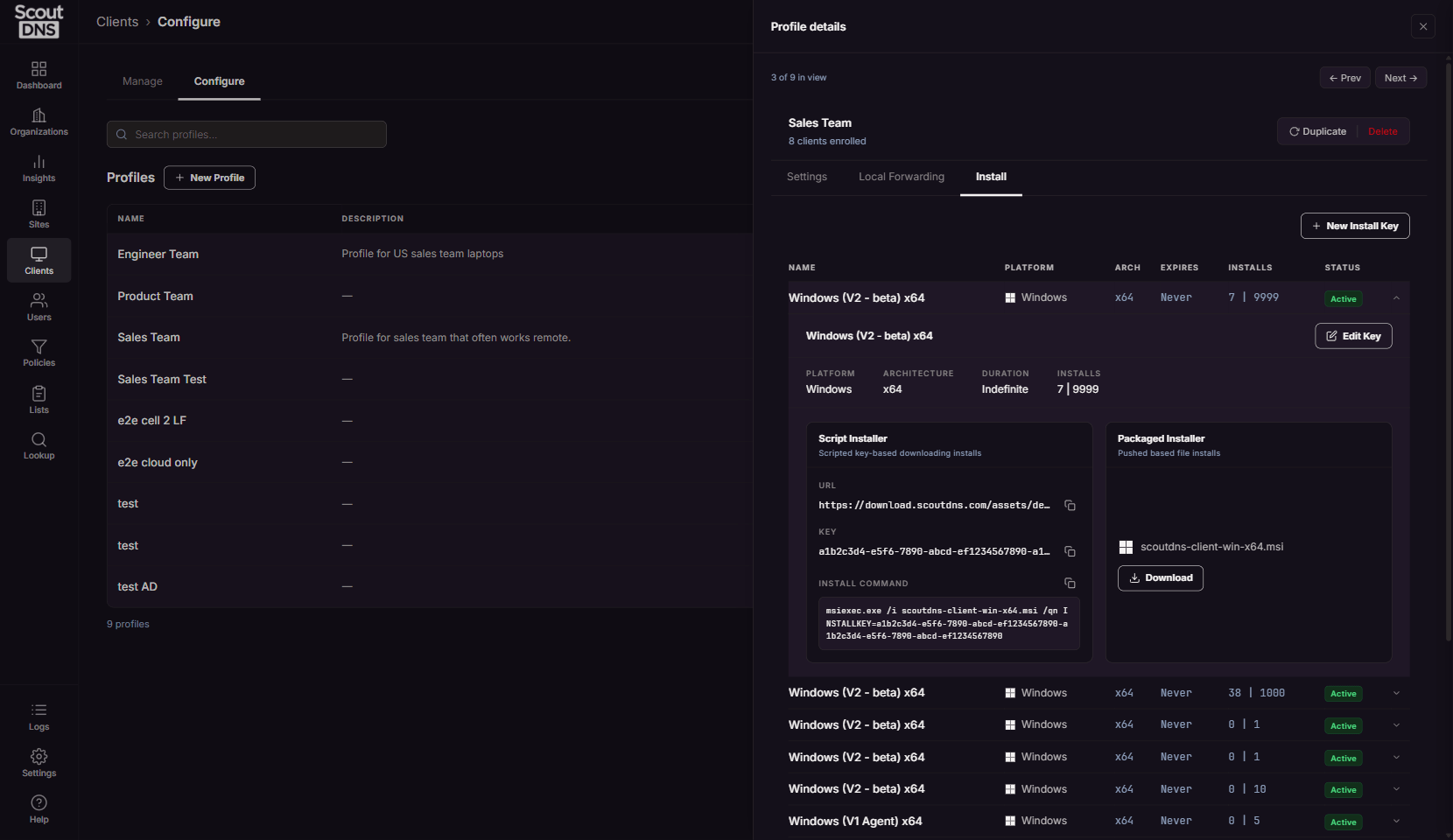
[!IMPORTANT] An install key is an enrollment credential. Treat it like a secret: share it through your deployment tooling, not chat or email, and set an expiry unless you have a reason for an indefinite key.
FAQ
What is the difference between Offline and Missing? Offline is a normal state for a device that is shut down or asleep. Missing means the agent has gone quiet for longer than expected and is worth investigating.
I forgot a device and it came back. Forget only removes the console record. If the agent is still installed and running, it re-registers on its next sync. To actually remove the agent, use Uninstall.
A device shows “Disabled”. Is it protected? No. Disabled means filtering is switched off and DNS is handled by the local network’s default servers. Re-enable it from the device drawer.
Why can’t I change a device’s policy? Its policy comes from a persona (the source label under the policy name reads “Persona”). Persona policies are managed on the Users page, under Configure.
The stat cards say more devices than the table shows. The table loads 100 devices at a time; the cards count the whole fleet. The footer tells you the exact number matching your filters. Load 100 more pages through them, or use Export for the full list.
Related
- Users Overview - Directory Users and Personas, per-user policies via directory groups
- Working with policies, assigning policies to profiles and devices
- Policies Overview - Create and Edit, building the policies profiles use
- Tracking individual users, how per-user attribution works
- Windows Client v2 deployment guide, deploying the agent itself