Browse Admin Console
- Dashboard overview
- Insights overview
- Sites Overview - Network Deployments
- Policies Overview - Create and Edit
- Custom Lists overview
- Clients Overview - Device Agents and Profiles
- Users Overview - Directory Users and Personas
- Organizations Overview - MSP Tenant Management
- Lookup Tool Overview
- Query Log Overview
- Settings Overview - Account Administration
- Help & Support Overview
- Signing In - Login, 2FA, and Password Reset
- Two-factor authentication (2FA)
- Add system users (role-based access)
- Check domain classification with the Lookup Tool
- Configurable objects and their associations
- Configure notifications
- Working with organizations (multi-tenant)
- Working with policies
- Content categories
- Security categories
- Application categories (Zero Trust app management)
- Working with allow and block lists
- Zero Trust TLD Filters
- Safe Search explained
- Safe Search supported search engines
- YouTube Restricted Mode explained
- Custom block pages
- Prevent DNS bypass
- Don't mix DNS providers
- Active Directory group policies
- Entra ID group policies
- Tracking individual users
Sites Overview - Network Deployments
Manage ScoutDNS sites: read health at a glance, then configure WANs, LANs, relays, local forwarding, and redirects per site.
A site is a location or logical grouping in your account: an office, a campus, a data center, or any network you want to manage as a unit. The Sites area has two levels. The Sites list shows every site and its live health, and each site opens a detail page where the actual configuration lives: internet connections (WANs), internal networks (LANs), on-premise relays, DNS forwarding, and redirects.
This article is a tour of both. For the step-by-step procedures behind the detail page, it links out to the dedicated guides rather than repeating them.
The Sites list
The list groups sites by health so anything in trouble is at the top. It opens in card view; a toggle in the header switches to a table. The choice is remembered on your browser.
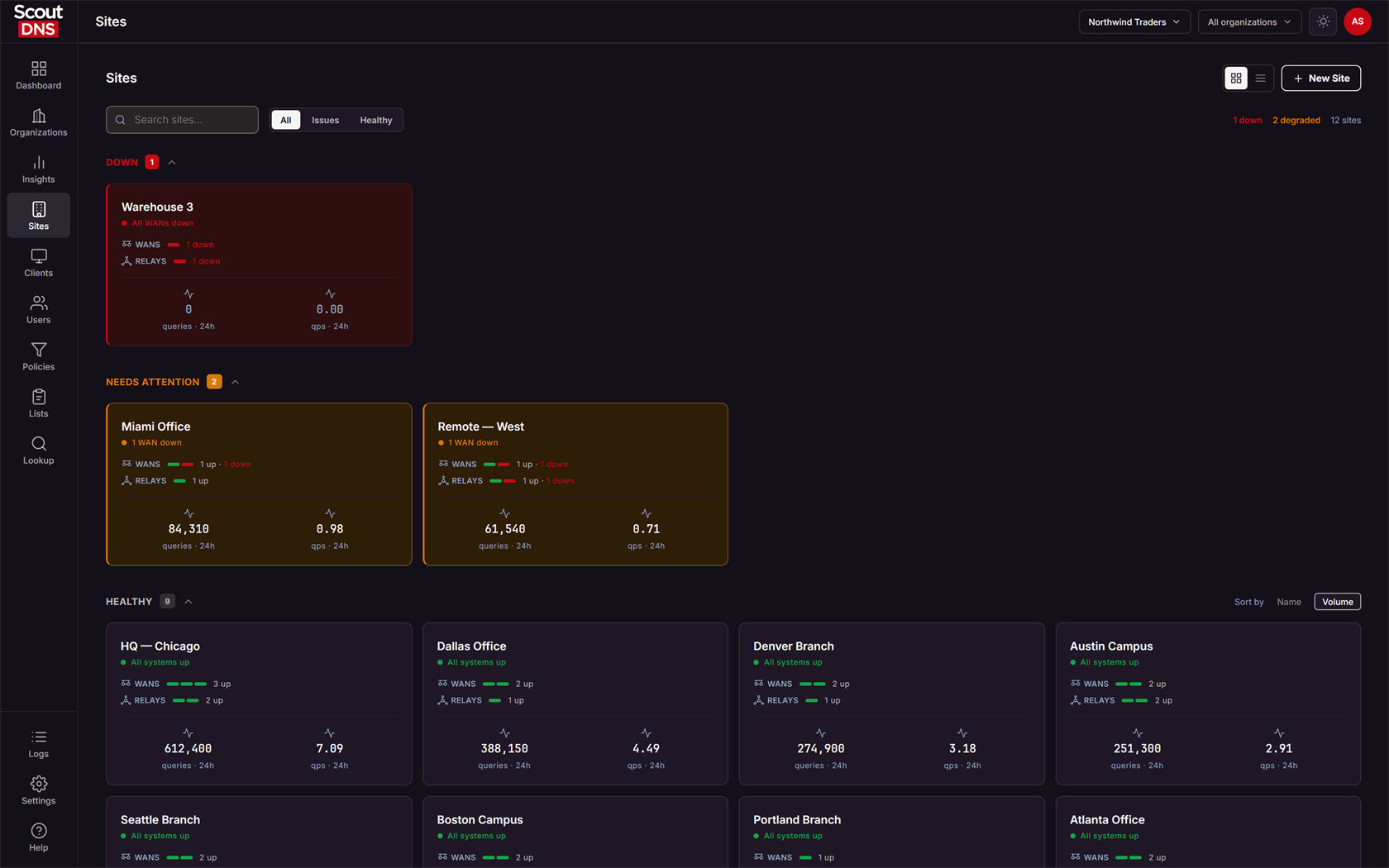
Sites are grouped into three sections, worst-first:
| Group | Meaning |
|---|---|
| DOWN (red) | No path is up: every WAN and every relay at the site is down |
| NEEDS ATTENTION (amber) | At least one path is up, but something is down |
| HEALTHY (green) | Everything up, or nothing configured yet |
Each site shows its WAN and relay up/down bars plus two stat tiles: queries and qps. (Per-site client and user counts live on the site’s detail page, in the Onsite now panel.) The HEALTHY group has a Sort by control (Name or Volume).
The toolbar has a Search sites box, an All / Issues / Healthy filter, and a live count summary on the right. New Site (top right, for operators with a writable role) opens a drawer that takes a site name and an optional address.
[!NOTE] The Sites list is a current-state view. There is no time-range picker, health reflects the present moment. A site that had an outage earlier but is fine now shows healthy. The stat tiles fill in a moment after the list appears, so a brief zero on first load is normal.
Opening a site
Click a site to open its detail page. A collapsible Site Dashboard at the top gives the site’s live picture: queries allowed vs. blocked, threats blocked, requests per second and average response time, which WANs are up or down, and the clients and users currently on-site. A 1h / 24h / 30d range picker (default 24h) scopes the dashboard’s stats and graphs; it does not affect the configuration tabs below.
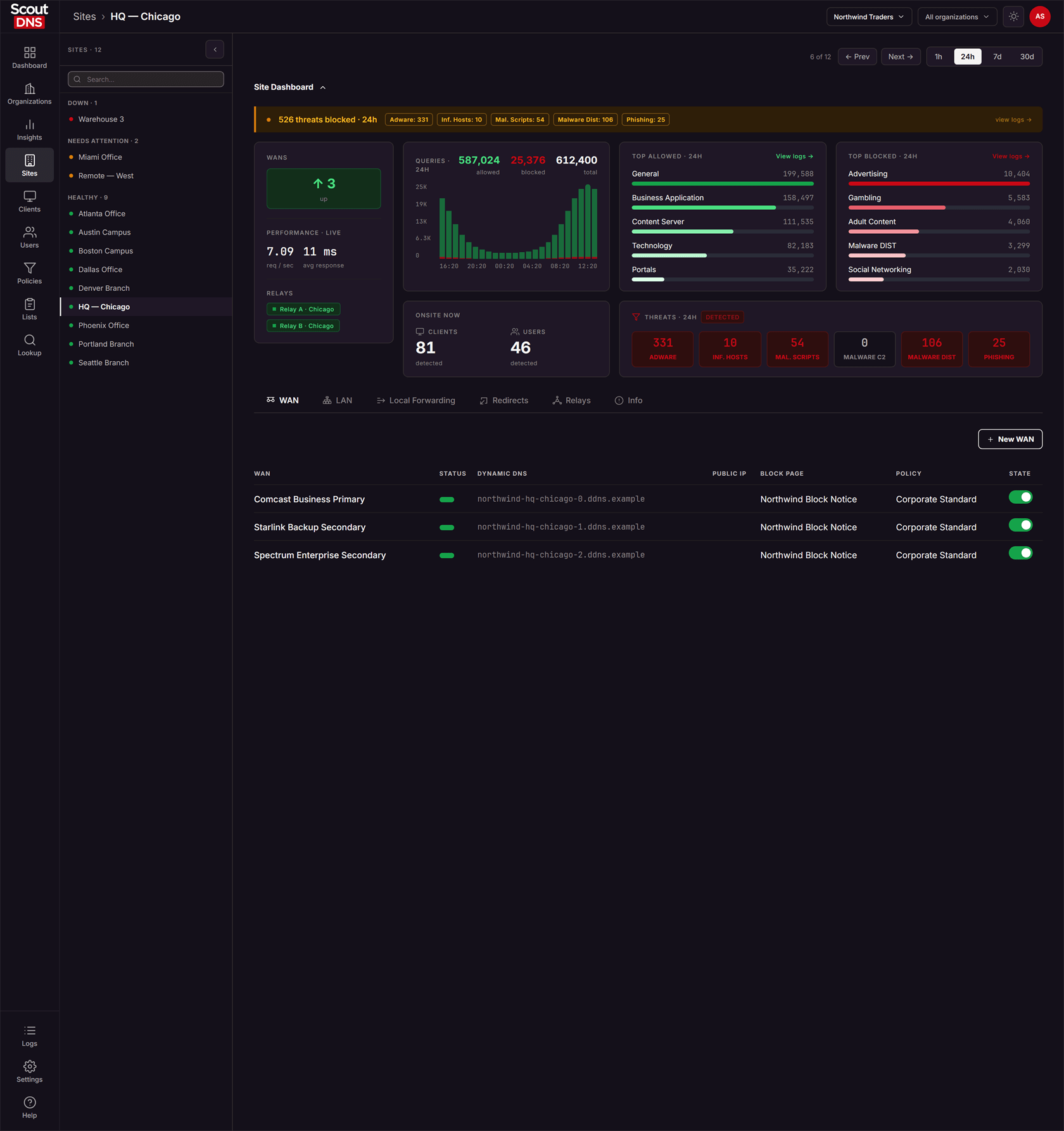
A left rail lists your other sites so you can switch quickly, and Prev / Next controls walk sites in the same order you were browsing on the list.
Configuring a site: the tabs
The detail page has six tabs: WAN, LAN, Local Forwarding, Redirects, Relays, and Info.
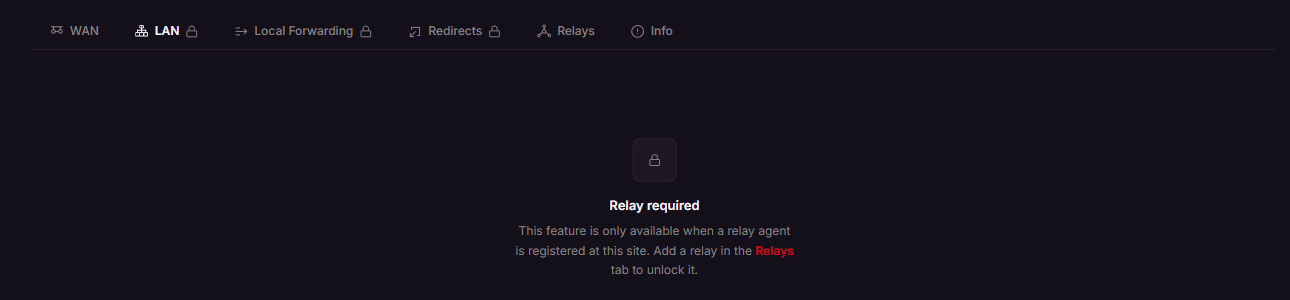
[!IMPORTANT] LAN, Local Forwarding, and Redirects are locked until the site has a relay. They show a lock icon and a “Relay required” message. The lock lifts as soon as a relay is registered at the site, adoption isn’t required, just registration. WAN, Relays, and Info are always available.
WAN
Each WAN is an internet connection at the site. The table shows every WAN with its status, public IP or dynamic DNS hostname, assigned block page, policy, and an on/off State toggle.

Clicking a WAN opens its editor.
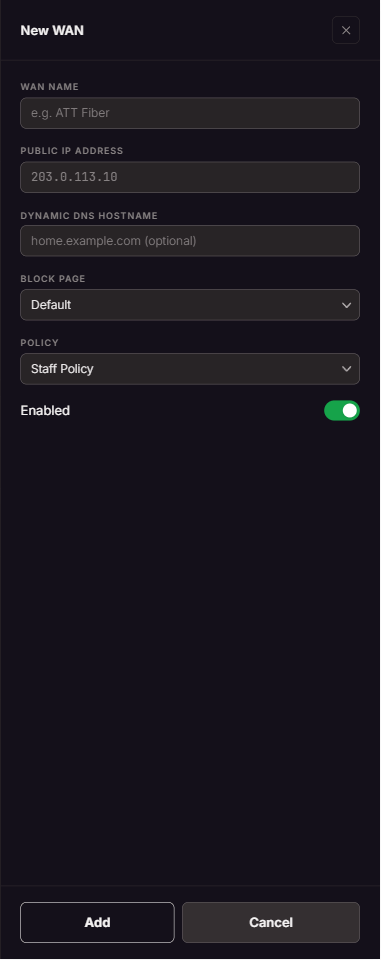
A WAN’s settings:
- WAN name
- Public IP address or Dynamic DNS hostname, these are two views of one setting, so filling one clears the other. Use the hostname option when the connection is on a changing IP (see Dynamic IP setup).
- Block page, the page users behind this WAN see when a site is blocked (see Custom block pages)
- Policy, the filtering policy applied to this WAN (see Working with policies)
For getting DNS flowing to a new WAN in the first place, see Quickstart: WAN forwarding.
[!NOTE] The default block page always displays as Default in the column and dropdown, even though it has a real name.
LAN
LANs are the internal networks behind the site’s WANs. Each LAN has a name, a WAN binding, an address range in CIDR form (for example 192.168.1.0/24), a policy, and an on/off state. In the LAN’s WAN dropdown, the first option is <All WANs>, which applies the LAN to every WAN at the site instead of binding it to one.
Local Forwarding
Local Forwarding sends queries for named internal domains to your own DNS servers instead of the cloud resolver, so internal names resolve correctly. Each rule has a LAN (or <All LANs>), a Domain (for example internal.company.lan), and one or more Local DNS IPs. The New Domain button opens the editor.
Redirects
A redirect is a local A-record: a name you choose resolves to an IP you choose, for a specific WAN or <All WANs>. Each has a WAN, a Domain (for example myserver.lan), and an IP address.
Relays
Relays are on-premise appliances that let a site do LAN-aware filtering, local forwarding, and redirects. This tab is where you adopt and manage them.
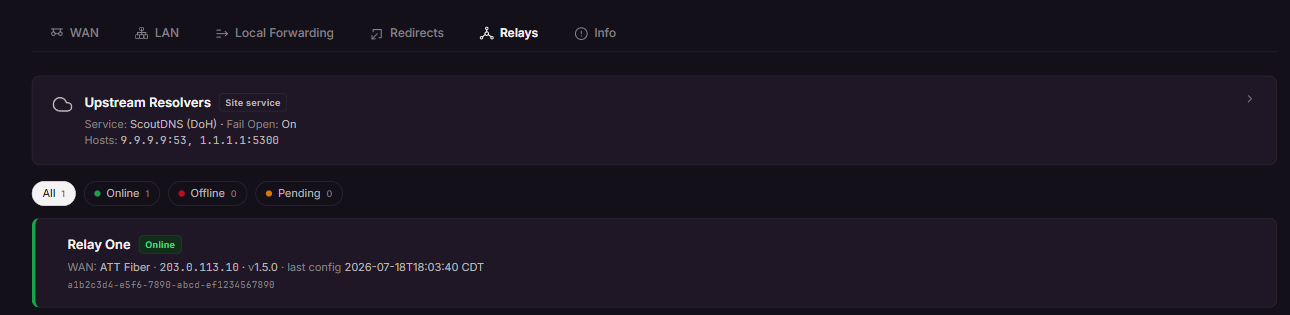
The relay cards below the status filters show each relay’s status badge, its WAN, and its version.
- The Upstream Resolvers card at the top sets the encrypted-DNS service the site falls through to, a Fail Open toggle, and fallback hosts. Fail Open on means DNS is allowed to fall through to that path rather than failing closed.
- A banner and the Pending filter surface relays waiting to be adopted. Clicking a pending relay opens Adopt Relay, where you name it and confirm.
- Adopted relays show a status badge (Online, Offline, Adopting, or Not adopted), and an amber Disabled badge if the relay is on the network but turned off. Clicking a relay opens its editor (name, description, enabled, dynamic WAN, and a Forget Relay action).
For the full setup walkthrough, see Relay setup and configure.
[!TIP] An adopted relay can still serve no DNS if it’s disabled, look for the amber Disabled badge and turn Enabled on in the relay’s editor. A relay that shows Adopting is syncing and takes a couple of minutes; its card is intentionally not clickable during that window.
Info
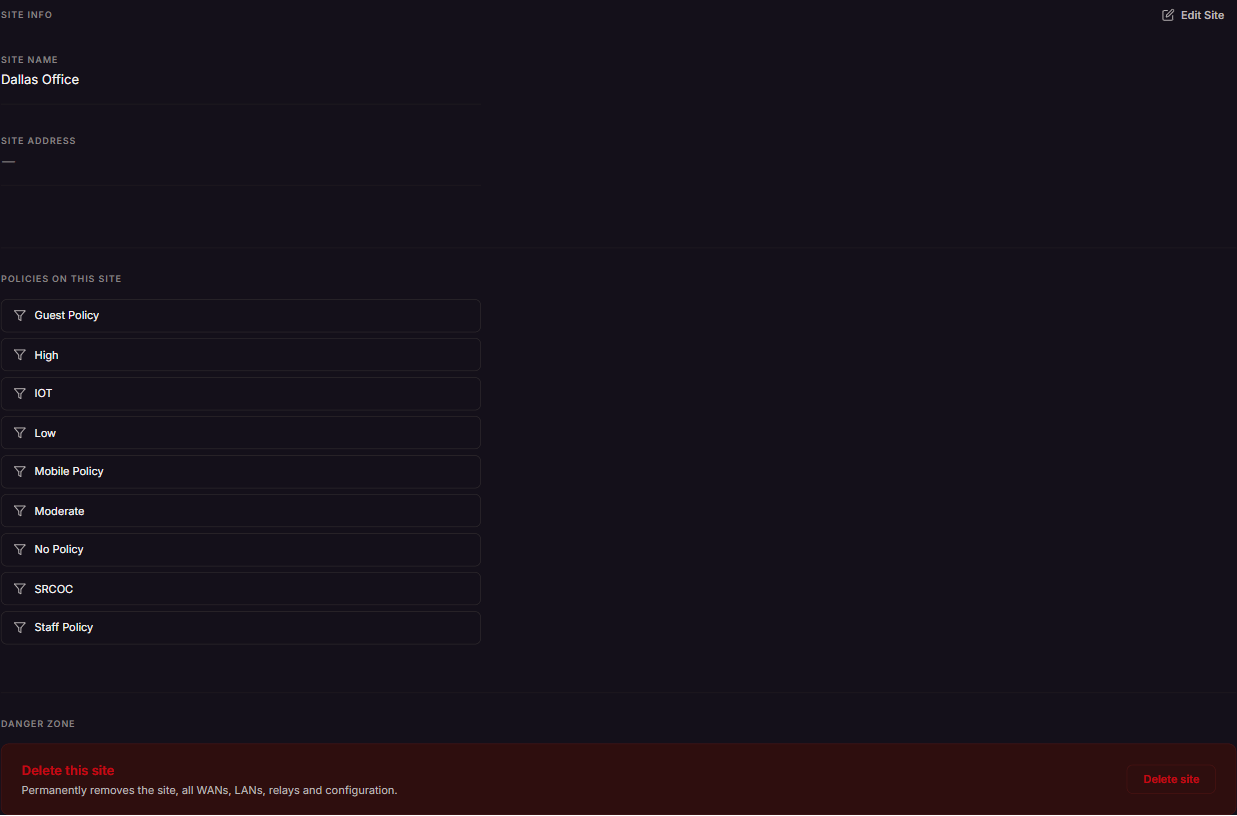
The Info tab shows the site’s name and address (editable via Edit Site), lists the policies in use at the site, and has a Danger zone with Delete site. Deleting a site permanently removes it along with all its WANs, LANs, relays, and configuration.
FAQ
Why can’t I click the LAN, Local Forwarding, or Redirects tabs? Those features need a relay at the site. Register a relay on the Relays tab and the tabs unlock, you don’t have to finish adopting it first.
A site shows healthy but I know a WAN was down earlier. The Sites list and site status are current-state. Use the site’s dashboard range picker and WAN troubleshooting for history.
I clicked Save on a WAN and nothing happened. Check that a valid policy is selected. A WAN won’t save without one resolvable, distinct policy.
What’s the difference between a WAN’s Public IP and Dynamic DNS hostname? They’re the same underlying setting. Use the hostname when the WAN’s public IP changes; see Dynamic IP setup.
Related
- Quickstart: WAN forwarding, pointing a WAN’s DNS at ScoutDNS
- Relay setup and configure, adopting and configuring on-premise relays
- Dynamic IP setup, WANs on a changing public IP
- Mixing DNS providers, split-DNS and local resolver scenarios
- Working with policies, the policies assigned to WANs and LANs
- Custom block pages, the block page assigned per WAN
- Troubleshoot: WAN shows as Down