Browse Admin Console
- Dashboard overview
- Insights overview
- Sites Overview - Network Deployments
- Policies Overview - Create and Edit
- Custom Lists overview
- Clients Overview - Device Agents and Profiles
- Users Overview - Directory Users and Personas
- Organizations Overview - MSP Tenant Management
- Lookup Tool Overview
- Query Log Overview
- Settings Overview - Account Administration
- Help & Support Overview
- Signing In - Login, 2FA, and Password Reset
- Two-factor authentication (2FA)
- Add system users (role-based access)
- Check domain classification with the Lookup Tool
- Configurable objects and their associations
- Configure notifications
- Working with organizations (multi-tenant)
- Working with policies
- Content categories
- Security categories
- Application categories (Zero Trust app management)
- Working with allow and block lists
- Zero Trust TLD Filters
- Safe Search explained
- Safe Search supported search engines
- YouTube Restricted Mode explained
- Custom block pages
- Prevent DNS bypass
- Don't mix DNS providers
- Active Directory group policies
- Entra ID group policies
- Tracking individual users
Users Overview - Directory Users and Personas
See every directory user from AD and Entra ID, drill into per-user activity, and build personas that map directory groups to policies.
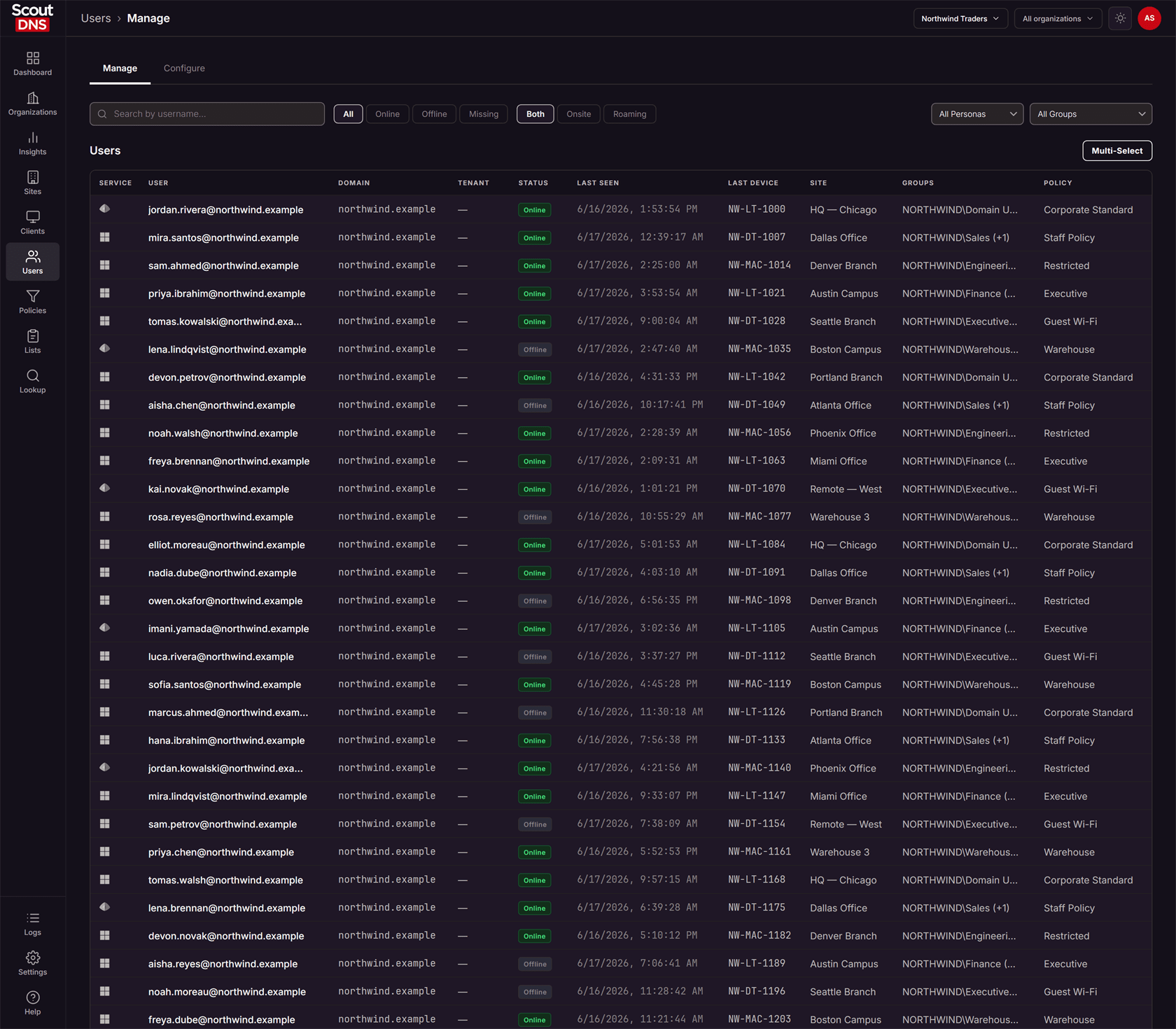
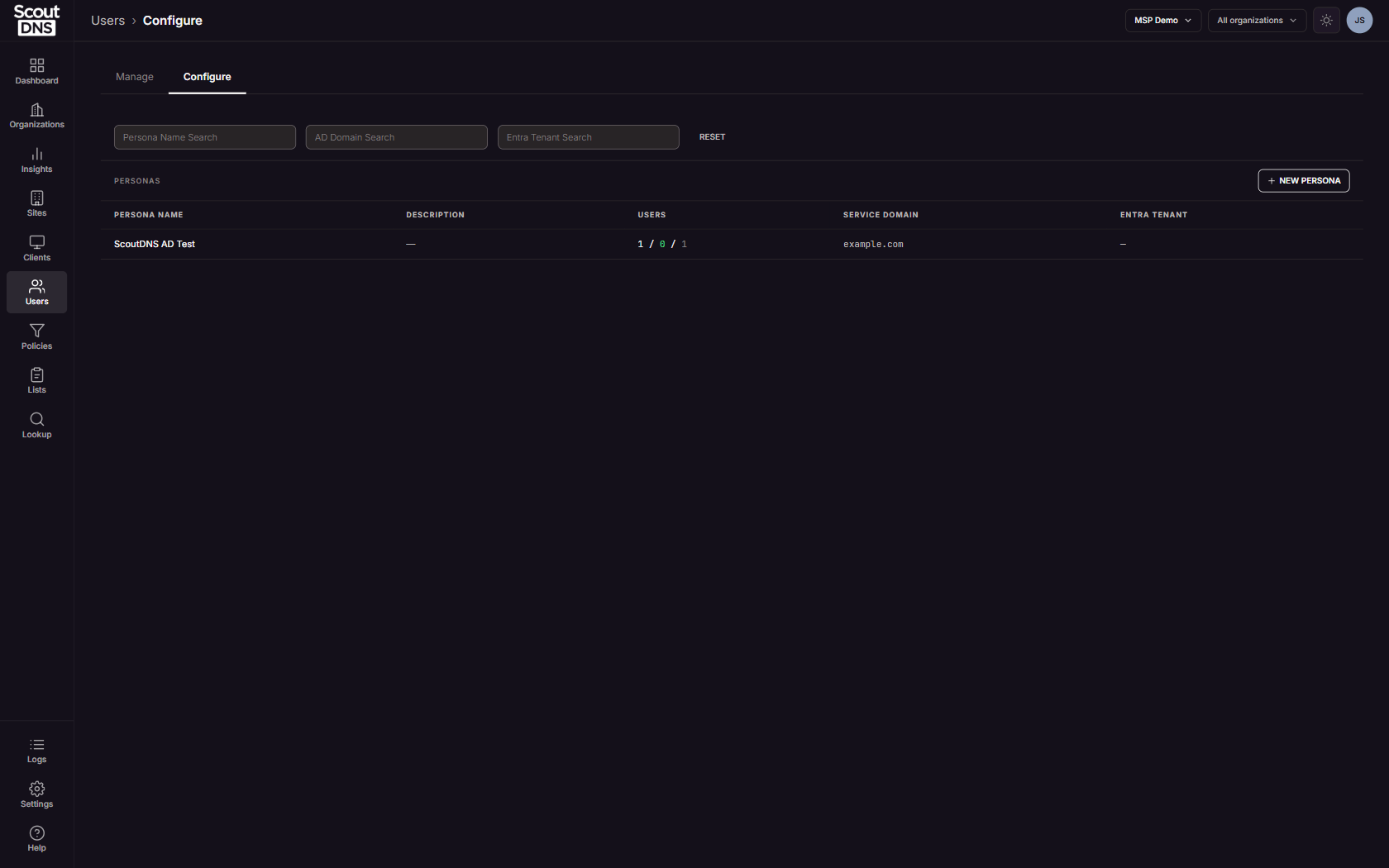
The Users page shows every directory user ScoutDNS knows about, from on-prem Active Directory (synced by the Windows agent) and Microsoft Entra ID, and controls how those users map to DNS policy. It has two tabs. Manage is the user inventory: who each user is, where they were last seen, their groups, and the policy applying to them, with a per-user activity dashboard. Configure is where personas live: a persona binds an AD domain or Entra tenant to ScoutDNS and maps directory groups to policies, which is how group membership turns into per-user filtering.
[!NOTE] Users cannot be added by hand. The inventory is discovered from your directory: AD users surface through the Windows agent, Entra ID users through tenant sync. Per-user activity attribution requires the current Windows agent on the device.
The user inventory
The toolbar filters by status (All / Online / Offline / Missing), location (Both / Onsite / Roaming), persona, and group, with a search box matching username. Large directories load 100 users at a time; use Load 100 more at the bottom of the table to fetch the next page. Each row shows the source directory (Windows or Entra ID icon), the user, their domain or tenant, status, last seen time, last device, site, groups, and current policy.
Click a user to open their drawer:
- A collapsible Dashboard (1h to 30d): an Activity chart of allowed and blocked requests, Top Categories with up to five selectable series, and a Threats grid that flags “BLOCKED” hits.
- Info: username, principal name, tenant, full group list, persona, service, and policy, alongside the last session’s device, site, and IPs.
- Sessions: recent sign-in history with device, site, and IPs.
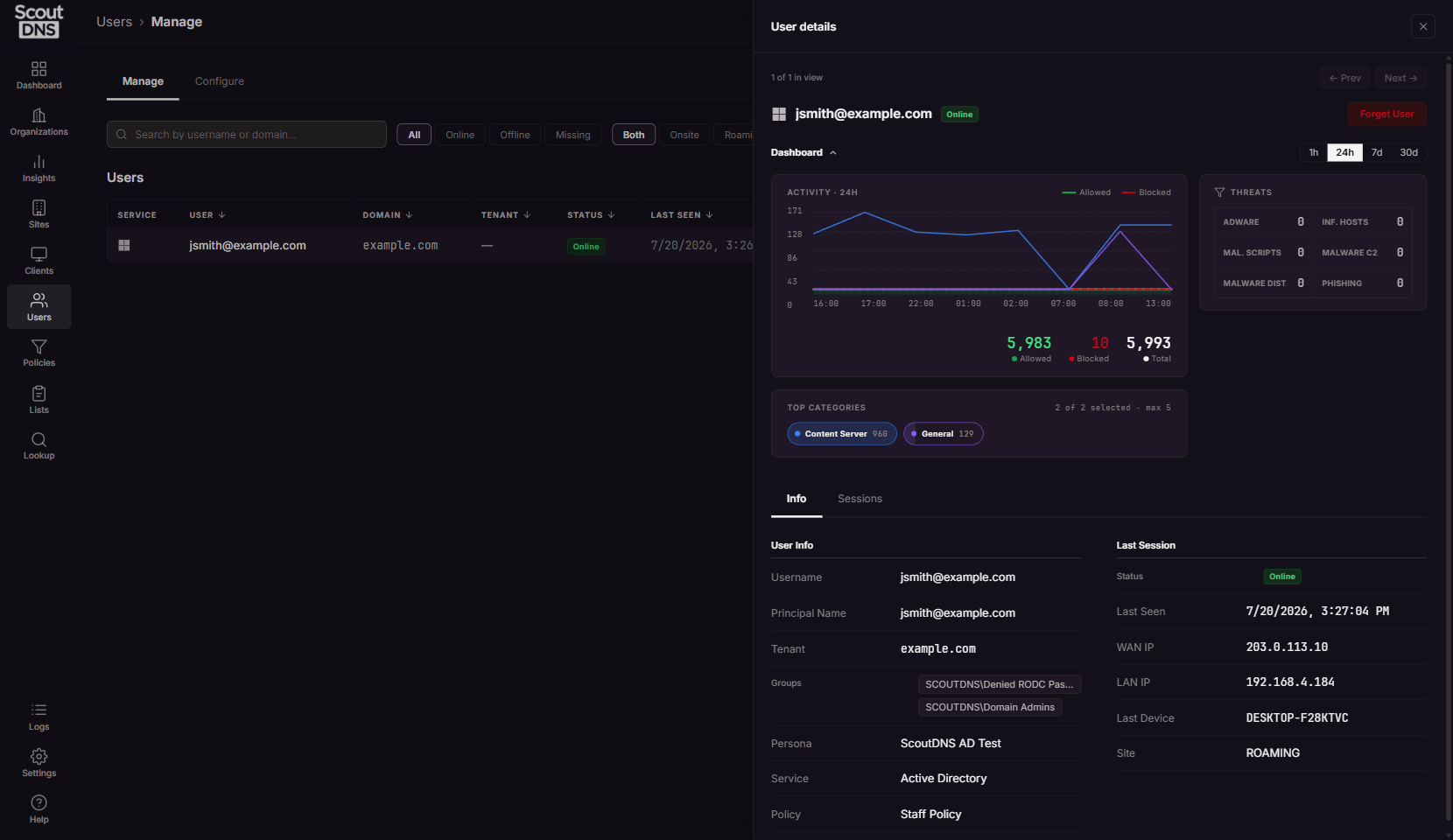
The only action on a user is Forget User (or bulk Forget via Multi-Select, Admin and above). Forgetting removes the record from the console; if the user still exists in your directory, they reappear on the next sync.
Personas: group-based policies
A persona connects one directory (an AD domain or an Entra tenant) to ScoutDNS and carries an ordered list of Configured Groups, each mapped to a policy. When a user signs in on a device running the agent, ScoutDNS matches their group memberships against the persona’s configured groups and applies the highest-priority match’s policy.
[!IMPORTANT] Persona policies apply only on devices whose profile has Enable User Policies switched on. If a persona seems to have no effect, check the device’s profile first; see Clients Overview.
Create a persona
NEW PERSONA takes a name, a Service (Entra ID or Active Directory), and the tenant or domain to bind. For Entra ID, an Add a new Entra tenant option walks through Microsoft’s admin-consent flow in the same window and returns here, after which the tenant appears in the dropdown.
Map groups to policies
Open a persona and switch to its directory tab. Observed Groups lists what ScoutDNS sees in your directory; Edit Groups lets you move groups into Configured Groups, assign each a Policy, and order them by priority (Pri.).
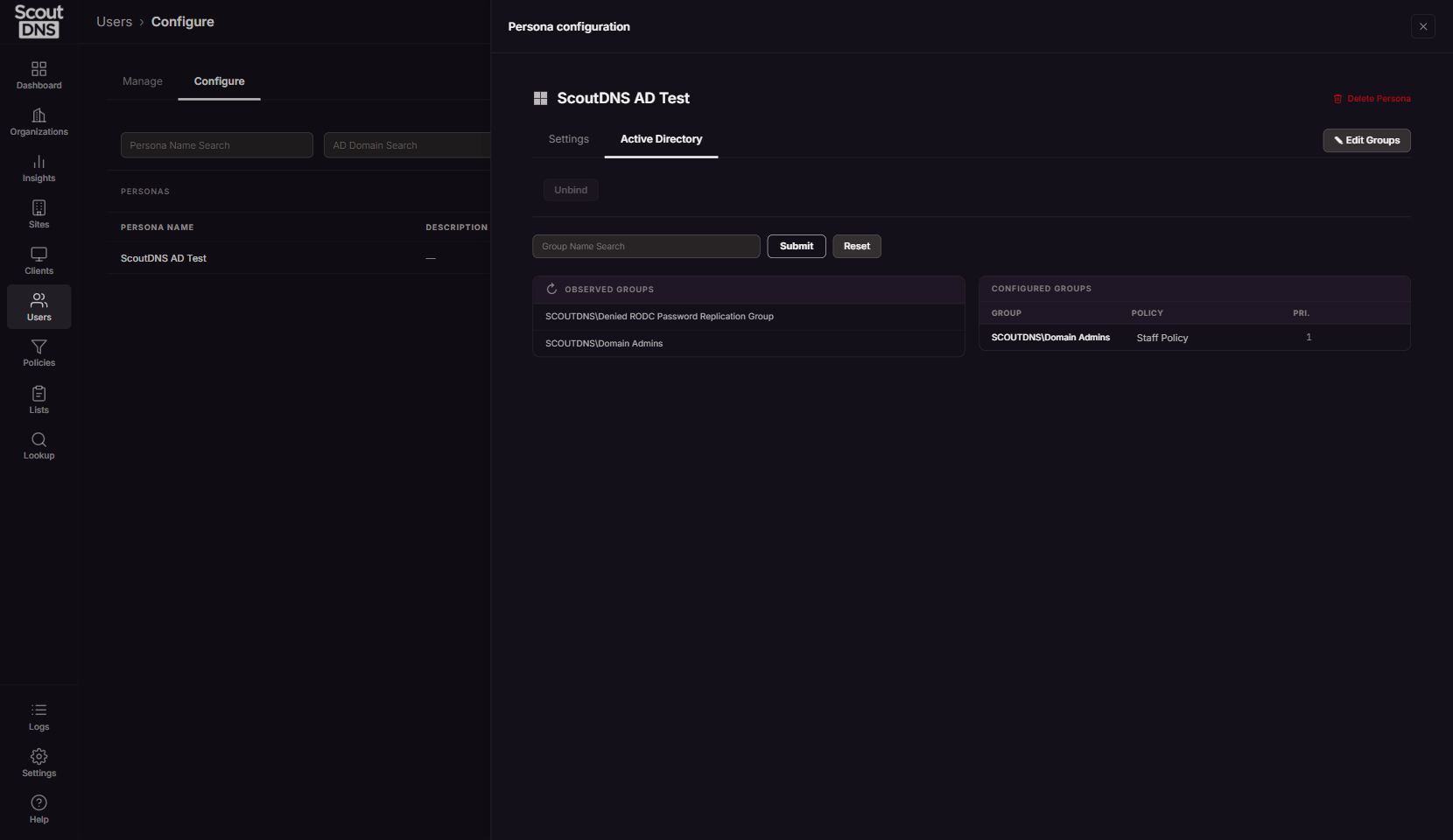
Order matters: a user in several configured groups gets the highest-priority match. Use the arrows to reorder; the priority numbers follow.
On the Entra tab, Sync with Entra refreshes group data on demand, with the last sync time shown beneath. AD group data arrives through the agent, so there is no manual AD sync button.
A persona’s directory binding is permanent: to point a persona at a different domain or tenant, delete it and create a new one. Delete Persona removes it entirely (with a confirmation).
FAQ
I forgot a user and they came back. Forget only clears the console record. Users are rediscovered from the directory on the next sync. To stop filtering for a user, change the persona or group mapping instead.
A user shows no activity but I know they are online. Per-user attribution needs the current Windows agent on their device. Devices on older agents report by hostname and IP only, so the traffic exists but is not tied to the user. See Tracking individual users.
My persona isn’t applying policies. Check three things in order: the device’s profile has Enable User Policies on, the user actually appears in one of the persona’s Configured Groups (not just Observed), and the group’s priority isn’t losing to a higher-priority group with a different policy.
A user is in two configured groups. Which policy wins? The higher-priority group (lower Pri. number). Reorder with the arrows in Edit Groups.
What does Missing mean for a user? Their agent has gone quiet for longer than expected. Offline is normal for a signed-out or powered-down device; Missing is worth a look.
Related
- Clients Overview - Device Agents and Profiles, the devices and profiles personas act through
- Configure Active Directory policies
- Configure Entra ID policies
- Tracking individual users, how per-user attribution works
- Insights overview, filtering activity by user