Browse Admin Console
- Dashboard overview
- Insights overview
- Sites Overview - Network Deployments
- Policies Overview - Create and Edit
- Custom Lists overview
- Clients Overview - Device Agents and Profiles
- Users Overview - Directory Users and Personas
- Organizations Overview - MSP Tenant Management
- Lookup Tool Overview
- Query Log Overview
- Settings Overview - Account Administration
- Help & Support Overview
- Signing In - Login, 2FA, and Password Reset
- Two-factor authentication (2FA)
- Add system users (role-based access)
- Check domain classification with the Lookup Tool
- Configurable objects and their associations
- Configure notifications
- Working with organizations (multi-tenant)
- Working with policies
- Content categories
- Security categories
- Application categories (Zero Trust app management)
- Working with allow and block lists
- Zero Trust TLD Filters
- Safe Search explained
- Safe Search supported search engines
- YouTube Restricted Mode explained
- Custom block pages
- Prevent DNS bypass
- Don't mix DNS providers
- Active Directory group policies
- Entra ID group policies
- Tracking individual users
Custom Lists overview
Your own DNS rules alongside ScoutDNS's built-in categories: allow/block domain lists and Zero Trust TLD Filters, and how they apply through policies.
Custom Lists is where you manage your account’s own DNS rules, supplementing the built-in threat and content categories your policies apply. The page has two tabs, one per kind of rule set:
- Allow/Block lists: named collections of domain rules that force-allow or force-block specific hostnames (or a domain and all of its subdomains), overriding category decisions for those domains.
- Zero Trust TLD Filters (the TLD Filter tab): a trusted/untrusted split of whole top-level domains (
.com,.ru,.zip). Queries to untrusted TLDs are blocked outright; trusted TLDs still get the policy’s full filtering treatment.
Neither does anything on its own. A list or filter takes effect through your policies: a policy references it, or, for an allow/block list, you mark it global so it applies to every policy automatically.
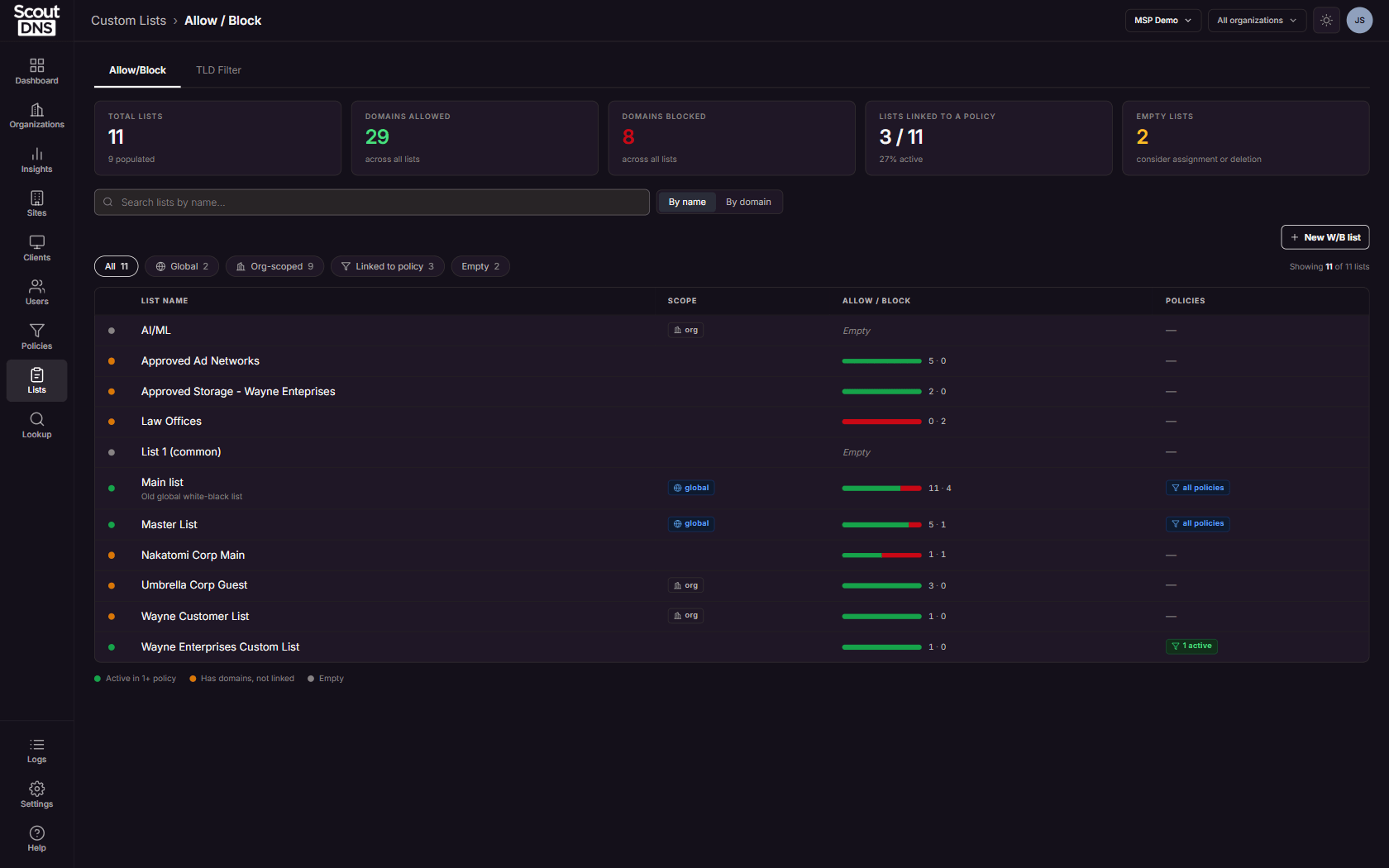
The Allow/Block tab opens on a table of your lists with summary cards for how many lists you have, how many domains are allowed and blocked, how many lists are linked to a policy, and how many are empty. The status dot on each row tells you at a glance whether it is active in a policy, populated but unlinked, or empty.
[!NOTE] Everyone can view Custom Lists. Creating, editing, and deleting lists and their rules requires a role with write access; viewer and service-desk roles are read-only.
Allow/Block lists
Each list holds allow and block rules with two match types: Match covers one exact hostname, Subtree covers a domain and every subdomain under it. Lists attach to specific policies, or apply everywhere as a global list. The page can also search across all lists by domain to show exactly which rule wins for a hostname.
Full guide: Working with allow and block lists.
Zero Trust TLD Filters
Instead of chasing known-bad TLDs with a block list, a Zero Trust TLD Filter trusts only the TLDs your users actually need and blocks everything else on sight, shrinking your attack surface against zero-day and short-lived domains. Trusted TLDs are not exempt from anything: every domain on them still goes through the policy’s full filtering. A built-in generator can build the trusted set from your organization’s own traffic.
Full guide: Zero Trust TLD Filters.
FAQ
I made a list but nothing is being filtered. A list or filter only takes effect when a policy references it. Attach it to a policy, or mark an allow/block list global.
Where do domains from my logs end up? The Add to List action on Insights and Query Log rows adds a domain straight to an allow/block list; see Working with allow and block lists.
Related
- Working with allow and block lists
- Zero Trust TLD Filters
- Policies Overview - Create and Edit, where lists and filters attach to policies
- Insights overview, where Add to List starts